如何选择Outlook下载到您计算机的邮件数量

You might think that Outlook will display all of your mail (after all, why wouldn’t it) but by default, the Outlook client only keeps the last year of email on your computer. All of your mail still exists on the Microsoft Exchange server but it’s not visible on Outlook. Here’s why Microsoft sets this default and how to change it if you want.
您可能会认为Outlook将显示您的所有邮件(毕竟,为什么不显示),但是默认情况下,Outlook客户端仅将最后一年的电子邮件保留在您的计算机上。 您的所有邮件仍然存在于Microsoft Exchange服务器上,但在Outlook中不可见。 这就是Microsoft设置此默认值的原因,以及如果需要的话如何更改它。
Note: The following information covers all versions of Outlook from 2013-2019, including Outlook 365. It also only applies if you’re connecting to a Microsoft Exchange server, and that includes if you connect to Hotmail or Outlook.com. If you connect to another service, like Gmail or a personal mail server, you can configure these options, but Outlook will ignore them.
注意 :以下信息涵盖了2013-2019年的所有版本的Outlook,包括Outlook 365.该信息仅在连接到Microsoft Exchange服务器时适用,并且在连接到Hotmail或Outlook.com时也适用。 如果您连接到其他服务(例如Gmail或个人邮件服务器),则可以配置这些选项,但是Outlook会忽略它们。
Outlook为什么不显示我的所有邮件? (Why Doesn’t Outlook Show All of my Mail?)
When you install Microsoft Office, it checks your disk size to make sure you have enough space to install all of the applications. It also uses that check to set a parameter in Outlook that determines how much mail will be downloaded to your local machine, based on the following disk sizes:
在安装Microsoft Office时,它将检查磁盘大小以确保您有足够的空间来安装所有应用程序。 它还使用该检查在Outlook中设置参数,该参数根据以下磁盘大小确定将多少邮件下载到本地计算机:
Less than or equal to 32 GB: Outlook retains one month of email on your system.
小于或等于32 GB: Outlook在您的系统上保留一个月的电子邮件。
Between 32 and 64 GB (not inclusive): Outlook retains three months of email.
在32 GB和64 GB之间(不包括): Outlook保留三个月的电子邮件。
Equal to or greater than 64 GB: Outlook retains 12 months of email.
等于或大于64 GB: Outlook保留12个月的电子邮件。
Microsoft does this because mail takes up space on your hard disk, and if you’ve only got a small hard disk, you probably don’t want much of it taken up with a few large files someone emailed you two years ago. Outlook still downloads all of your calendar appointments, contacts, tasks, and everything else. This limit only affects your mail (and your RSS feeds).
Microsoft之所以这样做,是因为邮件占用了您硬盘上的空间,如果您只有一个小硬盘,您可能不希望其中的大部分文件被两年前有人通过电子邮件发送给您的大文件占用。 Outlook仍会下载您所有的日历约会,联系人,任务以及其他所有内容。 此限制仅影响您的邮件(和RSS提要)。
If your mail account uses a Microsoft Exchange server (like Hotmail, Microsoft Live, O365, or a lot of corporate mail systems), then this parameter will determine how much mail is downloaded to your computer. If you’re using a different mail provider, like Google or Yahoo, Outlook ignores this parameter and downloads all of your mail.
如果您的邮件帐户使用Microsoft Exchange服务器(例如Hotmail,Microsoft Live,O365或许多公司邮件系统),则此参数将确定将多少邮件下载到您的计算机。 如果您使用的是其他邮件提供商,例如Google或Yahoo,则Outlook会忽略此参数并下载所有邮件。
我的邮件在哪里以及如何访问它? (Where is My Mail and How Do I Access It?)
The good news is that your mail hasn’t gone anywhere; it’s still on your email server. (If you’re not sure what an email server is, the short answer is that it’s a powerful computer with a large hard disk on which your email provider stores all of your mail. We’ve written a longer answer, which is worth reading.) You can access your mail at any time (as long as you have internet access) either through Outlook or, depending on your version of Outlook, through a web interface.
好消息是您的邮件没有发送到任何地方。 它仍然在您的电子邮件服务器上。 (如果您不确定什么是电子邮件服务器,简单的答案是这是一台功能强大的计算机,具有大硬盘,电子邮件提供商可以在其中存储所有邮件。我们写了更长的答案 ,值得阅读。)您可以随时通过Outlook或通过Web界面(取决于Outlook版本)随时访问邮件(只要您可以访问Internet)。
To see your mail in Outlook, scroll down to the bottom of the folder. If there are more emails on the email server, you’ll see a message letting you know.
要在Outlook中查看您的邮件,请向下滚动到该文件夹的底部。 如果电子邮件服务器上还有更多电子邮件,您将看到一条消息,通知您。
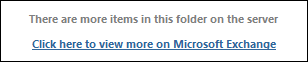
Hit “Click here to view more on Microsoft Exchange,” and Outlook will download the rest your emails to your computer. Make sure you’ve got adequate disk space to download them all!
点击“单击此处以在Microsoft Exchange上查看更多信息”,Outlook会将您剩余的电子邮件下载到计算机上。 确保您有足够的磁盘空间来下载所有磁盘!
If you’ve got Office 365, you can also access your emails through the Outlook web app. Because the web app is essentially just a window into the Exchange Server, it will show you all of your emails. If you’re using Outlook at work, your IT support people should be able to help you access the Outlook web app. If you’re at home, head over to Office.com and sign in there. You can access Outlook—and any other web apps to which you have access—once you’re logged in.
如果您拥有Office 365,则还可以通过Outlook Web App访问电子邮件。 因为该Web应用程序实质上只是通向Exchange Server的窗口,所以它将向您显示所有电子邮件。 如果您在工作中使用Outlook,则IT支持人员应该能够帮助您访问Outlook Web App。 如果您在家,请转到Office.com并在此登录。 登录后,您就可以访问Outlook以及您有权访问的任何其他Web应用程序。
我可以更改默认值吗? (Can I Change the Default Value?)
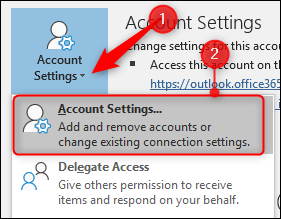
Yes, you can. In Outlook, head to File > Account Settings and then select “Account Settings” from the drop-down menu.
是的你可以。 在Outlook中,转到“文件”>“帐户设置”,然后从下拉菜单中选择“帐户设置”。
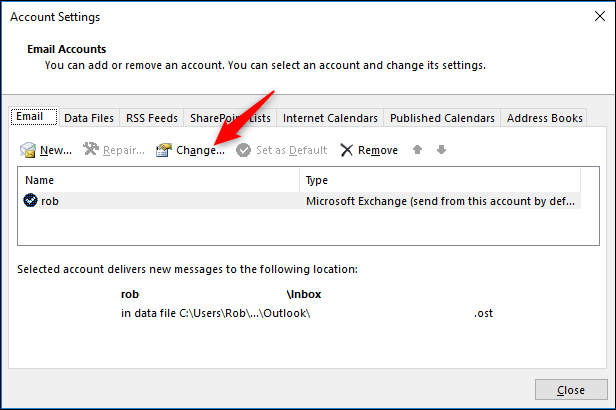
In the Account Settings window, select the account for which you want to change the default (you’ve probably only got one account) and then click the “Change” button.
在“帐户设置”窗口中,选择要更改其默认值的帐户(您可能只有一个帐户),然后单击“更改”按钮。
In the Change Account window that opens, you’ll see that the “Use Cached Exchange Mode” is enabled. You must leave this enabled, otherwise, no mail will be downloaded to your computer. Move the “Mail to keep offline” slider to the period you want.
在打开的“更改帐户”窗口中,您将看到“使用缓存的Exchange模式”已启用。 您必须保持启用状态,否则,不会有邮件下载到您的计算机。 将“邮件保持脱机状态”滑块移至所需时间。
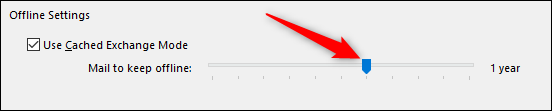
The options are:
选项包括:
- Three days 三天
- One week 一周
- Three weeks 3周
- One month 一个月
- Three months 三个月
- Six months 六个月
- One year 一年
- Two years 两年
- Five years 5年
- All 所有
Note: The three days, one week, and two weeks options aren’t available in Office 2013, but they are in later versions.
注意:三天,一周和两周的选项在Office 2013中不可用,但在更高版本中。
Choose “All” if you want Outlook to download all of your mail to your computer, or choose whatever value works for you. (If you can’t change the slider then your administrator may have set this value deliberately and stopped you from changing it.)
如果希望Outlook将所有邮件下载到计算机上,请选择“全部”,或者选择适合您的值。 (如果您无法更改滑块,则您的管理员可能已经故意设置了该值,并阻止了您对其进行更改。)
Once you’ve made your selection click “Next” and Outlook warns you that it needs to restart.
做出选择后,单击“下一步”,Outlook会警告您需要重新启动。
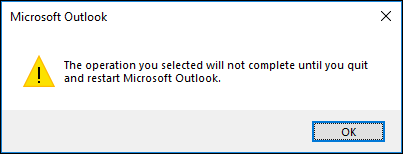
Click “OK,” close the Account Settings window, and then restart Outlook. Depending on the amount of mail it has to download, Outlook might take a little while to update each folder. You’ll see a message at the bottom of Outlook as it downloads mail into each folder.
单击“确定”,关闭“帐户设置”窗口,然后重新启动Outlook。 根据下载的邮件数量,Outlook可能需要一些时间来更新每个文件夹。 当Outlook将邮件下载到每个文件夹时,您会在其底部看到一条消息。

And that’s it; you’re done. Outlook will now download all of your mail (or however much you selected) from now on.
就是这样; 你完成了。 从现在开始,Outlook现在将下载所有邮件(或选择的邮件数量)。
翻译自: https://www.howtogeek.com/369713/how-to-choose-how-much-mail-outlook-downloads-to-your-computer/

DAMO开发者矩阵,由阿里巴巴达摩院和中国互联网协会联合发起,致力于探讨最前沿的技术趋势与应用成果,搭建高质量的交流与分享平台,推动技术创新与产业应用链接,围绕“人工智能与新型计算”构建开放共享的开发者生态。
更多推荐

 0
0 0
0- 0


 已为社区贡献5条内容

所有评论(0)