prometheus+node_exporter+grafana+alertManager+prometheus-webhook-dingtalk实现服务器监控显示,钉钉机器人告警消息通知
1.下载prometheus安装
① 从 https://prometheus.io/download/ 下载相应版本,安装到服务器上官网提供的是二进制版,解压就能用,不需要编译
[root@loaclhost ~]# tar xf prometheus-2.5.0.linux-amd64.tar.gz -C /usr/local/
[root@loaclhost ~]# mv /usr/local/prometheus-2.5.0.linux-amd64/ /usr/local/prometheus

直接使用默认配置文件启动 默认端口为:9090
[root@loaclhost ~]# /usr/local/prometheus/prometheus --
config.file="/usr/local/prometheus/prometheus.yml" &

确认端口(9090)
[root@loaclhost ~]# lsof -i:9090
② 通过浏览器访问http://服务器IP:9090就可以访问到prometheus的主界面
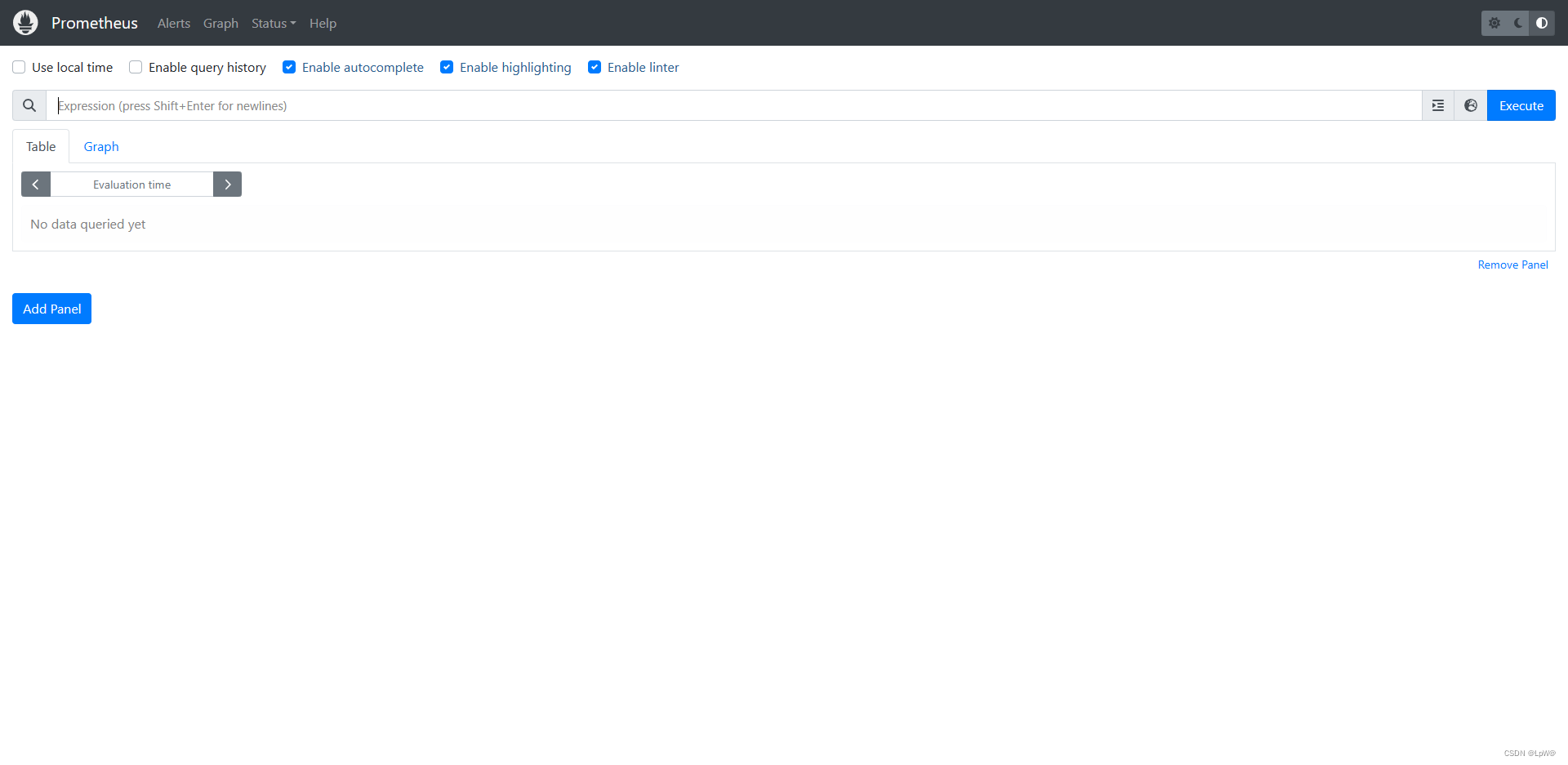
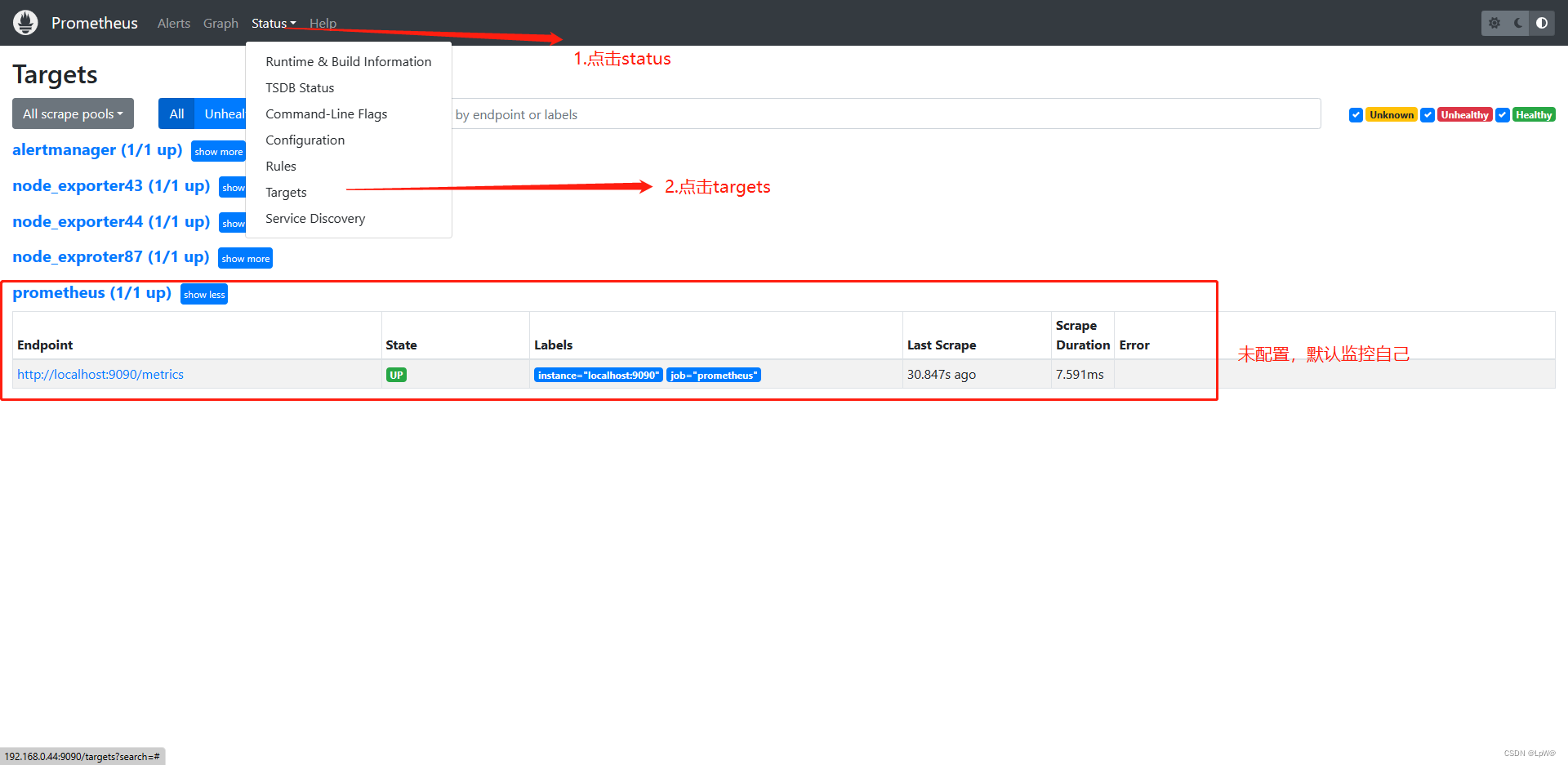
默认只监控了本机一台,点Status --》点Targets --》可以看到只监控了本机
2.安装node_exporter组件
①从 https://prometheus.io/download/ 下载相应版本,安装到服务器上官网提供的是二进制版,解压就能用,不需要编译
[root@loaclhost ~]# tar xf node_exporter-0.16.0.linuxamd64.tar.gz -C /usr/local/
[root@loaclhost ~]# mv /usr/local/node_exporter-0.16.0.linuxamd64/ /usr/local/node_exporter
里面就一个启动命令node_exporter,可以直接使用此命令启动
[root@loaclhost ~]# ls /usr/local/node_exporter/
LICENSE node_exporter NOTICE
默认端口为(9100)
[root@loaclhost ~]# nohup /usr/local/node_exporter/node_exporter >/dev/null 2>& 1 &
确认端口(9100)
[root@loaclhost ~]# lsof -i:9100

补充:端口有冲突可使用 nohup /usr/local/node_exporter --web.listen-address=:9010 >/dev/null 2>& 1 &
																		  9010可以按自己意愿指定端口号
②通过浏览器访问http://被监控端IP:9100/metrics 就可以查看到node_exporter在被监控端收集的监控信息

③回到prometheus服务器的配置文件里添加被监控机器的配置段
在主配置文件最后加上下面三行
[root@loaclhost ~]# vim /usr/local/prometheus/prometheus.yml
- job_name: 'agent1' # 取一个job名称来代
表被监控的机器
static_configs:
- targets: ['10.1.1.14:9100'] # 这里改成被监控机器
的IP,后面端口接9100
改完配置文件后,重启服务
[root@loaclhost ~]# pkill prometheus
[root@loaclhost ~]# lsof -i:9090 # 确认端口没有进程占
用
[root@loaclhost ~]# /usr/local/prometheus/prometheus --config.file="/usr/local/prometheus/prometheus.yml" &
[root@loaclhost ~]# lsof -i:9090 # 确认端口被占用,说
明重启成功
下面附上我的进行参考:
#Alertmanager configuration 报警相关配置
#rule_files 报警规则相关配置
# my global config
global:
  scrape_interval: 5s # Set the scrape interval to every 15 seconds. Default is every 1 minute.
  evaluation_interval: 15s # Evaluate rules every 15 seconds. The default is every 1 minute.
  # scrape_timeout is set to the global default (10s).

# Alertmanager configuration
alerting:
  alertmanagers:
    - static_configs:
        - targets:
          - 127.0.0.1:9093

# Load rules once and periodically evaluate them according to the global 'evaluation_interval'.
rule_files:
  # - "first_rules.yml"
  # - "second_rules.yml"
    - "rules/*.yml"

# A scrape configuration containing exactly one endpoint to scrape:
# Here it's Prometheus itself.
scrape_configs:
  # The job name is added as a label `job=<job_name>` to any timeseries scraped from this config.
  - job_name: "prometheus"

    # metrics_path defaults to '/metrics'
    # scheme defaults to 'http'.

    static_configs:
      - targets: ["localhost:9090"]
  - job_name: "node_exporter75"
    static_configs:
      - targets: ["192.168.0.75:9100"]
  - job_name: "node_exporter74"
    static_configs:
      - targets: ["192.168.0.74:9100"]
  - job_name: "ndoe_exporter73"
    static_configs:
      - targets: ["192.168.0.73:9100"]
  - job_name: "alertmanager"
    static_configs:
      - targets: ["192.168.0.75:9093"]
3.使用Grafana连接Prometheus
① 在服务器上安装grafana
下载地址:https://grafana.com/grafana/download
我这里选择的rpm包,下载后直接rpm -ivh安装就OK
[root@loaclhost ~]# rpm -ivh /usr/local/grafana-enterprise-9.3.6-1.x86_64.rpm
若有依赖问题:请使用 yum install /usr/local/grafana-enterprise-9.3.6-1.x86_64.rpm
启动服务(默认端口为3000)
[root@loaclhost ~]# systemctl start grafana-server
[root@loaclhost ~]# systemctl enable grafana-server
确认端口(3000)
[root@loaclhost ~]# lsof -i:3000
② 通过浏览器访问 http:// 安装服务器IP:3000 就到了登录界面,使用默认的admin用户,admin密码就可以登陆了,第一次登陆后要先重新设置密码。
③ 点击设置,选择数据源,添加数据源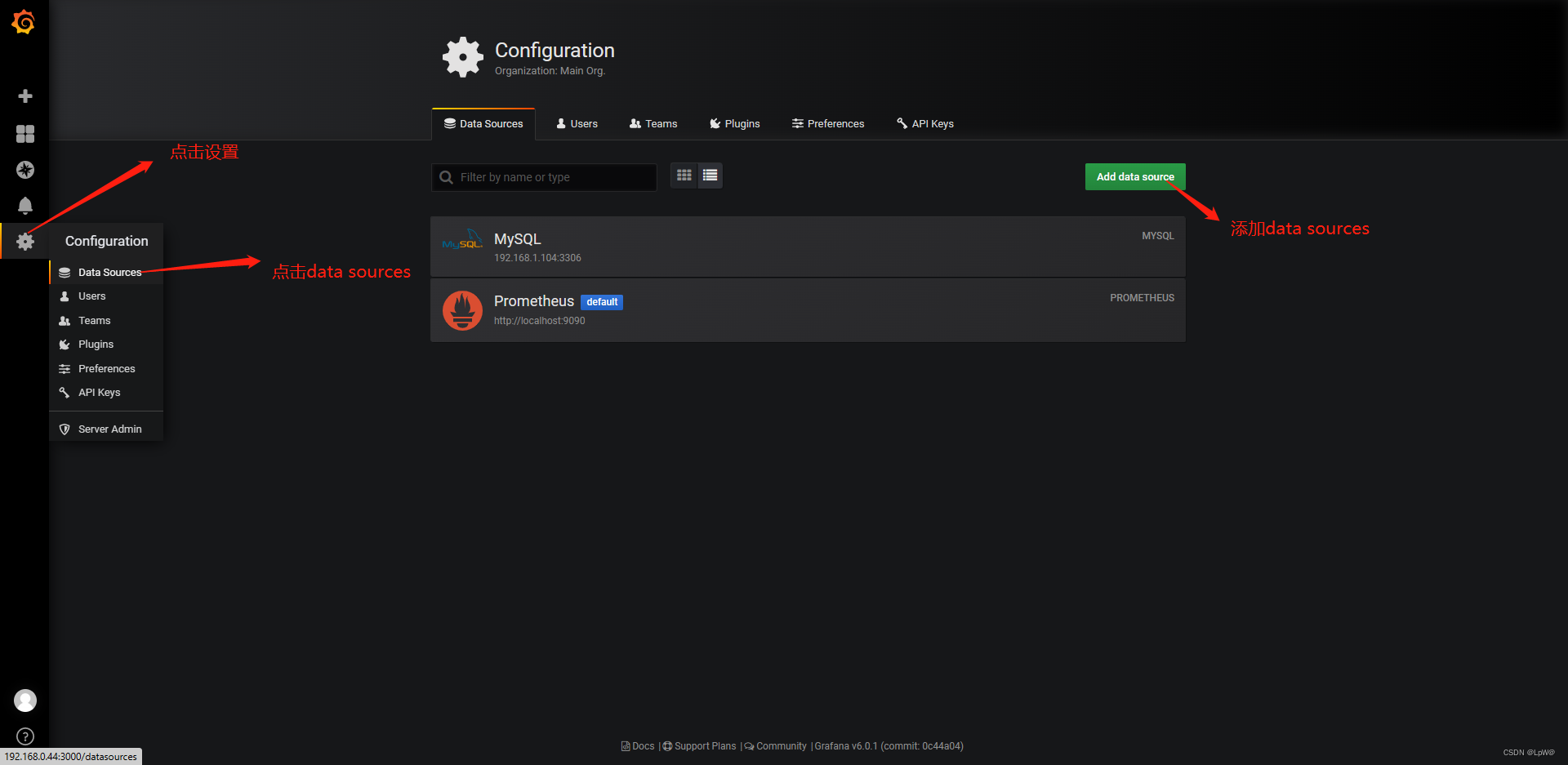
④ 选择普罗米修斯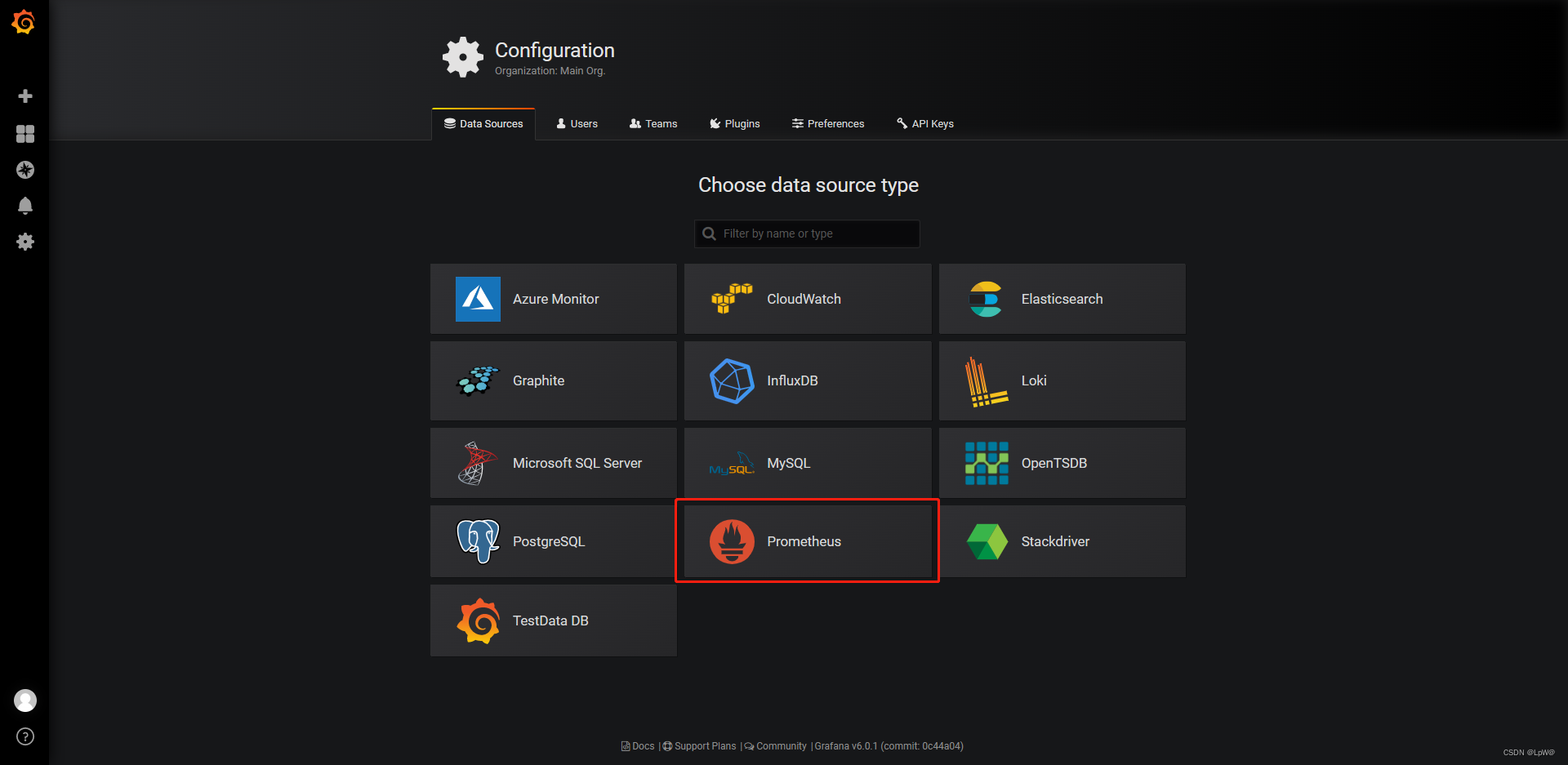
⑤ 参数设置 设置完后,保存测试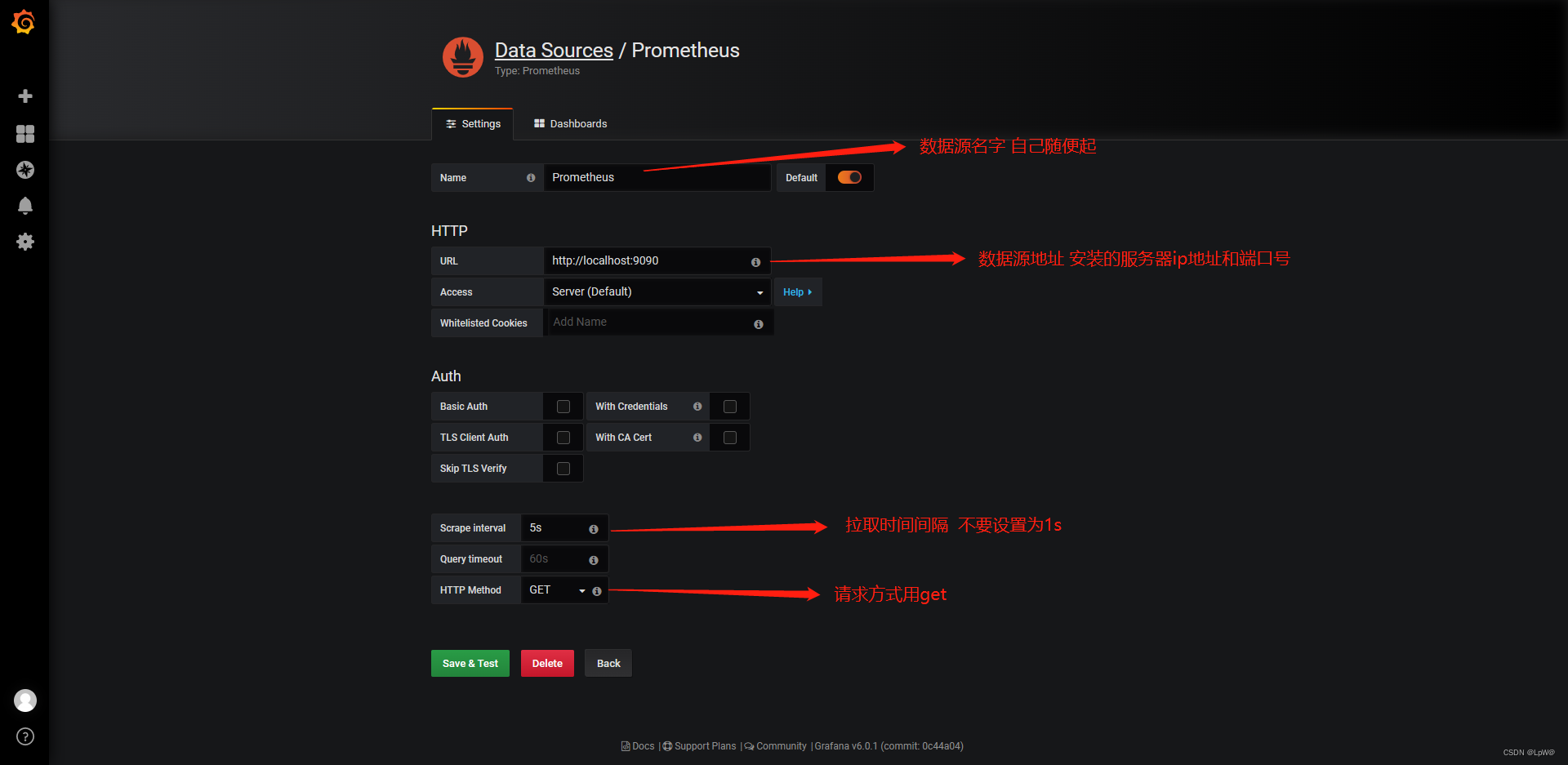
⑥ 直接导入监控模板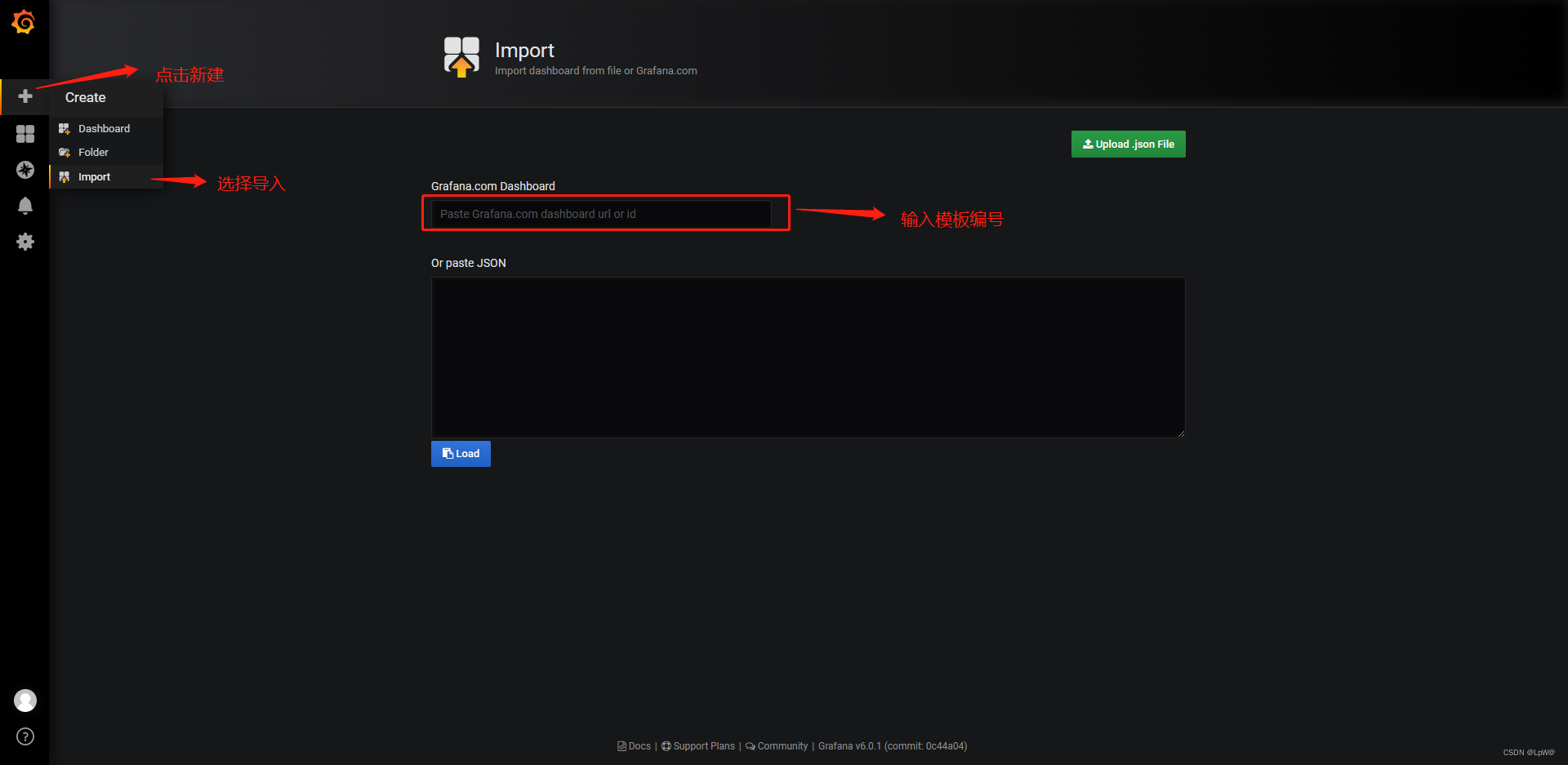
监控容器推荐ID 3146、8685、10000、8588
监控物理机/虚拟机(linux)推荐ID 8919、9276
监控物理机/虚拟机(windows)推荐ID 10467、10171、2129
⑥导入模板后选择数据源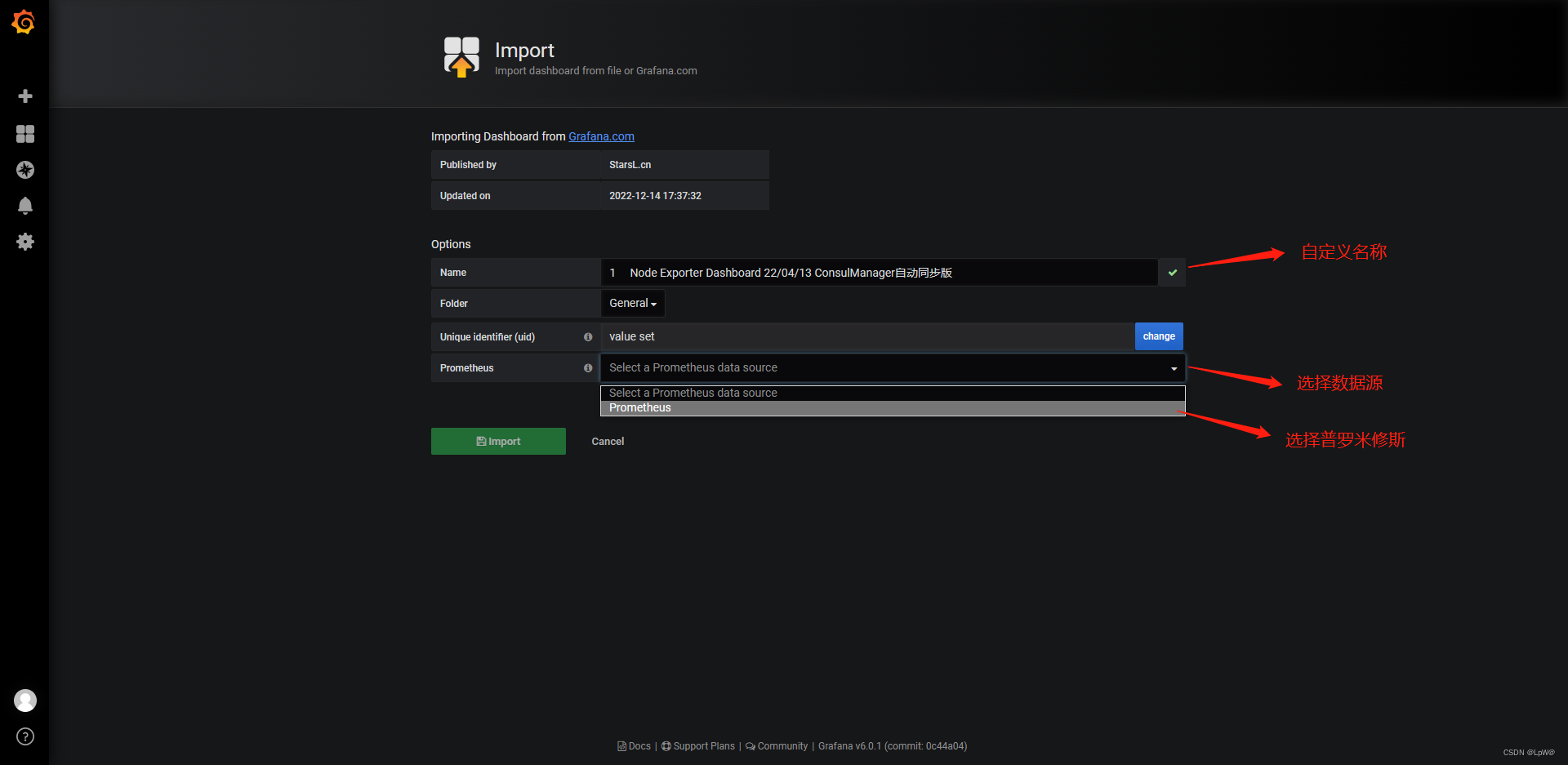
⑦ 查看效果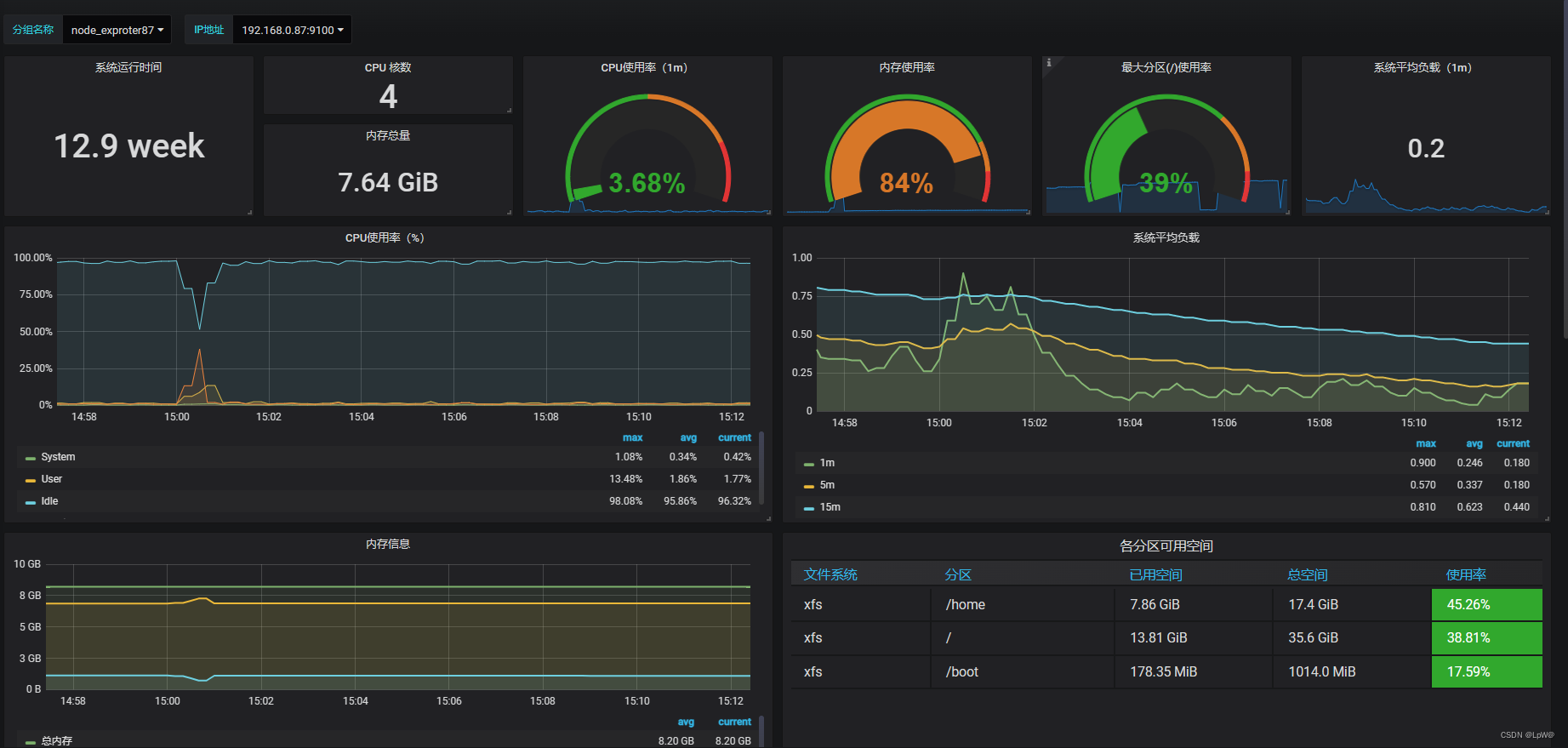
4.部署alertmanager
① #alertmanager下载
地址:https://prometheus.io/download/ 进入后下拉找到 alertmanager-0.25.0.linux-amd64.tar.gz 进行下载
上传到linux后解压
解压
tar xf alertmanager-xxxx.tar.gz
修改名称
mv alertmanager-0.24.0.linux-amd64 alertmanager
② 根据自己解压路径 进行配置如下文件 默认端口为(9093)
[root@loaclhost ~]# cat /usr/lib/systemd/system/alertmanager.service
[Unit]
Description=alertmanager
[Service]
ExecStart=/usr/local/alertmanager/alertmanager --config.file=/usr/local/alertmanager/alertmanager.yml
ExecReload=/bin/kill -HUP $MAINPID
KillMode=process
Restart=on-failure
[Install]
WantedBy=multi-user.target
③ 打开prometheus的配置文件进行修改(根据实际情况,有几个prometheus实例,都要修改)找到并修改为如下内容:
# Alertmanager configuration
alerting:
  alertmanagers:
  - static_configs:
    - targets:
      - 127.0.0.1:9093

# Load rules once and periodically evaluate them according to the global 'evaluation_interval'.
rule_files:
  # - "first_rules.yml"
  # - "second_rules.yml"
    - "rules/*.yml"
④ 创建规则目录,配置规则
mkdir -pv /usr/local/prometheus/rules
注意:这里列举两个常用的规则文件,其余根据实际情况自行修改(可以去prometheus的web页面上自己先查一遍,看表达式是否正确查出数据)
A、主机存活告警文件,分组名为servers_survival:
[root@loaclhost /usr/local/prometheus/rules]# cat servers_survival.yml
groups:
- name: servers_survival
  rules:
  - alert: 节点存活--测试--应用服务器   #告警规则名称
    expr:  up{job="hw-nodes-test-rancher"} == 0
    for: 1m    #等待评估时间
    labels:    #自定义标签,定义一个level标签,标记这个告警规则警告级别: critical严重,warning警告
      level: critical
    annotations:   #指定附加信息(邮件标题文本)
      summary: "机器 {{ $labels.instance }} 挂了"
      description: "服务器{{$labels.instance}} 挂了 (当前值: {{ $value }})"

  - alert: 节点存活--生产其他服务器
    expr:  up{job="hw-nodes-prod-other"} == 0
    for: 1m
    labels:
      level: critical
    annotations:
      summary: "机器 {{ $labels.instance }} 挂了"
      description: "{{$labels.instance}} 宕机(当前值: {{ $value }})"

  - alert: 节点存活--生产ES服务器
    expr:  up{job="hw-nodes-prod-ES"} == 0
    for: 1m
    labels:
      level: critical
    annotations:
      summary: "机器 {{ $labels.instance }} 挂了"
      description: "{{$labels.instance}} 宕机(当前值: {{ $value }})"
B、主机状态告警文件,分组名为servers_status:
groups:
- name: servers_status
  rules:
  - alert: CPU负载1分钟告警
    expr:  node_load1{job!~"(nodes-dev-GPU|hw-nodes-test-server|hw-nodes-prod-ES|hw-nodes-prod-MQ)"} / count (count (node_cpu_seconds_total{job!~"(nodes-dev-GPU|hw-nodes-test-server|hw-nodes-prod-ES|hw-nodes-prod-MQ)"}) without (mode)) by (instance, job) > 2.5
    for: 1m
    labels:
      level: warning
    annotations:
      summary: "{{ $labels.instance }} CPU负载告警 "
      description: "{{$labels.instance}} 1分钟CPU负载(当前值: {{ $value }})"
  - alert: CPU使用率告警
    expr: 1 - avg(irate(node_cpu_seconds_total{mode="idle",job=~"(IDC-GPU|hw-nodes-prod-ES)"}[30m])) by (instance) > 0.9
    for: 1m
    labels:
      level: warning
    annotations:
      summary: "{{ $labels.instance }} CPU负载告警 "
      description: "{{$labels.instance}} CPU使用率超过90%(当前值: {{ $value }})"

  - alert:  内存使用率告警
    expr:  (1-node_memory_MemAvailable_bytes{job!="IDC-GPU"} /  node_memory_MemTotal_bytes{job!="IDC-GPU"}) * 100 > 90
    labels:
      level: critical
    annotations:
      summary: "{{ $labels.instance }} 可用内存不足告警"
      description: "{{$labels.instance}} 内存使用率已达90% (当前值: {{ $value }})"


  - alert:  磁盘使用率告警
    expr: 100 - (node_filesystem_free_bytes{mountpoint="/",fstype=~"ext4|xfs"} / node_filesystem_size_bytes{fstype=~"ext4|xfs"} * 100) > 90
    labels:
      level: warning
    annotations:
      summary: "Instance {{ $labels.instance  }} :{{ $labels.mountpoint }} 分区使用率过高"
      description: "{{ $labels.instance  }} : {{ $labels.job  }} :{{ $labels.mountpoint  }} 这个分区使用大于百分之90% (当前值:{{ $value }})"
⑤ 重启普罗米修斯服务
查看pid
lsof -i:9090
杀死进程
kill -9 pid
重新启动
[root@loaclhost ~]/usr/local/prometheus/prometheus --config.file="/usr/local/prometheus/prometheus.yml" &
5.部署钉钉通知组件
① #prometheus-webhook下载
地址:https://github.com/timonwong/prometheus-webhook-dingtalk/releases
wget https://github.com/timonwong/prometheus-webhook-dingtalk/releases/download/v0.3.0/prometheus-webhook-dingtalk-0.3.0.linux-amd64.tar.gz
解压
tar xf prometheus-webhook-dingtalk-0.3.0.linux-amd64.tar.gz
修改名称
mv prometheus-webhook-dingtalk-0.3.0.linux-amd64.tar.gz prometheus-webhook-dingtalk
修改配置文件名称
cd /usr/local/prometheus-webhook-dingtalk
mv 配置文件名.yml config.yml
② 根据自己解压路径 进行配置如下文件 默认端口为(8060)
[root@loaclhost ~]# cat /usr/lib/systemd/system/prometheus-webhook.service
[Unit]
Description=Prometheus Dingding Webhook
[Service]
ExecStart=/usr/local/prometheus-webhook-dingtalk/prometheus-webhook-dingtalk --config.file=/usr/local/prometheus-webhook-dingtalk/config.yml
ExecReload=/bin/kill -HUP $MAINPID
KillMode=process
Restart=on-failure
[Install]
WantedBy=multi-user.target
③ 配置文件
钉钉上添加一个钉钉机器人,设置好名字,群组,选择加签,确定。
别忘记添加关键词。
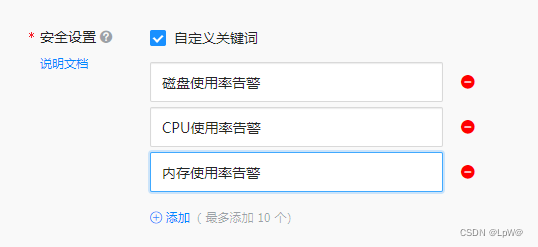
修改prometheus-webook配置文件绑定申请的机器人
[root@loaclhost ~]cd /usr/local/prometheus-webhook-dingtalk
cat config.yml
## Customizable templates path
templates:
##  - templates/alertmanager-dingtalk.tmpl
  - /usr/local/alertmanager/dingding.tmpl # 配置告警模板的所在位置

#default_message:
#  title: '{{ template "legacy.title" . }}'
#  text: '{{ template "legacy.content" . }}'

## Targets, previously was known as "profiles"
targets:
  webhook1:
    url: https://oapi.dingtalk.com/robot/send?access_token=xxxxxxxxxx  # 配置机器人的webhook_url
    # secret for signature
    secret: SEC65342be21ab54b730da9347be9307b7831bd65adf1c99406fedc786f62fecb98 # 配置加签(申请的时候那串字符)
    message:
      title: '{{ template "ops.title" . }}'  #  给这个webhook应用上 模板标题 (ops.title是我们模板文件中的title 可在下面给出的模板文件中看到)
      text: '{{ template "ops.content" . }}' #  给这个webhook应用上 模板内容  (ops.content是我们模板文件中的content 可在下面给出的模板文件中看到)
④ 告警模板文件
[root@loaclhost ~]# cat /usr/local/alertmanager/dingding.tmpl

{{ define "__subject" }}
[{{ .Status | toUpper }}{{ if eq .Status "firing" }}:{{ .Alerts.Firing | len }}{{ end }}]
{{ end }}


{{ define "__alert_list" }}{{ range . }}
---
    **告警类型**: {{ .Labels.alertname }}
    **告警级别**: {{ .Labels.level }}
    **故障主机**: {{ .Labels.instance }}
    **告警信息**: {{ .Annotations.description }}
    **触发时间**: {{ (.StartsAt.Add 28800e9).Format "2006-01-02 15:04:05" }}
{{ end }}{{ end }}

{{ define "__resolved_list" }}{{ range . }}
---
    **告警类型**: {{ .Labels.alertname }}
    **告警级别**: {{ .Labels.level }}
    **故障主机**: {{ .Labels.instance }}
    **触发时间**: {{ (.StartsAt.Add 28800e9).Format "2006-01-02 15:04:05" }}
    **恢复时间**: {{ (.EndsAt.Add 28800e9).Format "2006-01-02 15:04:05" }}
{{ end }}{{ end }}


{{ define "ops.title" }}
{{ template "__subject" . }}
{{ end }}

{{ define "ops.content" }}
{{ if gt (len .Alerts.Firing) 0 }}
**====侦测到{{ .Alerts.Firing | len  }}个故障====**
{{ template "__alert_list" .Alerts.Firing }}
---
{{ end }}

{{ if gt (len .Alerts.Resolved) 0 }}
**====恢复{{ .Alerts.Resolved | len  }}个故障====**
{{ template "__resolved_list" .Alerts.Resolved }}
{{ end }}
{{ end }}

{{ define "ops.link.title" }}{{ template "ops.title" . }}{{ end }}
{{ define "ops.link.content" }}{{ template "ops.content" . }}{{ end }}
{{ template "ops.title" . }}
{{ template "ops.content" . }}
⑤ 修改alertmanager配置文件为如下内容
注:这里也加上了邮件相关的配置
[root@loaclhost /usr/local/alertmanager]# cat alertmanager.yml
global:
  resolve_timeout: 5m
  #smtp_smarthost: 'smtp.163.com:25'
  #smtp_from: 'xxx@163.com'
  #smtp_auth_username: 'xxxx@163.com'
  #smtp_auth_password: '邮箱的授权码'
  #smtp_require_tls: false
templates:
  - '/usr/local/alertmanager/dingding.tmpl'  #告警模板位置
route:
  group_by: ['servers_survival','servers_status'] # 根据告警规则组名进行分组
  group_wait: 30s # 分组内第一个告警等待时间,10s内如有第二个告警会合并一个告警
  group_interval: 5m  # 发送新告警间隔时间
  repeat_interval: 30m #重复告警间隔发送时间,如果没处理过多久再次发送一次
  receiver: 'dingtalk_webhook' # 接收人

receivers:
 - name: 'ops'
   email_configs:
   - to: 'tianye@163.com'
     html: '{{ template "email.to.html" .}}'
     headers: { Subject: "[WARNING]Prometheus告警邮件" }
     send_resolved: true
 - name: 'dingtalk_webhook'
   webhook_configs:
   - url: 'http://localhost:8060/dingtalk/webhook1/send' # 填写prometheus-webhook的webhook1 url
     send_resolved: true     # 在恢复后是否发送恢复消息给接收人
⑥ 启动服务
systemctl start prometheus-webhook.service
systemctl start alertmanager.service
最终效果
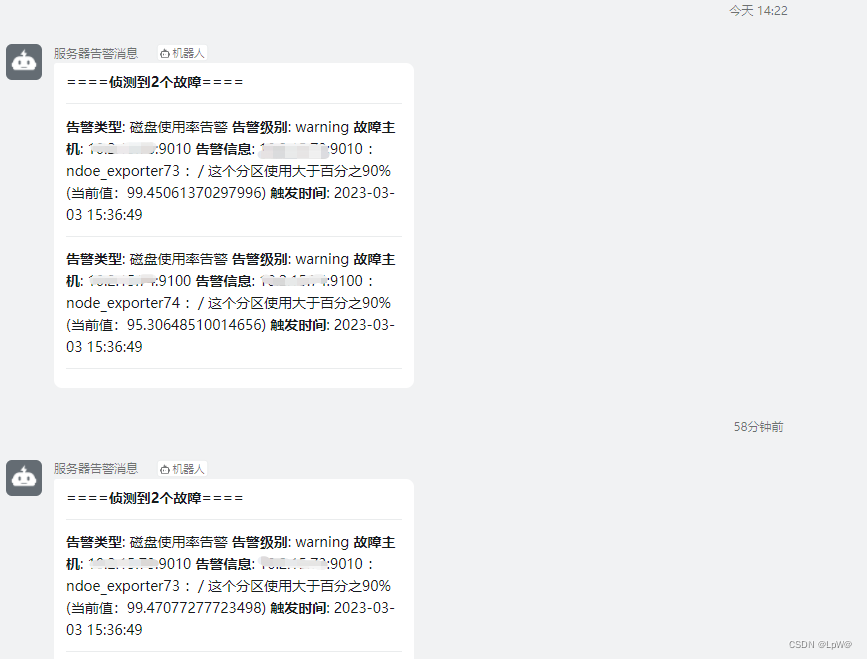

DAMO开发者矩阵,由阿里巴巴达摩院和中国互联网协会联合发起,致力于探讨最前沿的技术趋势与应用成果,搭建高质量的交流与分享平台,推动技术创新与产业应用链接,围绕“人工智能与新型计算”构建开放共享的开发者生态。
更多推荐



 1
1 0
0- 0


 已为社区贡献2条内容

所有评论(0)