【vue3 + element-plus + 高德webApi】地图选址、海量标点、标点信息弹窗自定义数据信息、选中数据处理替换标点icon
个人项目笔记记录基于高德官方开放api进行修改 : https://lbs.amap.com/demo/list/js-api-v2。
【项目个人笔记记录 !!!】
个人项目笔记记录
基于高德官方开放api进行修改 : https://lbs.amap.com/demo/list/js-api-v2
项目功能(需求点):
1、form表单地图选址功能
2、基于form表单查询的数据 对地图进行海量标点、画标点画圈辐射范围
3、基于标点 进行点击 实现模拟态弹窗展示客户信息
4、对客户拟态弹窗 进行选中、取消选中操作 进行数据处理 从而替换icon来实现选中态和未选中态
1、地图选址功能 :
交互操作:
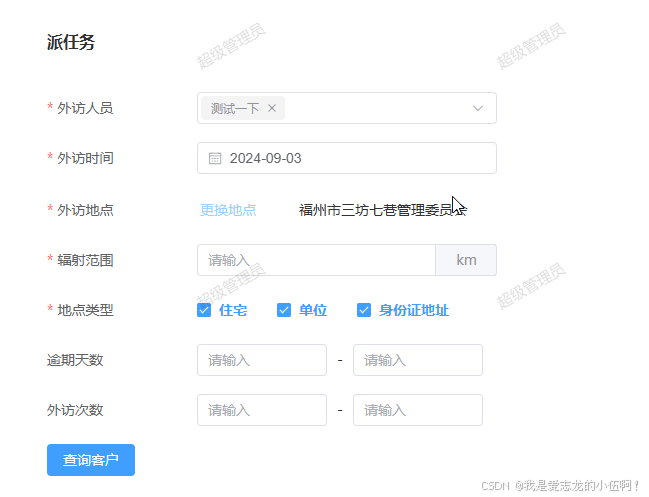
1、点击form表单字段弹出 地图选址拟态弹窗
2、进行地图点击选点(或 select组件搜索地点 并点击数据行) 从而获取经纬度以及地点名称 同时将地址名称数据绑定到selected组件上 而后点击确认将数据回传到form表单字段上
效果图
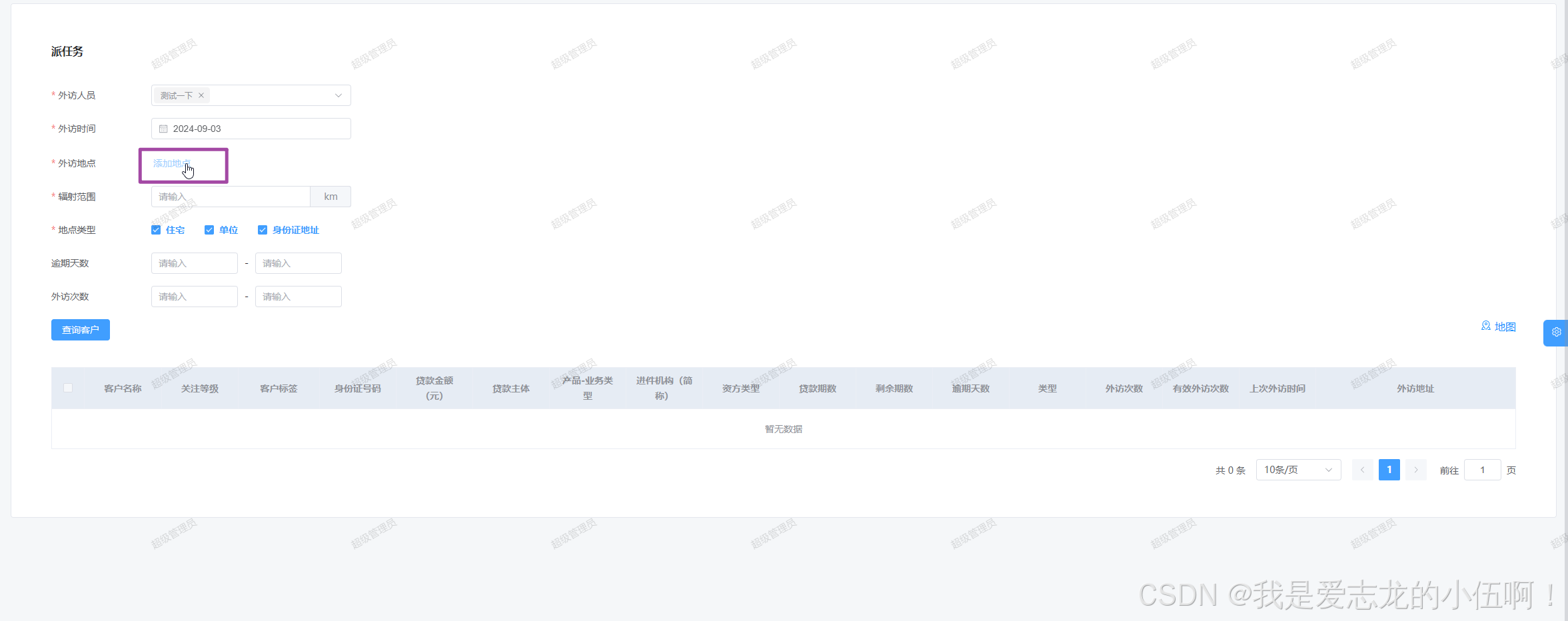
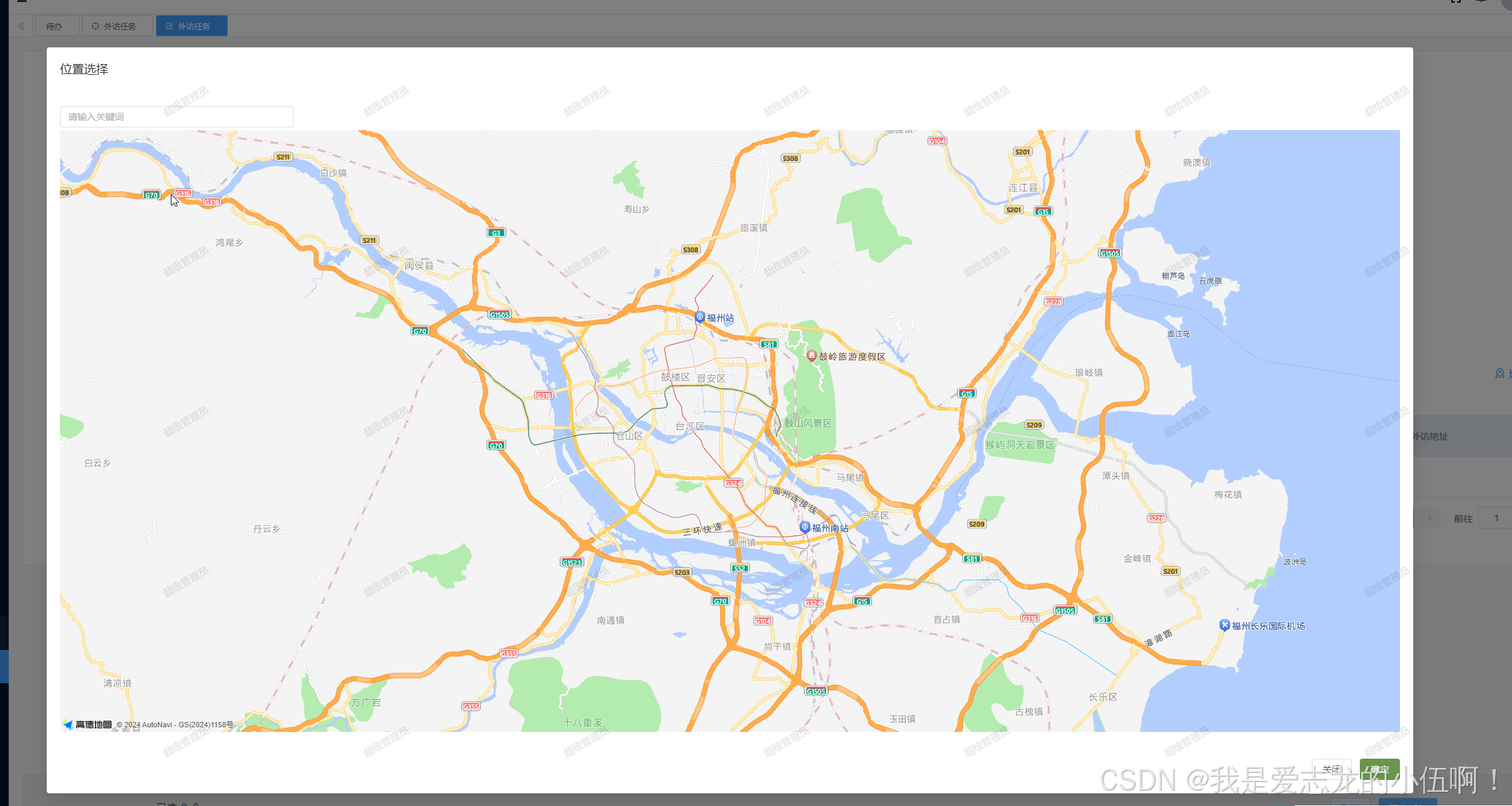
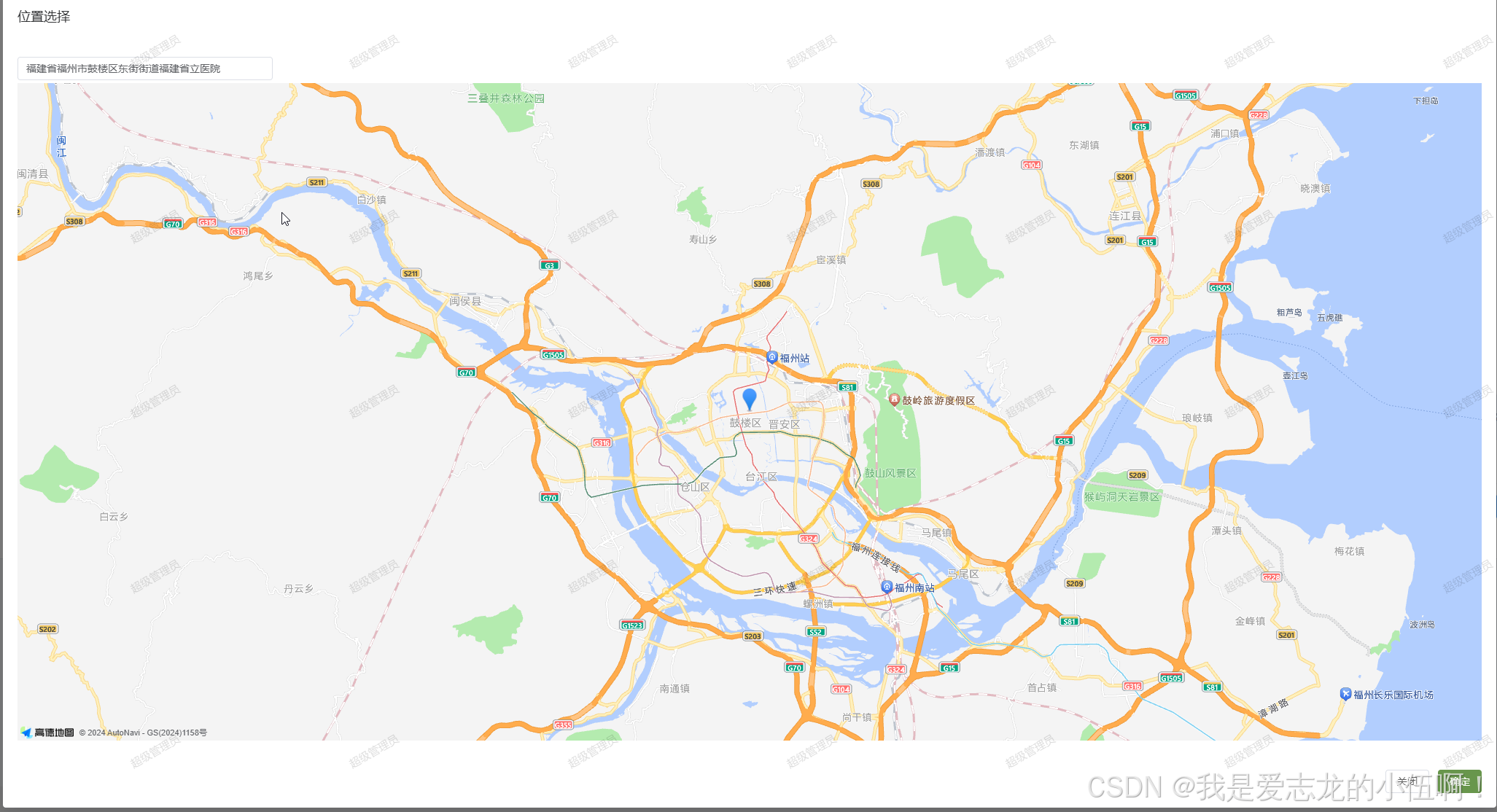
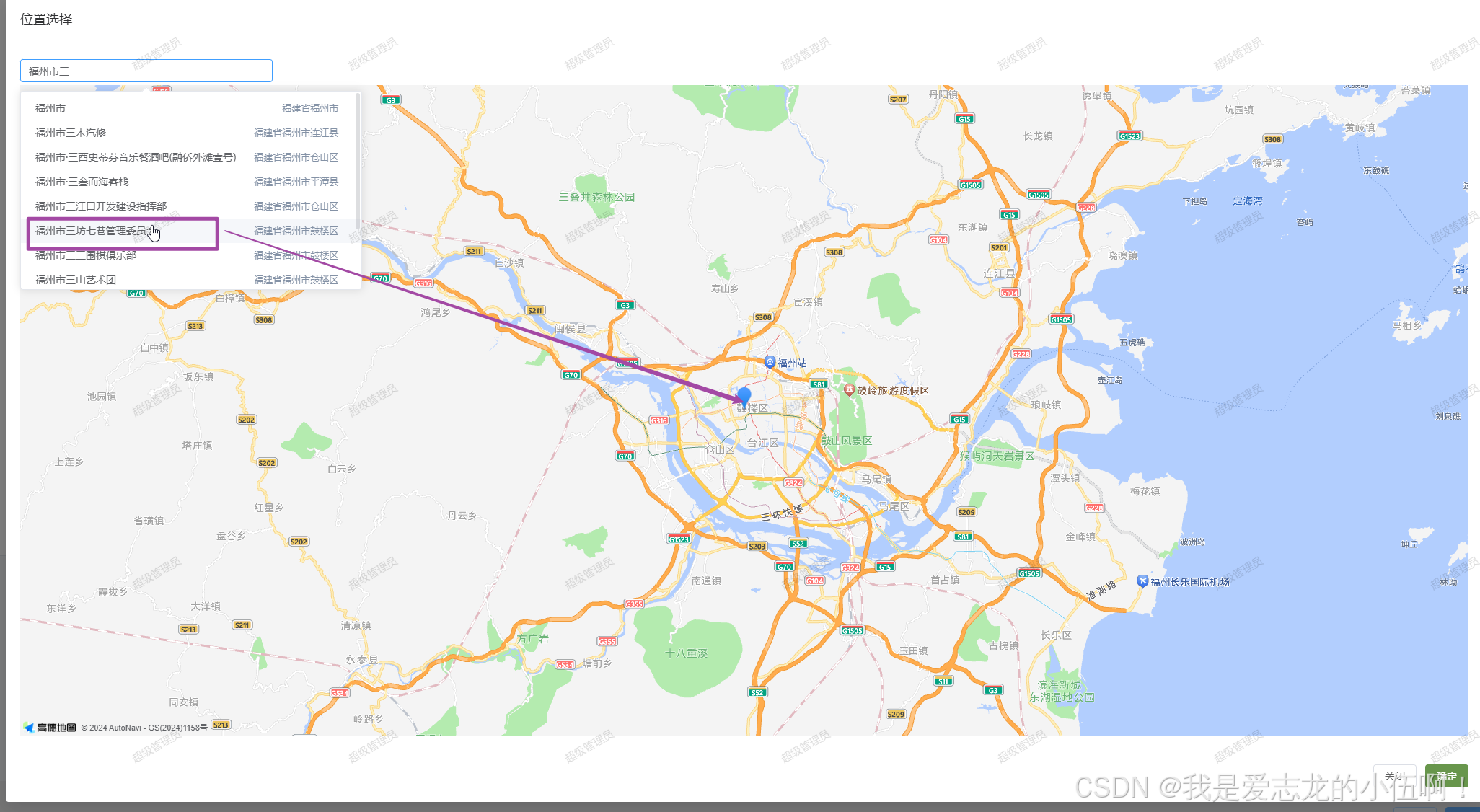
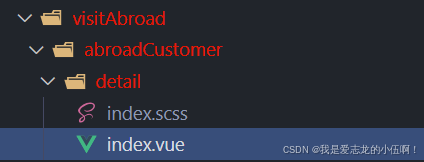
地图选址功能模块代码
因代码涉及其他业务需求 全部粘贴偏长 为了简洁这边就只展示关键代码部分
<script setup lang="ts">
import { ref } from 'vue'

interface form {
  [key: string]: any
}
const form = ref<form>({
  addr: '',
  locationLat: null,
  locationLon: null
})
const formRef = ref()

// #region 地图选址模块 start
//地图选址弹窗ref
const SelectlocationModalRef = ref()
//formitem地址字段点击事件
const addAddress = () => {
//弹窗defineExpose 暴露出的open方法 从而打开拟态窗口
  SelectlocationModalRef.value.open()
}

/*
* 拟态窗确定操作后的 emits回调
* val 子组件抛出给父组件的数据
*/
const handelLocationSuccess = (val) => {
  form.value.addr = val.addr
  form.value.locationLat = val.lat
  form.value.locationLon = val.lng
}
//#endregion 地图选址模块 end

</script>
<template>
    <el-form
      ref="formRef"
      :model="form">
            <el-form-item label="外访地点">
               <el-button type="primary" @click="addAddress" link>{{`${form.addr ? '更换' : '添加'}地点`}}
               </el-button>
               {{ form.addr }}
            </el-form-item>
    </el-form>
  <SelectlocationModal ref="SelectlocationModalRef" @confirm="handelLocationSuccess" />
</template>
SelectlocationModal.vue组件代码
需要装依赖!!!
包管理器 install 一下 ‘@amap/amap-jsapi-loader’
<script setup lang="ts">
import AMapLoader from '@amap/amap-jsapi-loader'
import { ref, onMounted, onUnmounted } from 'vue'
import { assign } from 'lodash-es'
import { ElMessage } from 'element-plus'

window._AMapSecurityConfig = {
  // 安全密钥
  securityJsCode: '申请的安全密钥'
}
//自定义事件传递数据
const emits = defineEmits(['confirm'])
//弹窗打开状态
const visible: any = ref(false)
//搜索地点数据
const areaList: any = ref([])
//select搜索关键词数据
const areaValue = ref('')
let map: any = null
const loading: any = ref(false)
//抛出的form数据
const checkedForm: any = ref({
  addr: '',
  lat: '',
  lng: ''
})


// #region 实例对象 start
let AutoComplete: any = null
let aMap: any = null
let geoCoder: any = null
//#endregion 实例对象 end

const initMap = () => {
  AMapLoader.load({
    key: '申请的webkey', // 申请好的Web端开发者Key,首次调用 load 时必填
    version: '2.0', // 指定要加载的 JSAPI 的版本,缺省时默认为 1.4.15
    plugins: ['AMap.Geocoder', 'AMap.AutoComplete'] // 需要使用的的插件列表,如比例尺'AMap.Scale'等
  })
    .then((AMap: any) => {
      aMap = AMap
      //地图容器id id需确保唯一性 否则 当一个页面存在两个地图插件时 id容器需命名切勿重复
      map = new AMap.Map('container', {
        // 设置地图容器id
        viewMode: '3D', // 是否为3D地图模式
        zoom: 11, // 初始化地图级别
        center: [119.330221107, 26.0471254966] // 初始化地图中心点位 福州市
        // center: [116.397428, 39.90923] // 初始化地图中心点位置置  北京市
      })
      AutoComplete = new AMap.AutoComplete({
        city: '全国'
      })
      geoCoder = new AMap.Geocoder({
        // city: '010', //城市设为北京,默认:“全国”
        city: '0591', //城市设为福州市
        radius: 1000 //范围,默认:500
      })
     //地图点击事件
      map.on('click', async (e: any) => {
        try {
        //处理点击数据
          const result: any = await new Promise((resolve, reject) => {
            geoCoder.getAddress(e.lnglat, function (status: string, res: any) {
              if (status === 'complete') {
                resolve(res)
              } else {
                reject(new Error(`获取失败: ${status}`))
              }
            })
          })

          checkedForm.value.addr = result.regeocode.formattedAddress
          areaValue.value = result.regeocode.formattedAddress
          addmark(e.lnglat.getLng(), e.lnglat.getLat(), AMap)
        } catch (error) {
          console.error('获取失败', error)
        }
      })
    })
    .catch((e) => {
      console.log(e)
    })
}
let marker: any = null
const addmark = (lat: any, lng: any, AMap: any) => {
  marker && removeMarker()
  marker = new AMap.Marker({
    position: new AMap.LngLat(lat, lng),
    title: checkedForm.value.addr,
    zoom: 13
  })
  checkedForm.value.lat = lng
  checkedForm.value.lng = lat
  map.add(marker)
  map.setCenter([lat, lng], '', 500)
}

const removeMarker = () => {
  map.remove(marker)
}

watch(
  () => checkedForm.value,
  (val) => {
    console.log('val', val)
  },
  {
    immediate: true,
    deep: true
  }
)

const remoteMethod = (searchValue: any) => {
  if (searchValue !== '') {
    setTimeout(() => {
      AutoComplete.search(searchValue, (status: any, result: any) => {
        console.log(result, status)
        if (result.tips?.length) {
          areaList.value = result?.tips
        }
      })
    }, 200)
  }
}

const currentSelect = (val: any) => {
  checkedForm.value.lat = val.location?.lat
  checkedForm.value.lng = val.location?.lng
  checkedForm.value.addr = val.name
  console.log(val)
  areaValue.value = val.name
  addmark(val.location?.lng, val.location?.lat, aMap)
  map.setCenter([val.location?.lng, val.location?.lat], '', 500)
}

const confirmData = () => {
  if (!checkedForm.value?.lat || !checkedForm.value?.lng) {
    return ElMessage.error('请选择地址')
  }
  emits('confirm', checkedForm.value)
  visible.value = false
  areaValue.value = ''
  map?.destroy()
}
const open = () => {
  initMap()
  visible.value = true
}

defineExpose({
  open
})
onMounted(() => {})
onUnmounted(() => {
  map?.destroy()
})
</script>

<template>
  <el-dialog
    class="dialog companygoodsLog"
    v-model="visible"
    :close-on-click-modal="false"
    :draggable="true"
    :show-close="false"
    title="位置选择"
    destroy-on-close
    style="border-radius: 4px; background-color: #ffffff"
    top="100px"
    width="80%"
  >
    <div style="height: 40px; width: 100%; display: flex; align-items: center">
      <el-select
        v-model="areaValue"
        filterable
        style="width: 350px"
        remote
        reserve-keyword
        placeholder="请输入关键词"
        :remote-method="remoteMethod"
        :loading="loading"
        @change="currentSelect"
      >
        <el-option
          v-for="item in areaList"
          :key="item.id"
          :label="item.name"
          :value="item"
          class="one-text"
        >
          <span style="float: left">{{ item.name }}</span>
          <span style="float: right; color: #8492a6; font-size: 13px">{{ item.district }}</span>
        </el-option>
      </el-select>
    </div>
    <div id="container" class="map"></div>
    <template #footer>
      <span class="dialog-footer">
        <el-button @click="visible = false"><span style="color: #5e5e5e">关闭</span></el-button>
        <el-button color="#68964C" @click="confirmData"> 确定 </el-button>
      </span>
    </template>
  </el-dialog>
</template>
<style scoped lang="scss">
.map {
  width: 100%;
  height: calc(70vh);
}
</style>
2、海量标点功能:
交互操作:
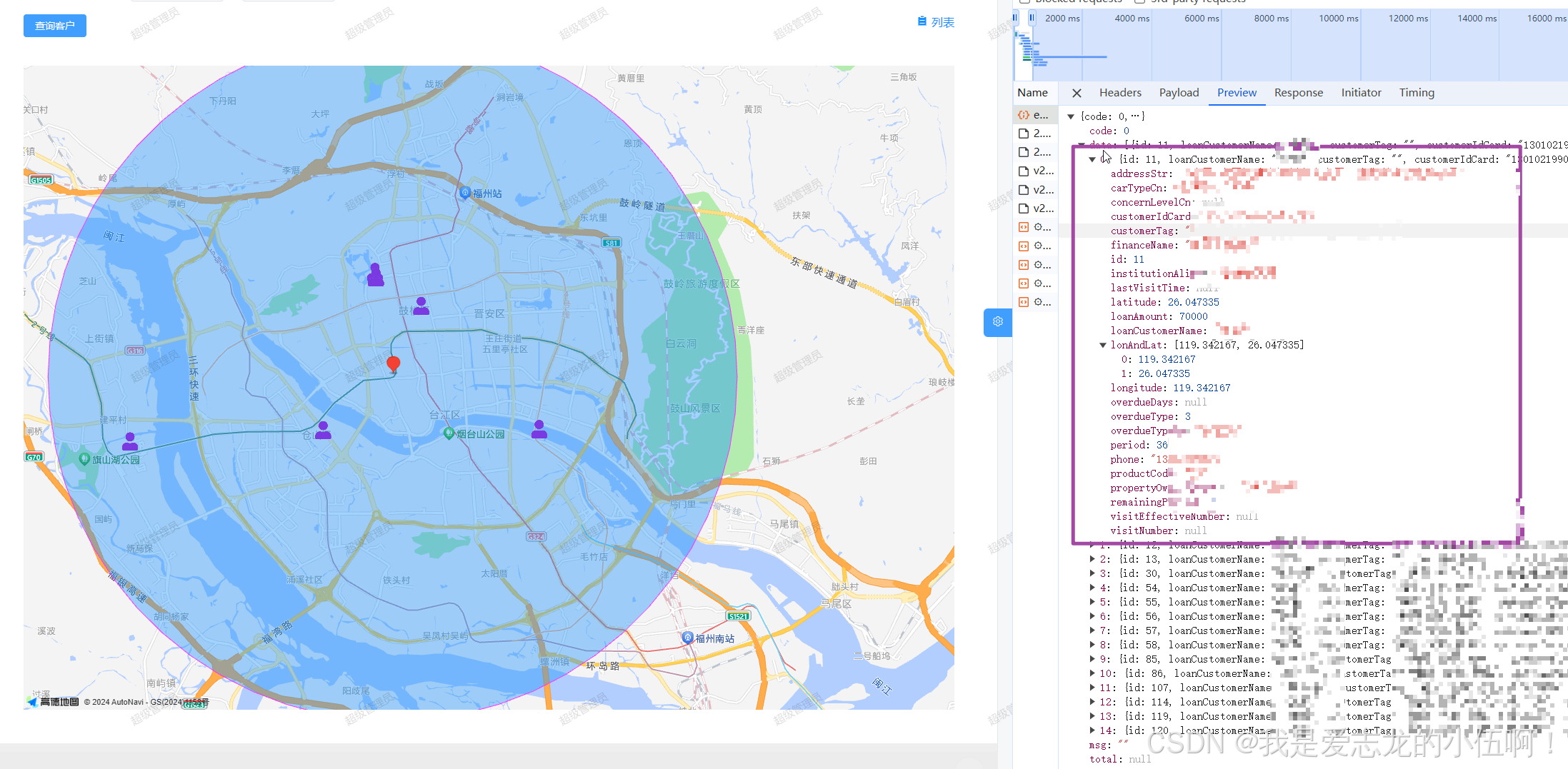
1、点击查询客户后返回客户list 内包含客户信息以及客户的经纬度定位(业务需求所以返回这些信息 如果只撒点就只需要 经纬度信息lat 、lng)
2、查询后将直接在map中展示
效果图
海量标点功能模块代码
因代码涉及其他业务需求 全部粘贴偏长 为了简洁这边就只展示关键代码部分
<script setup lang="ts">
import { ref } from 'vue'
/**
*父组件index调用webMap组件
*/

interface form {
  [key: string]: any
}


//此数据就是地图选址组件 回传回来的数据
const form = ref<form>({
  addr: '',//地址名
  addrTypes: [1, 2, 3],
  locationLat: null, //纬度
  locationLon: null  //经度
})

// #region 列表勾选 start
//具体列表table的代码就不展示了 这里只是为了说明selectValue的数据来源
const selectValue = ref([])

const handleSelectionChange = (val) => {
  selectValue.value = val
}

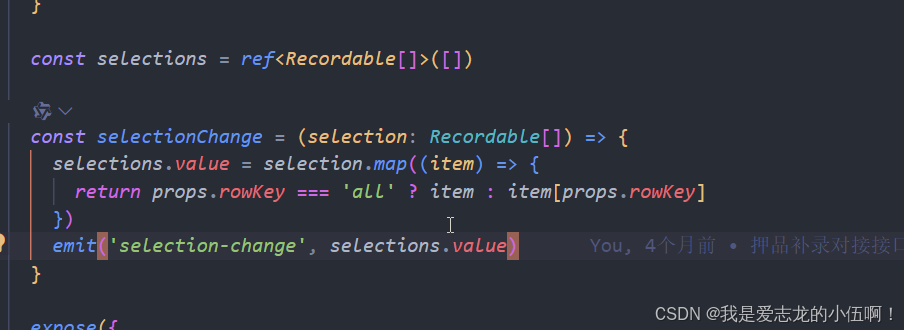
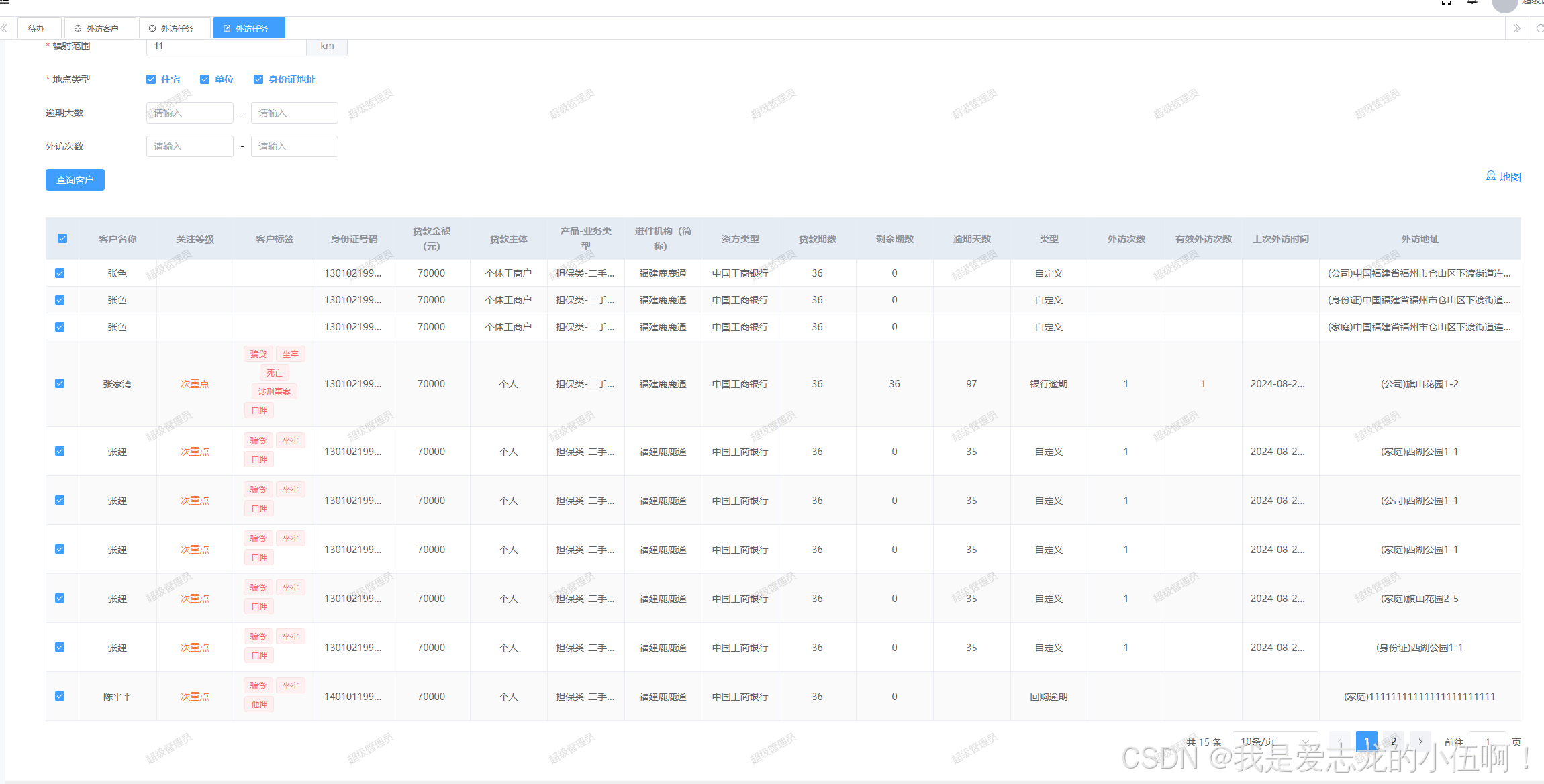
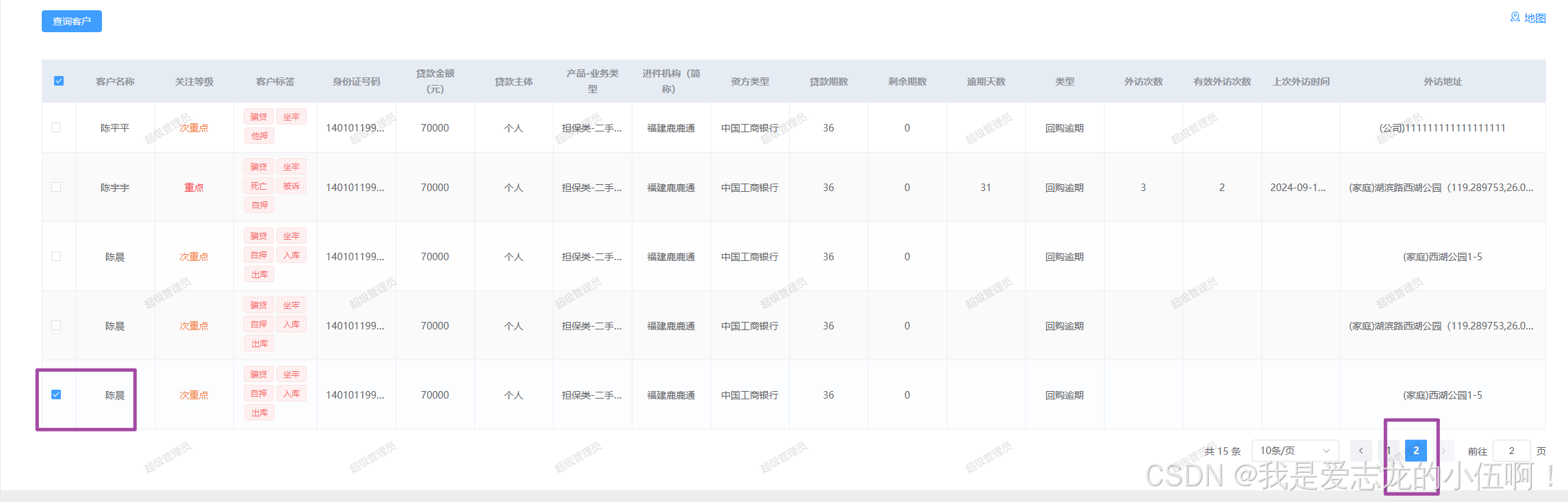
//因个人二封了table组件(具体问题图片请看 pic1 )
//rowkey 如果为row的话 操作完回显勾选状态回异常 所以只能用id 使用id回显没问题
// 但是使用id 无法拿到row数据(具体问题图片请看 issue1图、issue2图)
//所以使用以下方法进行数据匹配 筛出id选中项的row数据
//匹配最终list数据
const lonAndLatData = ref([])
watch(
  [() => customerList.value, () => selectValue.value],
  ([list, select]) => {
    const arr = []
    if (select.length) {
      list?.map((item) => {
        select?.map((item2) => {
          if (item.id === item2) {
            arr.push(item)
          }
        })
      })
      lonAndLatData.value = arr
    } else {
      list?.map((item) => {
        arr.push(item)
      })
      lonAndLatData.value = arr
    }
    console.log('lonAndLatData.value ', lonAndLatData.value)
  },
  {
    immediate: true,
    deep: false
  }
)

//#endregion 列表勾选 end
</script>

<template>
//...省略了其他业务代码
		 <WebMapLocation
            :selectValue="selectValue" //选中的id数据 为了实现列表勾选数据和地图的切换 (业务需求列表的选点直接在地图上展示)
            :formData="form" //中心点数据
            :list="customerList"  //查询的客户直接展示在地图上
            :selectionData="lonAndLatData" // 选中的id数据与list数据匹配最后筛选出匹配项进行传递
            @chose-data="setSelectValue"  //选中数据的回调
            @delete-data="deleteSelectValue" // 取消选中数据的回调
          />
 //...省略了其他业务代码
</template>
pic1
issue1图:
issue2图:
WebMapLocation.vue组件代码
<script setup lang="ts">
import AMapLoader from '@amap/amap-jsapi-loader'
import { ref, onMounted, onUnmounted } from 'vue'
import { assign, cloneDeep } from 'lodash-es'
import { ElMessage } from 'element-plus'
import defaultCustomer from '@/assets/imgs/defaultCustomer.png'
import checkCustomer from '@/assets/imgs/checkCustomer.png'

const props = defineProps({
  formData: {
    type: Object,
    default: () => {}
  },
  list: {
    type: Array,
    default: () => []
  },
  selectValue: {
    type: Array,
    default: () => []
  },
  selectionData: {
    type: Array,
    default: () => []
  }
})

window._AMapSecurityConfig = {
  // 安全密钥
  securityJsCode: '申请的密钥'
}
const emits = defineEmits(['confirm', 'choseData', 'deleteData'])
let map: any = null
const info = ref({
  lat: 0,
  lng: 0,
  radius: 0,
  title: ''
})
const checkedForm: any = ref({
  addr: '',
  lat: '',
  lng: ''
})
let AutoComplete: any = null
let aMap: any = null
let geoCoder: any = null

let massData = ref([])
const initMap = () => {
  AMapLoader.load({
    key: '申请的key', // 申请好的Web端开发者Key
    version: '2.0', //加载的 JSAPI 的版本
    plugins: ['AMap.Geocoder', 'AMap.AutoComplete'] // 需要的插件
  })
    .then((AMap: any) => {
      aMap = AMap
      map = new AMap.Map('localMap', {
        // 设置地图容器id
        viewMode: '2D', // 是否为3D地图模式
        zoom: 11, // 初始化地图级别
        center: [119.330221107, 26.0471254966] // 初始化地图中心点位 福州市
        // center: [116.397428, 39.90923] // 初始化地图中心点位置置  北京市
      })
      AutoComplete = new AMap.AutoComplete({
        city: '全国'
      })
      geoCoder = new AMap.Geocoder({
        // city: '010', //城市设为北京,默认:“全国”
        city: '0591', //城市设为福州市
        radius: 1000 //范围,默认:500
      })

      addmark(info.value.lng, info.value.lat, AMap)

      massMarks(AMap)

      circleMarker(info.value.lng, info.value.lat, info.value.radius, AMap)
      // map.on('click', (e: any) => {
      //   geoCoder.getAddress(e.lnglat, function (status: any, result: any) {
      //     checkedForm.value.addr = result.regeocode.formattedAddress
      //   })

      //   console.log('checkedForm.value', checkedForm.value)
      //   addmark(e.lnglat.getLng(), e.lnglat.getLat(), AMap)
      // })
    })
    .catch((e) => {
      console.log(e)
    })
}
let marker: any = null
let circle: any = null
let mass: any = null
// //创建圆形点标记 CircleMarker 实例
const circleMarker = (lat: any, lng: any, radius: any, AMap: any) => {
  console.log('lat', lat)
  console.log('radius', radius * 1000 + '米')
  circle = new AMap.Circle({
    center: [lat, lng], //圆心
    radius: radius * 1000, //半径
    borderWeight: 3, //描边的宽度
    strokeColor: '#FF33FF', //轮廓线颜色
    strokeOpacity: 1, //轮廓线透明度
    strokeWeight: 1, //轮廓线宽度
    fillOpacity: 0.4, //圆形填充透明度
    strokeStyle: 'solid', //轮廓线样式
    strokeDasharray: [10, 10],
    fillColor: '#1791fc', //圆形填充颜色
    zIndex: 50 //圆形的叠加顺序
  })
  map.add(circle)
  //将覆盖物调整到合适视野
  map.setFitView([circle])
}
// //创建圆形点标记 CircleMarker 实例
const massMarks = (AMap: any) => {
  const style = [
    {
      url: defaultCustomer, //图标地址
      anchor: new AMap.Pixel(6, 19), //图标显示位置偏移量,基准点为图标左上角
      size: new AMap.Size(30, 30) //图标的尺寸,
    },
    {
      url: checkCustomer, //图标地址
      anchor: new AMap.Pixel(6, 19), //图标显示位置偏移量,基准点为图标左上角
      size: new AMap.Size(30, 30) //图标的尺寸,
    }
  ]
  console.log('massData.value', massData.value)
  mass = new AMap.MassMarks(massData.value, {
    zIndex: 999, //海量点图层叠加的顺序
    zooms: [3, 19], //在指定地图缩放级别范围内展示海量点图层
    cursor: 'pointer', //指定鼠标悬停时的鼠标样式
    style: style //设置样式对象
  })

  mass.on('click', function (e) {
    //移除文档弹窗
    CustomerInfoDataRef.value.close()
    handleMassClick(e)
  })

  mass.setMap(map)
}

const addmark = (lat: any, lng: any, AMap: any) => {
  console.log('  info.value', info.value)
  console.log('lat', lat)
  console.log('lng', lng)
  marker && removeMarker()
  marker = new AMap.Marker({
    icon: new AMap.Icon({
      image: '//a.amap.com/jsapi_demos/static/demo-center/icons/poi-marker-red.png',
      size: new AMap.Size(22, 28), //图标所处区域大小
      imageSize: new AMap.Size(22, 28) //图标大小
    }),

    position: new AMap.LngLat(lat, lng),
    offset: new AMap.Pixel(-10, -30),
    title: info.value.title,
    zoom: 13
  })
  checkedForm.value.lat = lng
  checkedForm.value.lng = lat
  map.add(marker)
  // marker.setIcon('//a.amap.com/jsapi_demos/static/demo-center/icons/poi-marker-red.png')
  map.setCenter([lat, lng], '', 500)
}

const removeMarker = () => {
  map.remove(marker)
}

onMounted(() => {
  initMap()
})
onUnmounted(() => {
  map?.destroy()
  console.log('销毁')
})

watch(
  () => props.formData,
  (val) => {
    if (val) {
      const deepVal = cloneDeep(val)
      info.value.lat = Number(deepVal.locationLat)
      info.value.lng = Number(deepVal.locationLon)
      info.value.radius = Number(deepVal.range)
      info.value.title = deepVal.addr
    }
  },
  {
    deep: true,
    immediate: true
  }
)

watch(
  () => props.list,
  (val) => {
    if (val.length > 0) {
      initMap()
    }
  },
  {
    immediate: true,
    deep: true
  }
)

watch(
  [() => props.selectionData, () => props.selectValue],
  ([selectionData, selectValue]) => {
    if (selectionData.length > 0) {
      massData.value = []
      selectionData.forEach((item: any) => {
        massData.value.push({
          lnglat: item.lonAndLat,
          name: item.loanCustomerName,
          info: item,
          style: selectValue.includes(item.id) ? 1 : 0
        })
      })
      initMap()
    }
  },
  {
    deep: true,
    immediate: true
  }
)

// #region mass点击模块 start
const CustomerInfoDataRef = ref()
const customerInfo = ref({})
const handleMassClick = (e: any) => {
  const data = e.data
  customerInfo.value = data.info
  CustomerInfoDataRef.value.open()
}

//#endregion mass点击模块 end

// #region 弹窗处理数据模块 start
const choseData = (val) => {
  emits('choseData', val)
}

const deleteData = (val) => {
  emits('deleteData', val)
}

//#endregion 弹窗处理数据模块 end
</script>

<template>
  <div id="localMap" class="localMap"> </div>
  <CustomerInfoData
    ref="CustomerInfoDataRef"
    :selectValue="selectValue"
    :info-data="customerInfo"
    :select-data="selectionData"
    @chose-data="choseData"
    @delete-data="deleteData"
  />
</template>
<style scoped lang="scss">
.localMap {
  width: 100%;
  height: calc(70vh);
}
</style>
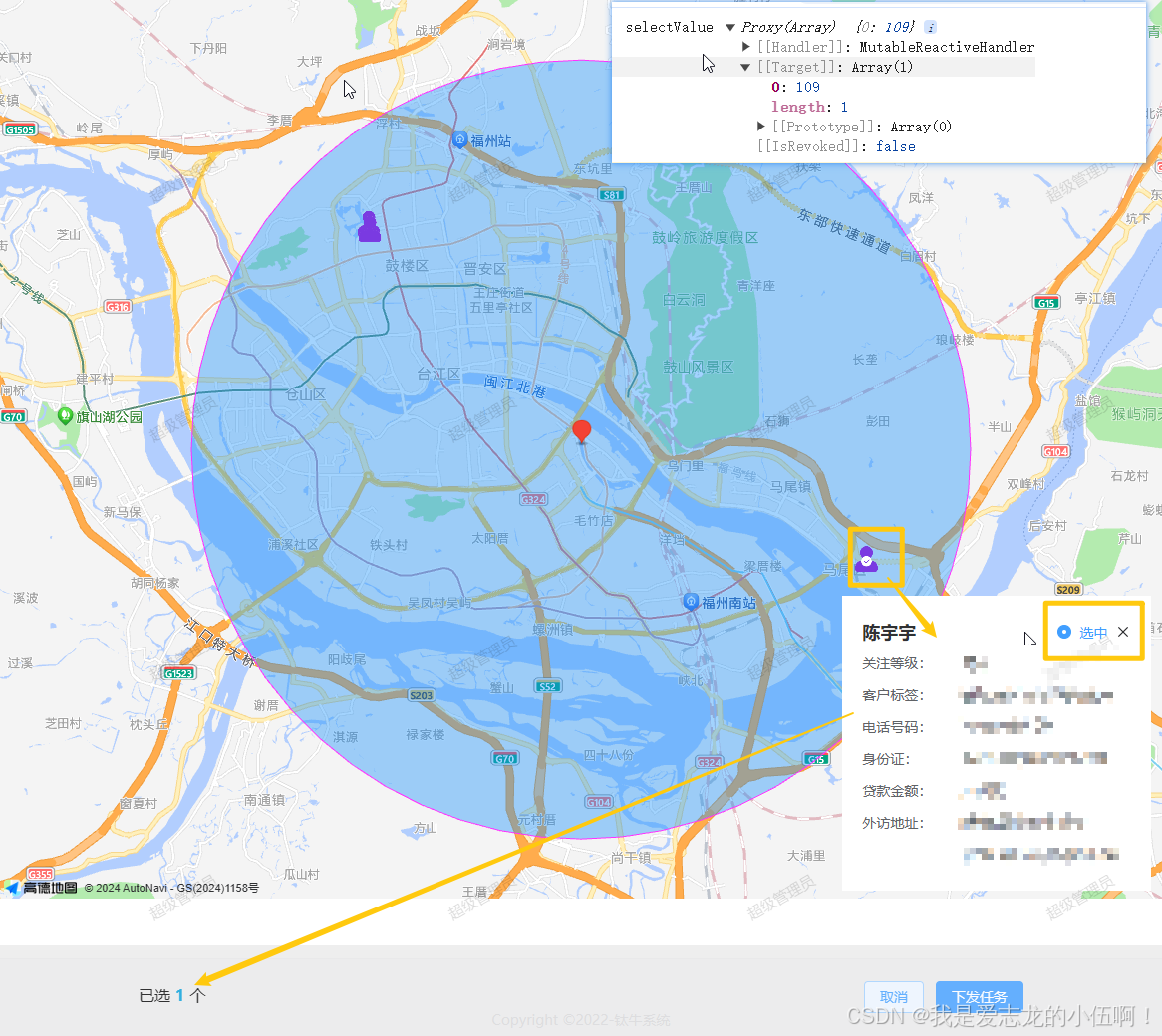
标点消息弹窗 选中、取消选中数据操作并替换icon图标 交互操作:
1.点击标点消息 弹出消息弹窗
2.选中、取消数据,在list数据中剔除或添加数据 并替换选中和默认icon图标
3.下发任务 将选中的idlist 数组数据传递给后端 完成任务下发 实现需求
效果图:
消息弹窗组件 CustomerInfoData.vue
<script setup lang="ts">
import { ref, reactive } from 'vue'
import { debounce } from 'lodash-es'
import { DICT_TYPE, getIntDictOptions } from '@/utils/dict'
/**
 * @description: 地图客户弹窗
 *
 */
//传递的props
const props = defineProps({
  infoData: {
    type: Object,
    default: () => {}
  },
  selectValue: {
    type: Array,
    default: () => []
  },
  selectData: {
    type: Array,
    default: () => []
  }
})
const person = ref({})
const api = ref()
//表单ref
const formRef = ref()
//表单数据
const form = ref({
  type: '',
  date: ''
})

// #region 单选模块 start
const closeFlag = ref(0)

//单选取消反选
const radioChange = (e) => {
  e === closeFlag.value ? (closeFlag.value = '') : (closeFlag.value = e)
  if (closeFlag.value) {
    emit('choseData', props.infoData.id)
  } else {
    emit('deleteData', props.infoData.id)
  }
}
//#endregion 单选模块 end

//表单规则
const formRules = reactive({
  type: [{ required: true, message: '请选择结清类型', trigger: 'blur' }],
  date: [{ required: true, message: '请选择结清日期', trigger: 'blur' }]
})
//弹窗展示
const dialogVisible = ref(false)

//切换弹窗
/** 打开弹窗 */
const open = async () => {
  dialogVisible.value = true
}

const close = () => {
  dialogVisible.value = false
  closeFlag.value
}

watch(
  () => dialogVisible.value,
  (val) => {
    if (val) {
      if (props.infoData) {
        if (props.selectValue.includes(props.infoData.id)) {
          closeFlag.value = 1
        } else {
          closeFlag.value = 0
        }
      }
    }
  },
  {
    immediate: true,
    deep: true
  }
)

const emit = defineEmits(['close', 'choseData', 'deleteData'])
defineExpose({ open, close }) // 提供 open 方法,用于打开弹窗
</script>
<template>
  <div :before-close="close" top="5vh" class="infoData-modal" v-if="dialogVisible" :modal="false">
    <header>
      <div class="name">{{ infoData.loanCustomerName }}</div>
      <div class="close">
        <el-radio-group v-model="closeFlag">
          <el-radio :label="1" @click.prevent.stop="radioChange(1)">选中</el-radio>
        </el-radio-group>
        <el-icon class="ml2 close-icon" @click.stop="close"><Close /></el-icon>
      </div>
    </header>
    <el-form ref="formRef" :model="form" :rules="formRules" label-width="100px">
      <el-form-item class="nameEllipsis" label="关注等级:"
        >{{ infoData.concernLevelCn }}
      </el-form-item>
      <el-form-item class="nameEllipsis" label="客户标签:">{{
        infoData.customerTag
      }}</el-form-item>
      <el-form-item class="nameEllipsis" label="电话号码:">{{ infoData.phone }}</el-form-item>
      <el-form-item class="nameEllipsis" label="身份证:">{{
        infoData.customerIdCard
      }}</el-form-item>
      <el-form-item class="nameEllipsis" label="贷款金额:">{{ infoData.loanAmount }}</el-form-item>
      <el-form-item class="nameEllipsis" label="外访地址:">{{ infoData.addressStr }}</el-form-item>
    </el-form>
  </div>
</template>
<style lang="scss" scoped>
.infoData-modal {
  width: 270px;
  min-height: 20px;
  position: fixed;
  right: 6%;
  bottom: 12%;
  z-index: 1000;
  background: #ffffff;
  padding: 20px;
  :deep(.el-form-item) {
    margin-bottom: 0px !important;
  }
}
header {
  .name {
    font-size: 18px;
    font-weight: bolder;
  }
  display: flex;
  justify-content: space-between;
  align-items: center;
}
.close {
  cursor: pointer;
  display: flex;
  align-items: center;
}
.close-icon:hover {
  color: #409eff;
}
.close-icon :active {
  color: #409eff;
}
</style>

DAMO开发者矩阵,由阿里巴巴达摩院和中国互联网协会联合发起,致力于探讨最前沿的技术趋势与应用成果,搭建高质量的交流与分享平台,推动技术创新与产业应用链接,围绕“人工智能与新型计算”构建开放共享的开发者生态。
更多推荐
 11
11 0
0- 0


 已为社区贡献1条内容

所有评论(0)