创建快捷方式以使Windows计算机进入Hibernate状态
Putting your Windows computer into Hibernation Mode allows you to save power, and quickly access your desktop again when you need it. Here we show how to create a shortcut to put your PC in Hibernatio
Putting your Windows computer into Hibernation Mode allows you to save power, and quickly access your desktop again when you need it. Here we show how to create a shortcut to put your PC in Hibernation Mode quickly.
将Windows计算机置于Hibernate模式可以节省电源,并在需要时快速再次访问桌面。 在这里,我们展示了如何创建快捷方式以使您的PC快速进入Hibernate模式。
Note: Here we show how to create the shortcut in Windows 7 and add it to the Taskbar. But creating the shortcut should work in XP and Vista as well.
注意:这里我们展示了如何在Windows 7中创建快捷方式并将其添加到任务栏。 但是创建快捷方式在XP和Vista中也应该起作用。
Create Shortcut
创建快捷方式
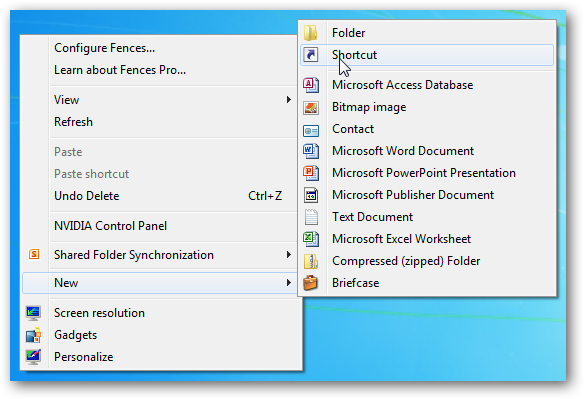
Right-click an empty area on your desktop and select New \ Shortcut from the Context Menu.
右键单击桌面上的空白区域,然后从上下文菜单中选择“新建\快捷方式”。
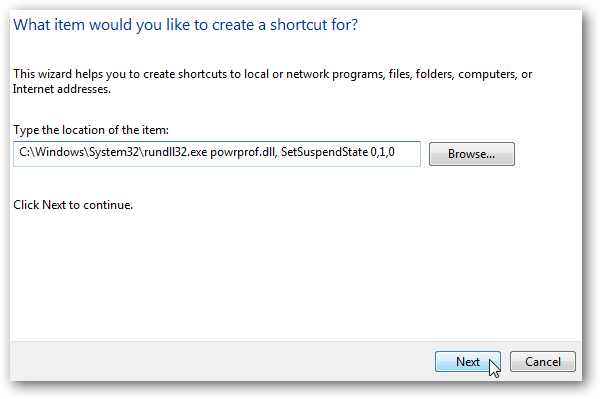
In the Create Shortcut window type or copy the following in the location field…
在“创建快捷方式”窗口中,在“位置”字段中键入或复制以下内容……
C:\Windows\System32\rundll32.exe powrprof.dll, SetSuspendState 0,1,0
C:\ Windows \ System32 \ rundll32.exe powrprof.dll,SetSuspendState 0,1,0
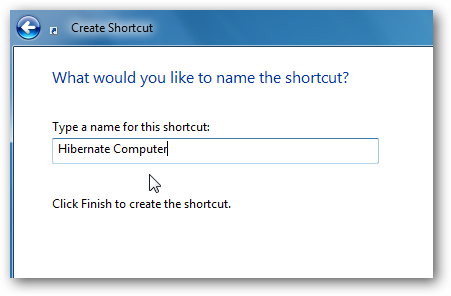
Now give the shortcut a name such as Hibernate Computer or whatever you want to call it.
现在给快捷方式起一个名字,例如Hibernate Computer或任何您想称呼它的名字。
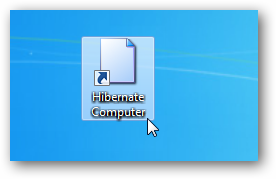
Now you have the shortcut on your desktop, but you might want to change the icon to something else.
现在,您已经在桌面上有了快捷方式,但是您可能需要将图标更改为其他名称。
Change Shortcut Icon
更改快捷方式图标
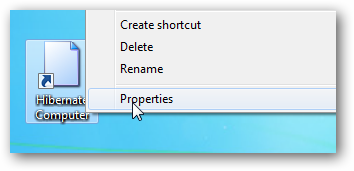
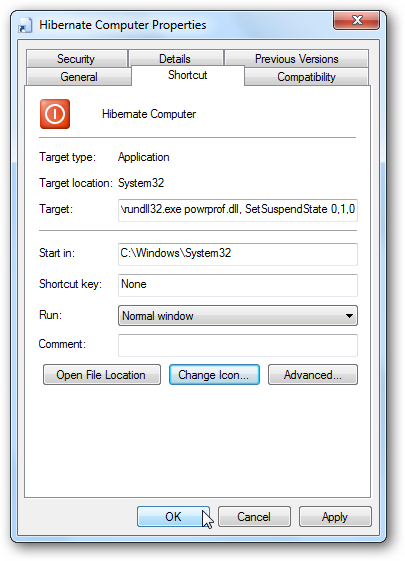
Right-click the shortcut icon and select Properties.
右键单击快捷方式图标,然后选择“属性”。
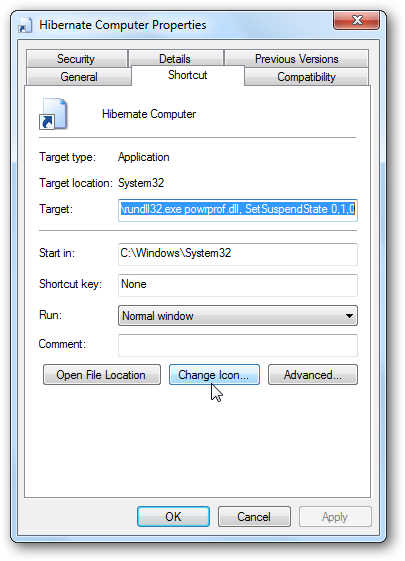
Select the Shortcut Tab and click the Change Icon button.
选择快捷方式选项卡,然后单击更改图标按钮。
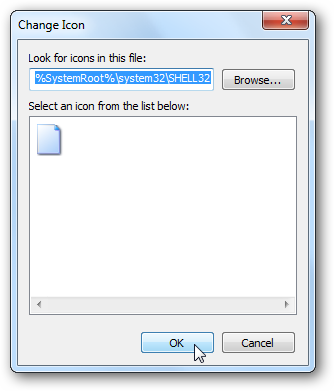
In the Look for icons in this file field copy and past the following then click OK.
在“在此文件中查找图标”字段副本中,复制以下内容,然后单击“确定”。
%SystemRoot%\system32\SHELL32.dll
%SystemRoot%\ system32 \ SHELL32.dll
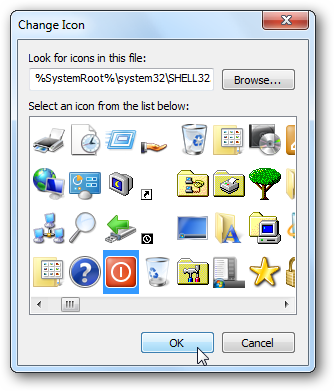
This brings up a list of included Windows icons you can choose from. Select whatever you want it to be. There are a couple of Power icons in the directory…click OK. Of course you can choose any icon you want, if you customize your icons just browse to the directory they are in.
这会显示一个包含的Windows图标的列表,您可以从中选择。 选择您想要的任何内容。 目录中有几个电源图标...单击确定。 当然,您可以选择任何想要的图标,如果您自定义图标,只需浏览到它们所在的目录即可。
For more on selecting icons check out our article on how to customize your icons in Windows 7 or how to change a file type’s icon.
有关选择图标的更多信息,请查看我们的文章, 该文章介绍了如何在Windows 7中自定义图标或如何更改文件类型的图标 。
Now you will see the icon in the Shortcut Properties window, click OK.
现在,您将在“快捷方式属性”窗口中看到该图标,单击“确定”。
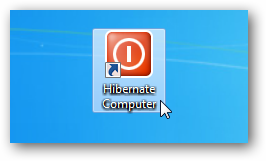
Here we have a nice looking shortcut that you can use to put your machine into Hibernation.
在这里,我们有一个漂亮的快捷方式,您可以用来将计算机置于Hibernate状态。
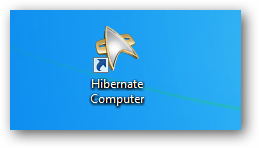
Or here we used a customized Star Trek icon just to make things more interesting…
或者在这里,我们使用了自定义的“星际迷航”图标,只是为了使事情变得更加有趣……
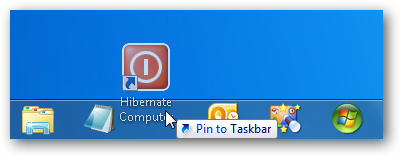
You can pin the shortcut to the Taskbar for easy access.
您可以将快捷方式固定到任务栏以便于访问。
Conclusion
结论
If Hibernation is not enabled on your Windows 7 system you can easily manage it. By creating a shortcut and pinning to the Taskbar, it allows you to put your machine into Hibernation Mode quick and easy.
如果Windows 7系统上未启用Hibernate功能,则可以轻松进行管理 。 通过创建快捷方式并将其固定到任务栏,它可以使您快速轻松地将计算机置于Hibernate模式。
If you like to customize your desktop with unique icons check out our posts on a Sci-Fi icon pack or Video Game icon pack.
如果您想使用独特的图标来自定义桌面,请查看我们在Sci-Fi图标包或视频游戏图标包上的帖子。

DAMO开发者矩阵,由阿里巴巴达摩院和中国互联网协会联合发起,致力于探讨最前沿的技术趋势与应用成果,搭建高质量的交流与分享平台,推动技术创新与产业应用链接,围绕“人工智能与新型计算”构建开放共享的开发者生态。
更多推荐
 0
0 0
0- 0


 已为社区贡献1条内容

所有评论(0)