HarmonyOS应用<奇妙科学乐园>开发第47篇:动画演示组件AnimationDemo——科普互动设计
📖 引言
在上一篇文章中,我们深入拆解了 FunFactCard 冷知识卡片组件的 Row 双栏布局与可折叠进阶设计。FunFactCard 位于文章详情页的底部区域,作为"你知道吗?"板块的载体。然而,在文章详情页的内容布局中,还有一个同样重要的交互区域——位于文章标题区和正文之间的动画演示区。这个区域的核心组件就是本文的主角:AnimationDemo 动画演示组件。
AnimationDemo 是《奇妙科学乐园》中科普互动体验的关键一环。它通过 setInterval 驱动的数值递增动画,配合 Math.sin 三角函数控制各元素的位置、透明度、旋转角度,在 Stack 绝对定位布局中构建出太阳系、植物光合作用、海洋生物、雨天气象、星空梦境、科技机器人六种场景的实时动画效果。对于6-12岁的儿童用户来说,这些生动的动画演示能够将抽象的科学概念转化为直观的视觉体验,极大地提升了科普教育的趣味性和吸引力。
🎯 学习目标
完成本文后,你将能够:
- ✅ 掌握 AnimationDemo 的
setInterval+@State数值驱动动画机制 - ✅ 理解
Math.sin三角函数在 UI 动画中的位移、缩放、透明度控制技巧 - ✅ 运用
Stack绝对定位构建多层动画场景 - ✅ 设计六种不同主题的
@Builder动画场景分发策略 - ✅ 理解
aboutToDisappear生命周期中定时器资源释放的必要性 - ✅ 掌握动画播放/暂停的状态管理与 Toast 反馈设计
💡 需求分析
AnimationDemo 的功能定位
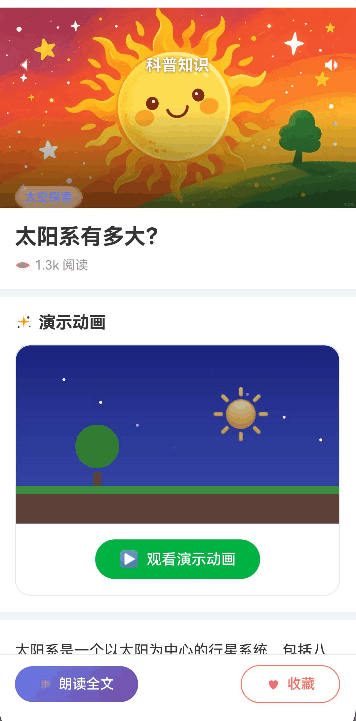
AnimationDemo 在文章详情页 TopicDetail 中的位置如下:
文章详情页 TopicDetail
├── Hero 图片区(Stack 嵌套)
├── 文章标题 + 阅读量
├── 演示动画区 ← AnimationDemo 组件所在位置
│   ├── 标题行:"演示动画" + icon_sparkle
│   └── AnimationDemo({ topic: this.topic })
│       ├── 动画场景区(Stack + @Builder 分发)
│       └── 播放/暂停按钮
├── 文章正文内容
├── 你知道吗?卡片(FunFactCard)
└── 底部操作栏
六种动画场景一览
| animationType | 场景名称 | 核心元素 | 动画特色 |
|---|---|---|---|
sun | 太阳系 | 太阳、星星、树木、地面 | 太阳脉冲缩放 + 星星闪烁 |
leaf | 植物光合作用 | 太阳、树叶、光粒子 | 树叶摇摆 + 光粒子闪烁 |
whale | 海洋世界 | 鲸鱼、气泡、水波纹 | 鲸鱼游动 + 气泡上浮 |
rain | 雨天气象 | 云朵、雨滴、地面 | 云朵飘动 + 雨滴下落循环 |
dream | 星空梦境 | 月亮、星星、梦境气泡 | 星星闪烁 + 梦境呼吸 |
robot | 科技机器人 | 机器人、齿轮、电路 | 机器人摇摆 + 齿轮旋转 |
Props 设计
| Props 名称 | 类型 | 装饰器 | 默认值 | 说明 |
|---|---|---|---|---|
| topic | Topic | @Prop | 默认空 Topic | 传入文章数据,读取 animationType 字段 |
组件内部状态
| 状态名称 | 类型 | 初始值 | 说明 |
|---|---|---|---|
| isPlaying | boolean | false | 动画播放状态标识 |
| animValue | number | 0 | 动画驱动数值,0-99循环 |
| timerId | number | -1 | setInterval 返回的定时器ID |
🏗️ 整体架构设计
组件结构概览
AnimationDemo 组件采用"状态驱动 + 场景分发"的架构模式:
AnimationDemo
├── 状态管理层
│   ├── @State isPlaying    → 播放/暂停控制
│   ├── @State animValue    → 动画驱动核心数值
│   └── timerId             → 定时器资源句柄
├── 控制方法层
│   ├── startAnimation()    → 启动定时器 + Toast提示
│   ├── stopAnimation()     → 停止定时器 + 重置数值
│   └── toggleAnimation()   → 切换播放/暂停
├── 场景构建层(@Builder)
│   ├── SunAnimation()      → 太阳系场景
│   ├── LeafAnimation()     → 植物光合场景
│   ├── WhaleAnimation()    → 海洋世界场景
│   ├── RainAnimation()     → 雨天气象场景
│   ├── DreamAnimation()    → 星空梦境场景
│   ├── RobotAnimation()    → 科技机器人场景
│   └── AnimationContent()  → 场景分发器
└── UI 渲染层(build)
    ├── AnimationContent()  → 动画场景
    └── Button              → 播放/暂停控制按钮
动画驱动原理
AnimationDemo 的核心动画原理可以用一句话概括:通过 setInterval 每 50ms 递增 animValue(0-99 循环),利用 Math.sin(animValue * 系数) 将线性递增的数值转换为周期性变化的正弦波,驱动各 UI 元素的位置、大小、透明度、旋转角度等属性变化。
时间轴 →
animValue:  0  1  2  3  4  5 ...  99  0  1  2 ...
sin(v*0.1): 0  .1 .2 .3 .4 .5 ... -.8  0  .1 .2 ...
                          ↑ 周期性变化
                    ↓ 驱动 UI 属性
              fontSize / opacity / translate / rotate
🔧 核心实现拆解
1. 组件声明与状态管理
@Component
export struct AnimationDemo {
  @Prop topic: Topic = getDefaultTopicForAnim();
  @State isPlaying: boolean = false;
  @State animValue: number = 0;
  private timerId: number = -1;
关键设计要点:
@Prop topic:从父组件 TopicDetail 接收文章数据,使用@Prop单向传递,组件内部不需要修改 topic 数据。默认值通过getDefaultTopicForAnim()工厂函数生成,设置animationType: 'sun'作为兜底场景。@State isPlaying:控制播放/暂停状态,驱动按钮文字和图标的条件渲染。@State animValue:动画核心数值,0-99 循环递增,所有@Builder中的Math.sin计算都基于此值。private timerId:不参与 UI 渲染,仅用于存储定时器句柄,便于在aboutToDisappear中清理。
默认 Topic 工厂函数:
function getDefaultTopicForAnim(): Topic {
  const emptyFacts: FunFact[] = [];
  const emptyContent: string[] = [];
  const topic: Topic = {
    id: 0,
    title: '',
    category: '',
    categoryName: '',
    categoryColor: '',
    icon: '',
    gradientStart: '#ffffff',
    gradientEnd: '#ffffff',
    content: emptyContent,
    funFacts: emptyFacts,
    animationType: 'sun',  // 默认展示太阳系动画
    has3DModel: false,
    readTime: 0,
    readCount: 0,
    difficulty: 'easy'
  };
  return topic;
}
✅ 正确做法:使用工厂函数生成默认值,保证所有字段都有合法初始值,避免运行时空指针异常。
❌ 错误做法:直接在 @Prop topic: Topic 后面写 = {} as Topic,虽然不会报编译错误,但缺少字段值的 Topic 在动画分发时可能导致意外行为。
2. 动画控制方法
启动动画
startAnimation() {
  // 先清理旧定时器,防止重复启动
  if (this.timerId !== -1) {
    clearInterval(this.timerId);
  }
  this.animValue = 0;      // 重置动画数值
  this.isPlaying = true;    // 标记为播放中
  this.timerId = setInterval(() => {
    this.animValue = (this.animValue + 1) % 100;  // 0-99 循环
  }, 50);  // 每50ms更新一次,约20fps
  promptAction.showToast({
    message: '动画开始播放',
    duration: 1000
  });
}
关键设计要点:
- 防重入保护:启动前先
clearInterval清理旧定时器,避免用户多次点击导致多个定时器同时运行。 - 数值重置:
this.animValue = 0确保每次播放都从场景初始状态开始。 - 取模循环:
(this.animValue + 1) % 100实现 0-99 的无限循环,配合Math.sin生成连续的周期性动画。 - 50ms 间隔:约 20fps 的更新频率,在儿童科普场景中足以呈现流畅的动画效果,同时避免过高帧率导致的性能消耗。
停止动画
stopAnimation() {
  if (this.timerId !== -1) {
    clearInterval(this.timerId);
    this.timerId = -1;    // 重置为无效ID
  }
  this.isPlaying = false;  // 标记为已停止
  this.animValue = 0;      // 重置动画数值
  promptAction.showToast({
    message: '动画已停止',
    duration: 1000
  });
}
切换动画
toggleAnimation() {
  if (this.isPlaying) {
    this.stopAnimation();
  } else {
    this.startAnimation();
  }
}
✅ 正确做法:将播放/暂停逻辑拆分为 startAnimation、stopAnimation、toggleAnimation 三个方法,职责清晰,方便单独调用。
❌ 错误做法:把所有逻辑都写进 toggleAnimation 里,导致方法过长、逻辑耦合,不利于维护。
3. 资源释放:aboutToDisappear
aboutToDisappear() {
  if (this.timerId !== -1) {
    clearInterval(this.timerId);
    this.timerId = -1;
  }
}
这是整个组件中最关键的一行代码。 当组件从页面树中移除时(如用户返回上一页),aboutToDisappear 会被自动调用。如果此时 setInterval 定时器仍在运行,会导致:
- 内存泄漏:定时器闭包持有组件实例的引用,阻止垃圾回收
- 异常更新:组件已销毁,但
@State变量仍在被修改,可能导致运行时错误 - CPU 空耗:定时器持续运行,消耗系统资源
✅ 正确做法:在 aboutToDisappear 中清理所有定时器和事件监听。
❌ 错误做法:不写 aboutToDisappear,认为"页面关了定时器自然就停了"。在 ArkUI 中,组件销毁不会自动清理 JavaScript 层的 setInterval。
4. 太阳系动画场景 SunAnimation
@Builder
SunAnimation() {
  Stack() {
    // 背景层:深蓝夜空渐变
    Column()
      .width('100%')
      .height('100%')
      .linearGradient({
        direction: GradientDirection.Bottom,
        colors: [['#1a237e', 0], ['#283593', 0.4], ['#3949ab', 1]]
      });

    // 太阳:脉冲缩放 + 透明度变化
    Column() {
      Text('☀️')
        .fontSize(50 + Math.sin(this.animValue * 0.1) * 8)   // 42-58 脉冲
        .opacity(0.8 + Math.sin(this.animValue * 0.1) * 0.2) // 0.6-1.0
        .margin({ bottom: 20 });
    }
    .position({ x: '60%', y: 40 });

    // 星星:闪烁效果
    ForEach([1, 2, 3, 4, 5, 6, 7, 8], (index: number) => {
      Circle({ width: 3, height: 3 })
        .fill('#ffffff')
        .opacity(0.5 + Math.sin(this.animValue * 0.05 + index) * 0.5)  // 0-1 闪烁
        .position({
          x: (index * 37) % 300 + 10,  // 通过取模分散位置
          y: (index * 23) % 100 + 10
        });
    }, (index: number) => 'star-' + index.toString());

    // 树木:静态装饰
    Column() {
      Circle({ width: 44, height: 44 })
        .fill('#2e7d32')
        .margin({ bottom: 4 });
      Rect({ width: 8, height: 40 })
        .fill('#5d4037')
        .borderRadius(2);
    }
    .position({ x: 60, y: 80 });

    // 草地
    Rect({ width: '100%', height: 8 })
      .fill('#388e3c')
      .position({ x: 0, y: 142 });

    // 土壤
    Rect({ width: '100%', height: 30 })
      .fill('#5d4037')
      .position({ x: 0, y: 150 });
  }
  .width('100%')
  .height(180);
}
动画技巧拆解:
技巧一:脉冲缩放效果
.fontSize(50 + Math.sin(this.animValue * 0.1) * 8)
this.animValue * 0.1:将 0-99 映射到 0-9.9 的正弦输入范围Math.sin(0~9.9):约完成 1.5 个完整正弦周期* 8:振幅为 8,即 fontSize 在 42-58 之间波动50 + ...:基准值 50,上下浮动
技巧二:星星错位闪烁
.opacity(0.5 + Math.sin(this.animValue * 0.05 + index) * 0.5)
this.animValue * 0.05:频率较低,约 0.8 个周期+ index:每颗星星的相位偏移量不同,形成错位闪烁效果- 这是"粒子系统"的简化实现——通过 ForEach + 相位偏移制造出"随机"感
技巧三:位置分散算法
x: (index * 37) % 300 + 10,
y: (index * 23) % 100 + 10
- 使用互质数(37 和 23)乘以 index 再取模,让 8 颗星星均匀分散
- 比手动指定每颗星星的坐标更灵活,方便后续调整星星数量
5. 海洋世界动画场景 WhaleAnimation
@Builder
WhaleAnimation() {
  Stack() {
    // 背景层:海洋渐变
    Column()
      .width('100%')
      .height('100%')
      .linearGradient({
        direction: GradientDirection.Bottom,
        colors: [['#0277bd', 0], ['#0288d1', 0.5], ['#4fc3f7', 1]]
      });

    // 鲸鱼:水平 + 垂直双轴游动
    Column() {
      Text('🐋')
        .fontSize(60)
        .translate({
          x: Math.sin(this.animValue * 0.05) * 20,  // 水平摆动
          y: Math.sin(this.animValue * 0.08) * 10   // 垂直浮动
        });
    }
    .position({ x: '30%', y: 60 });

    // 气泡:上浮 + 闪烁
    ForEach([1, 2, 3, 4, 5], (index: number) => {
      Circle({ width: 4 + index, height: 4 + index })
        .fill('rgba(255, 255, 255, 0.5)')
        .opacity(0.3 + Math.sin(this.animValue * 0.08 + index) * 0.7)
        .position({
          x: 180 + index * 15,   // 气泡水平位置递增
          y: 50 + index * 10 + Math.sin(this.animValue * 0.06 + index) * 8  // 垂直浮动
        });
    }, (index: number) => 'bubble-' + index.toString());

    // 水波纹:水平微移
    ForEach([1, 2, 3], (index: number) => {
      Rect({ width: '100%', height: 2 })
        .fill('rgba(255, 255, 255, 0.1)')
        .position({
          x: 0,
          y: 40 + index * 40 + Math.sin(this.animValue * 0.04 + index) * 5
        });
    }, (index: number) => 'wave-' + index.toString());
  }
  .width('100%')
  .height(180);
}
动画技巧拆解:
技巧四:双轴复合运动
.translate({
  x: Math.sin(this.animValue * 0.05) * 20,
  y: Math.sin(this.animValue * 0.08) * 10
});
- 水平和垂直方向使用不同的频率系数(0.05 vs 0.08),形成李萨如(Lissajous)曲线轨迹
- 两个频率不同且不成整数比时,运动轨迹不会简单重复,看起来更自然
技巧五:气泡大小递增
Circle({ width: 4 + index, height: 4 + index })
- 越靠后的气泡越大,模拟真实气泡上浮过程中逐渐膨胀的效果
6. 雨天气象动画场景 RainAnimation
@Builder
RainAnimation() {
  Stack() {
    // 背景:灰蓝天空渐变
    Column()
      .width('100%')
      .height('100%')
      .linearGradient({
        direction: GradientDirection.Bottom,
        colors: [['#546e7a', 0], ['#78909c', 0.5], ['#90a4ae', 1]]
      });

    // 云朵:水平飘动
    Column() {
      Text('☁️')
        .fontSize(50)
        .translate({ x: Math.sin(this.animValue * 0.03) * 10, y: 0 });
    }
    .position({ x: '20%', y: 10 });

    Column() {
      Text('☁️')
        .fontSize(40)
        .translate({ x: Math.sin(this.animValue * 0.04 + 1) * 8, y: 0 });
    }
    .position({ x: '55%', y: 20 });

    // 雨滴:下落循环
    ForEach([1, 2, 3, 4, 5, 6, 7, 8, 9, 10], (index: number) => {
      Rect({ width: 2, height: 15 })
        .fill('rgba(255, 255, 255, 0.6)')
        .borderRadius(1)
        .position({
          x: 20 + index * 30,   // 水平均匀分布
          y: 70 + ((this.animValue * 3 + index * 20) % 90)  // 循环下落
        });
    }, (index: number) => 'rain-' + index.toString());

    // 地面
    Rect({ width: '100%', height: 30 })
      .fill('#455a64')
      .position({ x: 0, y: 150 });
  }
  .width('100%')
  .height(180);
}
动画技巧拆解:
技巧六:循环下落效果
y: 70 + ((this.animValue * 3 + index * 20) % 90)
this.animValue * 3:雨滴下落速度(每帧移动 3vp)+ index * 20:每颗雨滴的初始偏移量不同,错开下落起点% 90:在 70-160 的范围内循环,超出范围后重置到顶部- 这种取模循环是"粒子下落"的经典实现方式
技巧七:云朵相位差
// 云朵1
.translate({ x: Math.sin(this.animValue * 0.03) * 10, y: 0 });
// 云朵2
.translate({ x: Math.sin(this.animValue * 0.04 + 1) * 8, y: 0 });
- 两朵云使用不同的频率和相位,飘动节奏不同
- 云朵2 更小(fontSize 40 vs 50),位移幅度更小(8 vs 10),模拟远近距离感
7. 场景分发器 AnimationContent
@Builder
AnimationContent() {
  if (this.topic.animationType === 'sun') {
    this.SunAnimation();
  } else if (this.topic.animationType === 'leaf') {
    this.LeafAnimation();
  } else if (this.topic.animationType === 'whale') {
    this.WhaleAnimation();
  } else if (this.topic.animationType === 'rain') {
    this.RainAnimation();
  } else if (this.topic.animationType === 'dream') {
    this.DreamAnimation();
  } else if (this.topic.animationType === 'robot') {
    this.RobotAnimation();
  } else {
    this.SunAnimation();  // 兜底:未知类型显示太阳系动画
  }
}
设计思路:
- 使用
if-else if链进行场景类型分发,每个分支对应一个@Builder方法 - 末尾
else分支兜底到 SunAnimation,确保任何未知的 animationType 都有合理的视觉展示 - 所有场景共享同一套
this.animValue数值驱动,切换场景时无需重置动画参数
✅ 正确做法:使用 if-else if 而非 switch,因为 ArkTS 的 @Builder 内部对 switch 的支持在不同版本存在差异。
❌ 错误做法:将六个场景全部写在 build() 中用 if-else 包裹,导致 build 方法过长且难以维护。抽取为独立 @Builder 是更好的工程实践。
8. 主 UI 渲染 build
build() {
  Column() {
    // 动画场景区域
    this.AnimationContent();

    // 播放/暂停按钮
    Row() {
      Button() {
        Row({ space: 8 }) {
          Text(this.isPlaying ? '⏸' : '▶')
            .fontSize(16)
            .fontColor(ThemeColors.TEXT_WHITE);
          Text(this.isPlaying ? '暂停动画' : '观看演示动画')
            .fontSize(15)
            .fontWeight(FontWeight.Medium)
            .fontColor(ThemeColors.TEXT_WHITE);
        }
      }
      .type(ButtonType.Capsule)
      .height(40)
      .backgroundColor(ThemeColors.SUCCESS)
      .padding({ left: 24, right: 24 })
      .onClick(() => {
        this.toggleAnimation();
      });
    }
    .width('100%')
    .padding({ top: 16, bottom: 16 })
    .justifyContent(FlexAlign.Center);
  }
  .width('100%')
  .backgroundColor(ThemeColors.BG_PRIMARY)
  .borderRadius(16)
  .border({ width: 1, color: ThemeColors.BORDER_COLOR })
  .clip(true);  // 圆角裁剪,防止动画元素溢出
}
关键设计要点:
- 条件图标:
this.isPlaying ? '⏸' : '▶'根据播放状态切换按钮图标 - 条件文案:
this.isPlaying ? '暂停动画' : '观看演示动画'同步切换按钮文字 - 胶囊按钮:
ButtonType.Capsule+ 绿色背景(ThemeColors.SUCCESS = '#4caf50'),符合儿童应用的活泼风格 - **clip(true)**:非常重要!
Stack中的绝对定位元素可能超出组件边界,clip(true)确保所有动画内容被圆角边界裁剪
✅ 正确做法:使用 clip(true) 配合 borderRadius(16),确保动画场景在圆角容器内正确裁剪。
❌ 错误做法:不加 clip(true),导致动画元素的绝对定位部分超出圆角边界,视觉上出现"溢出"的瑕疵。
📊 动画参数对比表
各场景 Math.sin 系数对比
| 场景 | 元素 | 系数 | 效果 | 周期(约) |
|---|---|---|---|---|
| Sun | 太阳大小 | * 0.1 | 脉冲缩放 | ~63帧 |
| Sun | 太阳透明度 | * 0.1 | 呼吸光效 | ~63帧 |
| Sun | 星星闪烁 | * 0.05 + index | 错位闪烁 | ~126帧 |
| Leaf | 树叶旋转 | * 0.06 | 左右摇摆 | ~105帧 |
| Leaf | 光粒子 | * 0.1 + index | 闪烁 | ~63帧 |
| Whale | 鲸鱼水平 | * 0.05 | 左右游动 | ~126帧 |
| Whale | 鲸鱼垂直 | * 0.08 | 上下浮动 | ~79帧 |
| Whale | 气泡 | * 0.06 + index | 浮动闪烁 | ~105帧 |
| Rain | 云朵1 | * 0.03 | 缓慢飘动 | ~209帧 |
| Rain | 云朵2 | * 0.04 + 1 | 不同节奏飘动 | ~157帧 |
| Rain | 雨滴 | * 3(线性) | 匀速下落 | 30帧/周期 |
| Dream | 星星 | * 0.06 + index | 闪烁 | ~105帧 |
| Dream | 梦境气泡 | * 0.05 | 呼吸浮动 | ~126帧 |
| Robot | 机器人旋转 | * 0.08 | 左右摇摆 | ~79帧 |
| Robot | 齿轮 | * 0.1 + index | 闪烁 | ~63帧 |
系数选择规律总结
- 0.03-0.05:慢速动画(云朵飘动、鲸鱼游动),营造宁静氛围
- 0.06-0.08:中速动画(树叶摇摆、机器人摇摆),体现自然律动
- 0.1:快速动画(星星闪烁、齿轮旋转),表现活跃元素
- + index:相位偏移,让相同频率的多个元素错开节奏
🎨 父组件 TopicDetail 中的集成方式
AnimationDemo 在 TopicDetail 页面中的使用方式非常简洁:
// TopicDetail.ets 中的动画演示区域
Column() {
  // 标题行
  Row() {
    Image($r('app.media.icon_sparkle'))
      .width(18)
      .height(18)
      .fillColor(ThemeColors.TEXT_PRIMARY)
      .margin({ right: 6 });
    Text('演示动画')
      .fontSize(17)
      .fontWeight(FontWeight.Bold)
      .fontColor(ThemeColors.TEXT_PRIMARY);
  }
  .width('100%')
  .margin({ bottom: 12 });

  // 动画组件
  AnimationDemo({ topic: this.topic });
}
.width('100%')
.padding(16)
.backgroundColor(ThemeColors.BG_PRIMARY)
.margin({ top: 8 });
父组件只需要做两件事:
- 传入
topic数据,AnimationDemo 自动根据topic.animationType选择对应场景 - 用白色圆角卡片包裹,与页面其他区块视觉统一
这种"传入数据,组件自治"的设计模式,使得 AnimationDemo 具有高度的内聚性和复用性。
⚠️ 避坑指南
1. 定时器泄漏是最常见的 Bug
// ❌ 错误:忘记清理定时器
startAnimation() {
  this.timerId = setInterval(() => {
    this.animValue = (this.animValue + 1) % 100;
  }, 50);
}

// ✅ 正确:aboutToDisappear 中必须清理
aboutToDisappear() {
  if (this.timerId !== -1) {
    clearInterval(this.timerId);
    this.timerId = -1;
  }
}
2. ForEach 的 keyGenerator 必须稳定
// ❌ 错误:使用 index 作为 key(在动画场景中不会触发重建问题,
//    但不符合 ArkTS 最佳实践)
ForEach([1, 2, 3], (item: number) => {
  Circle({ width: item, height: item }).fill('#fff');
}, (item: number) => item.toString());  // 至少用 item 值

// ✅ 正确:使用语义化字符串 key
ForEach([1, 2, 3], (index: number) => {
  Circle({ width: 3, height: 3 }).fill('#fff');
}, (index: number) => 'star-' + index.toString());
3. Math.sin 系数不能过大
// ❌ 错误:系数过大导致动画太快,看起来像闪烁
Text('☀️').fontSize(50 + Math.sin(this.animValue * 1.0) * 8)

// ✅ 正确:系数控制在 0.03-0.12 范围内
Text('☀️').fontSize(50 + Math.sin(this.animValue * 0.1) * 8)
当 this.animValue * 系数 的变化速度超过视觉能感知的频率时,动画会从"平滑变化"退化为"闪烁抖动"。经过测试,在 50ms 间隔(20fps)下,系数 0.03-0.12 是舒适的动画频率区间。
4. position 百分比 vs 数值
// ✅ 正确:使用百分比定位,适配不同屏幕宽度
.position({ x: '60%', y: 40 });

// ⚠️ 需要注意:使用数值定位时,在宽屏设备上位置可能不合理
.position({ x: 180, y: 50 });
🔄 进阶思考:ImageAnimator 帧动画对比
当前实现:setInterval + Math.sin 数值动画
优势:
+ 实现简单,纯代码驱动
+ 不需要额外的图片资源
+ 可以精确控制每个元素的动画参数
+ 灵活性高,随时调整动画效果

劣势:
- 每帧都需要重新计算所有元素的属性值
- 性能依赖 ArkUI 的渲染效率
- 复杂场景(大量粒子)可能出现卡顿
进阶方案:ImageAnimator 帧动画
对于更精细的动画效果,可以使用 HarmonyOS 提供的 ImageAnimator 组件播放预制的帧动画序列:
// 进阶方案:帧动画演示(非项目当前实现,仅供参考)
ImageAnimator()
  .images([
    { src: $r('app.media.sun_frame_1') },
    { src: $r('app.media.sun_frame_2') },
    { src: $r('app.media.sun_frame_3') },
    { src: $r('app.media.sun_frame_4') },
    { src: $r('app.media.sun_frame_5') },
  ])
  .state(AnimationStatus.Running)  // 自动播放
  .duration(1000)                   // 总时长 1 秒
  .iterations(-1)                   // 无限循环
  .reverse(false)                   // 不反向播放
  .width(300)
  .height(180);
对比总结:
| 维度 | setInterval + Math.sin | ImageAnimator 帧动画 |
|---|---|---|
| 资源消耗 | 低(纯代码) | 高(需要多帧图片) |
| 视觉精细度 | 中等(受限于基础图形) | 高(设计师精细绘制) |
| 开发效率 | 高(代码即动画) | 中(需要设计配合) |
| 动画复杂度 | 简单-medium | 任意复杂度 |
| 包体积影响 | 无 | 增加图片资源 |
| 适用场景 | 简单科普演示 | 高精度角色动画 |
在本项目中,考虑到纯离线应用的包体积控制和快速开发需求,setInterval + Math.sin 方案是更务实的选择。
进阶方案:animateTo 显式动画
对于按钮点击、状态切换等离散事件驱动的动画,ArkUI 提供了 animateTo 显式动画 API:
// 进阶方案:显式动画(非项目当前实现,仅供参考)
@State showDetail: boolean = false;

toggleWithAnimation() {
  animateTo({
    duration: 300,
    curve: Curve.EaseInOut,
    onFinish: () => {
      // 动画完成回调
    }
  }, () => {
    this.showDetail = !this.showDetail;
  });
}

// 在 build 中使用
Column() {
  if (this.showDetail) {
    Text('详细说明内容...')
      .opacity(1)
      .height(100);
  } else {
    Text('')
      .opacity(0)
      .height(0);
  }
}
三种动画方案适用场景总结:
- setInterval + Math.sin:持续运行的循环动画(本项目采用)
- animateTo 显式动画:事件触发的过渡动画(如展开/收起)
- ImageAnimator 帧动画:预制的序列帧播放(如角色走路动画)
⚠️ 常见问题
Q1: 组件销毁后动画仍在运行,导致内存泄漏
现象:从文章详情页返回首页后,控制台仍持续输出定时器相关日志,应用长时间运行后出现卡顿。
原因:setInterval 创建的定时器不会随组件销毁自动清除。组件从页面树移除时,JavaScript 层的定时器仍然持有组件实例的引用,阻止垃圾回收。
解决方案:在 aboutToDisappear 生命周期中清理定时器。
// ❌ 错误写法:没有清理定时器
aboutToDisappear() {
  // 空实现,定时器继续运行
}

// ✅ 正确写法:销毁时必须清理定时器
aboutToDisappear() {
  if (this.timerId !== -1) {
    clearInterval(this.timerId);
    this.timerId = -1;
  }
}
Q2: 动画元素看起来在"闪烁抖动"而不是平滑变化
现象:太阳的大小、星星的透明度变化看起来像高频闪烁,视觉效果很差。
原因:Math.sin 的系数设置过大,导致正弦波周期过短,在 50ms 间隔(20fps)下无法被视觉感知为平滑变化。
解决方案:将系数控制在 0.03-0.12 范围内。
// ❌ 错误写法:系数过大,动画太快变成闪烁
Text('☀️')
  .fontSize(50 + Math.sin(this.animValue * 1.0) * 8)

// ✅ 正确写法:系数在舒适区间内,动画平滑自然
Text('☀️')
  .fontSize(50 + Math.sin(this.animValue * 0.1) * 8)
Q3: 动画场景中绝对定位元素超出圆角容器边界
现象:AnimationDemo 的圆角卡片边缘处可以看到星星、气泡等元素的"溢出"部分,视觉效果不整洁。
原因:Stack 中的绝对定位元素(通过 position 设置坐标)默认不会被父容器的 borderRadius 裁剪。
解决方案:在 Stack 容器上添加 clip(true) 启用圆角裁剪。
// ❌ 错误写法:没有裁剪,绝对定位元素溢出圆角
Stack() {
  // ...动画元素
}
.width('100%')
.height(180)
.borderRadius(16);

// ✅ 正确写法:添加 clip(true) 裁剪超出边界的内容
Stack() {
  // ...动画元素
}
.width('100%')
.height(180)
.borderRadius(16)
.clip(true);
📝 小结
AnimationDemo 组件是《奇妙科学乐园》科普互动体验的核心载体。本文从以下七个方面进行了完整拆解:
- 整体架构:状态驱动 + 场景分发的组件设计模式
- 动画控制:startAnimation / stopAnimation / toggleAnimation 三方法分离
- 资源释放:aboutToDisappear 中清理定时器,防止内存泄漏
- 太阳系场景:脉冲缩放 + 星星闪烁的 Math.sin 应用
- 海洋场景:双轴复合运动 + 气泡浮动的 Lissajous 曲线
- 雨天气象:取模循环实现雨滴下落 + 云朵相位差飘动
- 场景分发:if-else if 链 + @Builder 方法抽取的工程实践
核心设计理念:用最简单的数学函数(Math.sin + 取模),配合 ArkUI 的声明式渲染能力,在零额外资源的情况下实现丰富的视觉效果。 这对于纯离线、注重包体积的儿童科普应用来说,是一种非常高效的动画实现策略。
源码仓库:https://atomgit.com/2301_79280419/WonderSciencePark
组件路径:entry/src/main/ets/components/topic/AnimationDemo.ets
🔗 相关链接

DAMO开发者矩阵,由阿里巴巴达摩院和中国互联网协会联合发起,致力于探讨最前沿的技术趋势与应用成果,搭建高质量的交流与分享平台,推动技术创新与产业应用链接,围绕“人工智能与新型计算”构建开放共享的开发者生态。
更多推荐
 1
1 0
0- 0


 已为社区贡献1条内容

所有评论(0)