OpenClaw 极速上手指南:5分钟完成部署与配置并接入钉钉机器人
·
Hi,我是走小散,本期分享Openclaw安装教程所需环境如下
系统环境Windows2022
复制下面的下载脚本,一键下载所需的环境包,保存成ps1后缀,如down.ps1
使用管理员打开PowerShell 运行这个脚本。
# 走小散Openclaw脚本
[Net.ServicePointManager]::SecurityProtocol = [Net.SecurityProtocolType]::Tls12

# 设置下载文件URL
$url_git = "https://github.com/git-for-windows/git/releases/download/v2.53.0.windows.1/Git-2.53.0-64-bit.exe"
$url_nodejs = "https://nodejs.org/dist/v24.14.0/node-v24.14.0-x64.msi"

# 获取桌面路径
$desktop = [Environment]::GetFolderPath("Desktop")
$target_dir = Join-Path $desktop "ok"

# 创建ok文件夹
if (!(Test-Path $target_dir)) {
    New-Item -ItemType Directory -Path $target_dir -Force | Out-Null
    Write-Host "已创建文件夹: $target_dir" -ForegroundColor Green
}

# 改进的下载函数
function Download-File {
    param(
        [string]$url,
        [string]$savePath
    )

    $fileName = [System.IO.Path]::GetFileName($url)
    Write-Host "正在下载: $fileName" -ForegroundColor Yellow

    # 方法1: 使用 Invoke-WebRequest (最稳定)
    try {
        $progressPreference = 'SilentlyContinue'
        Invoke-WebRequest -Uri $url -OutFile $savePath -UserAgent "Mozilla/5.0" -UseBasicParsing
        Write-Host "✓ 下载完成: $fileName" -ForegroundColor Green
        return $true
    }
    catch {
        Write-Host "方法1失败: $($_.Exception.Message)" -ForegroundColor Red

        # 方法2: 使用 WebClient
        try {
            $webClient = New-Object System.Net.WebClient
            $webClient.Headers.Add("User-Agent", "Mozilla/5.0")
            $webClient.DownloadFile($url, $savePath)
            Write-Host "✓ 下载完成: $fileName" -ForegroundColor Green
            return $true
        }
        catch {
            Write-Host "方法2失败: $($_.Exception.Message)" -ForegroundColor Red

            # 方法3: 尝试使用 BITS
            try {
                Start-BitsTransfer -Source $url -Destination $savePath -DisplayName $fileName
                Write-Host "✓ 下载完成: $fileName" -ForegroundColor Green
                return $true
            }
            catch {
                Write-Host "× 所有下载方法都失败了: $($_.Exception.Message)" -ForegroundColor Red
                return $false
            }
        }
    }
}

# 下载Git
Write-Host "`n=== 下载 Git ===" -ForegroundColor Cyan
$git_path = Join-Path $target_dir "Git-2.53.0-64-bit.exe"
$git_success = Download-File -url $url_git -savePath $git_path

# 下载Node.js
Write-Host "`n=== 下载 Node.js ===" -ForegroundColor Cyan
$node_path = Join-Path $target_dir "node-v24.14.0-x64.msi"
$node_success = Download-File -url $url_nodejs -savePath $node_path

# 显示结果
Write-Host "`n=== 下载结果 ===" -ForegroundColor Green
if (Test-Path $git_path) {
    $git_size = "{0:N2} MB" -f ((Get-Item $git_path).Length / 1MB)
    Write-Host "✓ Git:  $git_size" -ForegroundColor Green
} else {
    Write-Host "× Git: 下载失败" -ForegroundColor Red
}

if (Test-Path $node_path) {
    $node_size = "{0:N2} MB" -f ((Get-Item $node_path).Length / 1MB)
    Write-Host "✓ Node.js:  $node_size" -ForegroundColor Green
} else {
    Write-Host "× Node.js: 下载失败" -ForegroundColor Red
}

# 如果Git下载失败,提供备选方案
if (!(Test-Path $git_path)) {
    Write-Host "`n=== Git下载备用方案 ===" -ForegroundColor Yellow
    Write-Host "1. 手动下载地址: $url_git"
    Write-Host "2. 或使用国内镜像: https://npm.taobao.org/mirrors/git-for-windows/"
    Write-Host "3. 最小版本: https://github.com/git-for-windows/git/releases/download/v2.53.0.windows.1/Git-2.53.0-32-bit.exe"
}

Write-Host "`n文件保存在: $target_dir" -ForegroundColor Cyan
if (Test-Path $target_dir) {
    Get-ChildItem $target_dir | Format-Table Name, @{Label="Size(MB)"; Expression={"{0:N2}" -f ($_.Length/1MB)}}, LastWriteTime
}

# 保持窗口打开
Write-Host "`n按任意键退出..." -ForegroundColor Gray
$null = $Host.UI.RawUI.ReadKey("NoEcho,IncludeKeyDown")
运行完脚本再桌面有一个ok文件夹,安装这些下载好的文件。
打开cmd(使用管理员权限)执行下面命令
#安装openclaw
npm config set registry https://registry.npmmirror.com
npm config set strict-ssl false
npm cache clean --force
npm install -g openclaw --ignore-scripts --verbose
执行下面命令配置龙虾。
openclaw onboard
跟着截图配置


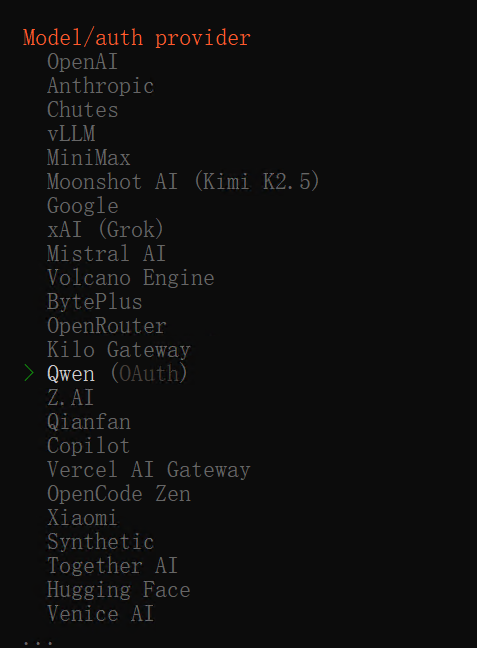

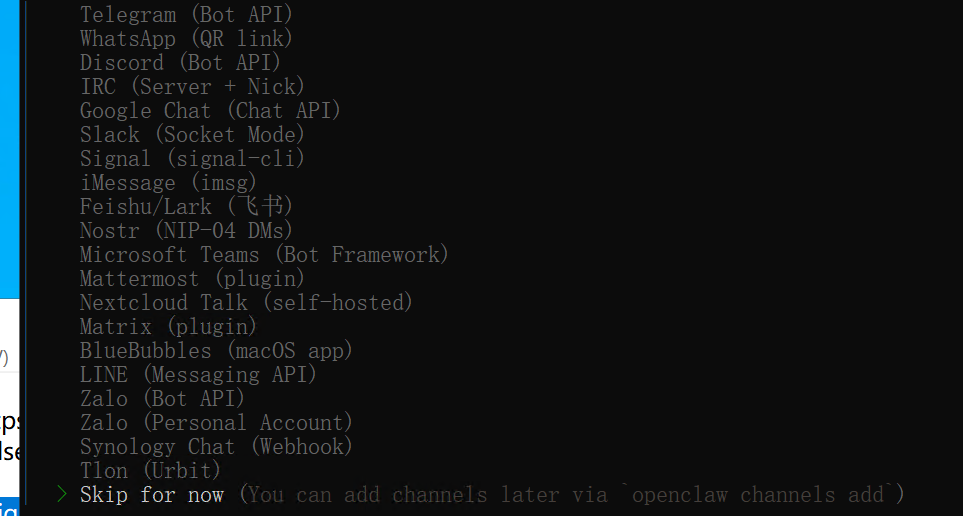

如图成功
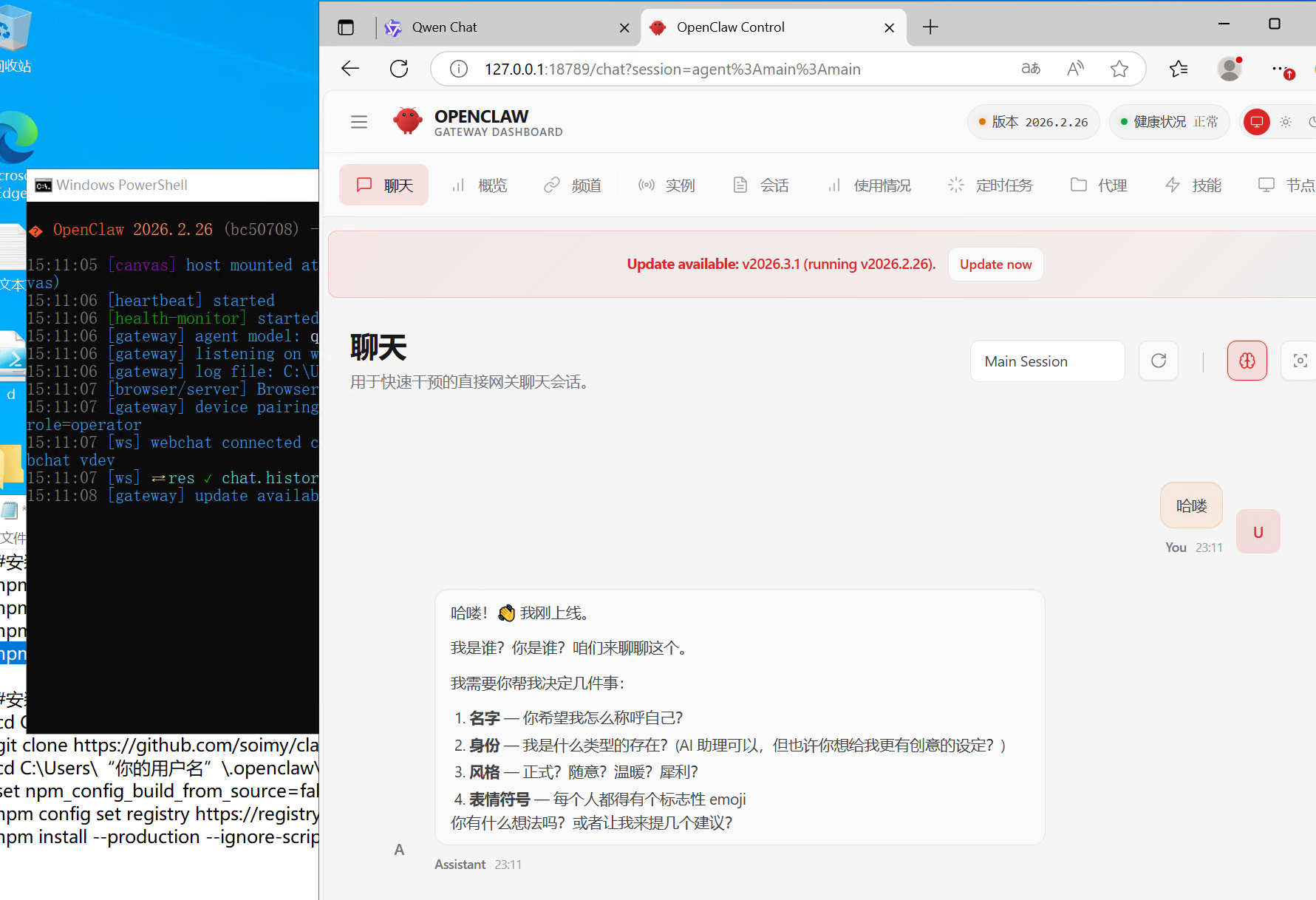
现在接入钉钉机器人右键git bash 下载脚本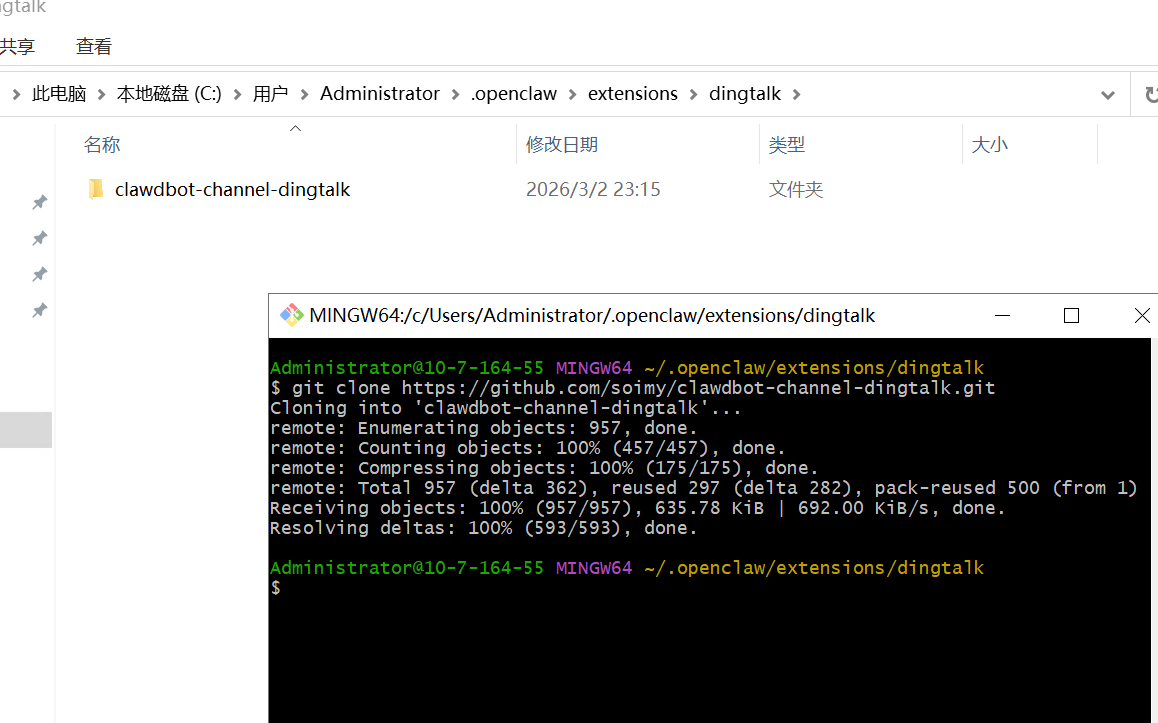
然后运行下面命令
openclaw plugins list
发现爆红
- 解决方法参考下面5.6.7行
#安装钉钉插件  //这是第一行
cd C:\Users\“你的用户名”\.openclaw\extensions
git clone https://github.com/soimy/clawdbot-channel-dingtalk.git
cd C:\Users\“你的用户名”\.openclaw\extensions\clawdbot-channel-dingtalk
set npm_config_build_from_source=false
npm config set registry https://registry.npmmirror.com
npm install --production --ignore-scripts --no-optional
如果出现无法安装使用下面方法
npm install --production --legacy-peer-deps
这个参数会告诉 npm 忽略 peer 依赖的版本冲突,强制安装。对于插件来说通常没问题。
然后执行重启命令
openclaw gateway restart
就可以看到成功了。
然后进行配置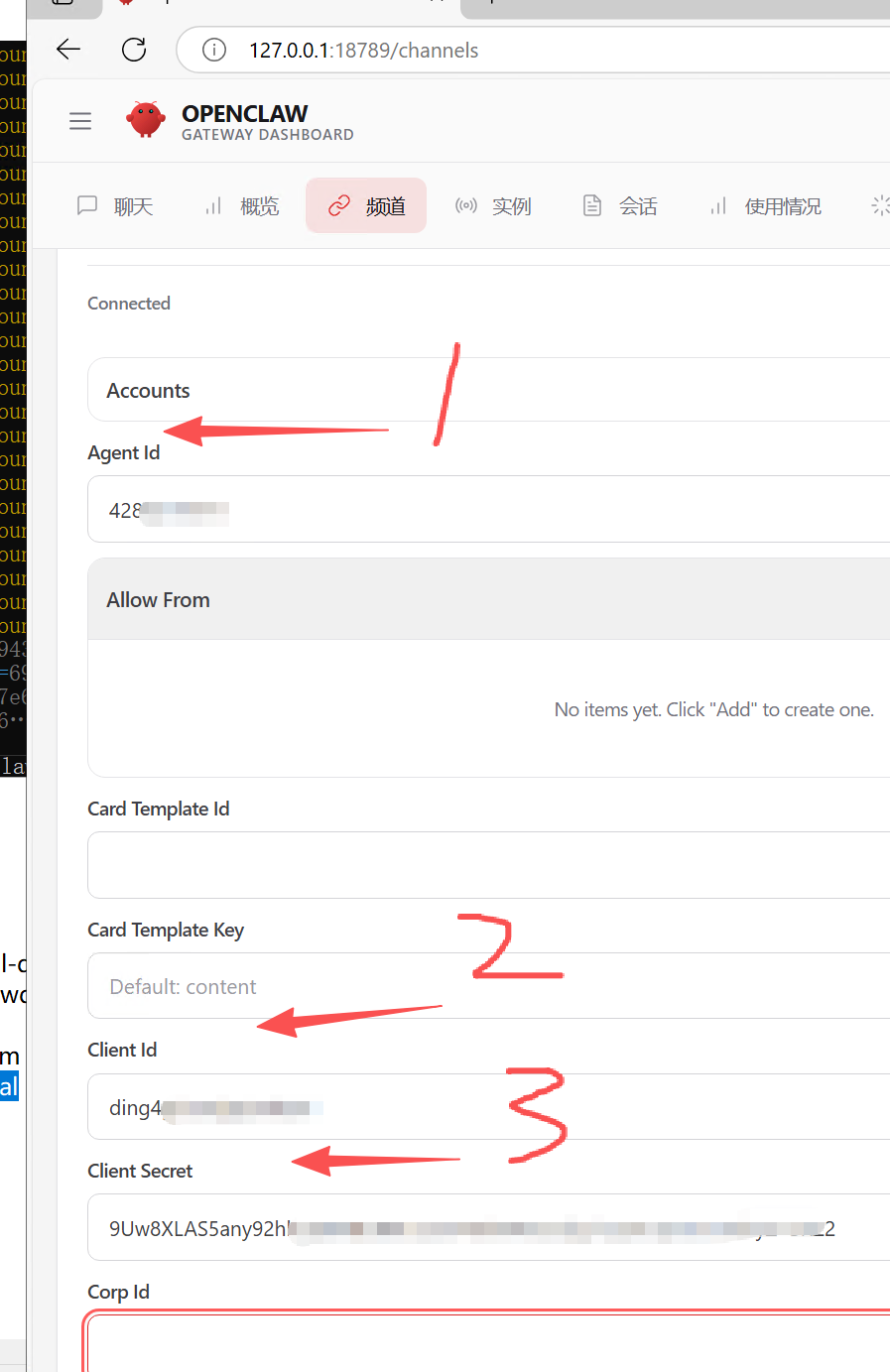
对应钉钉开发平台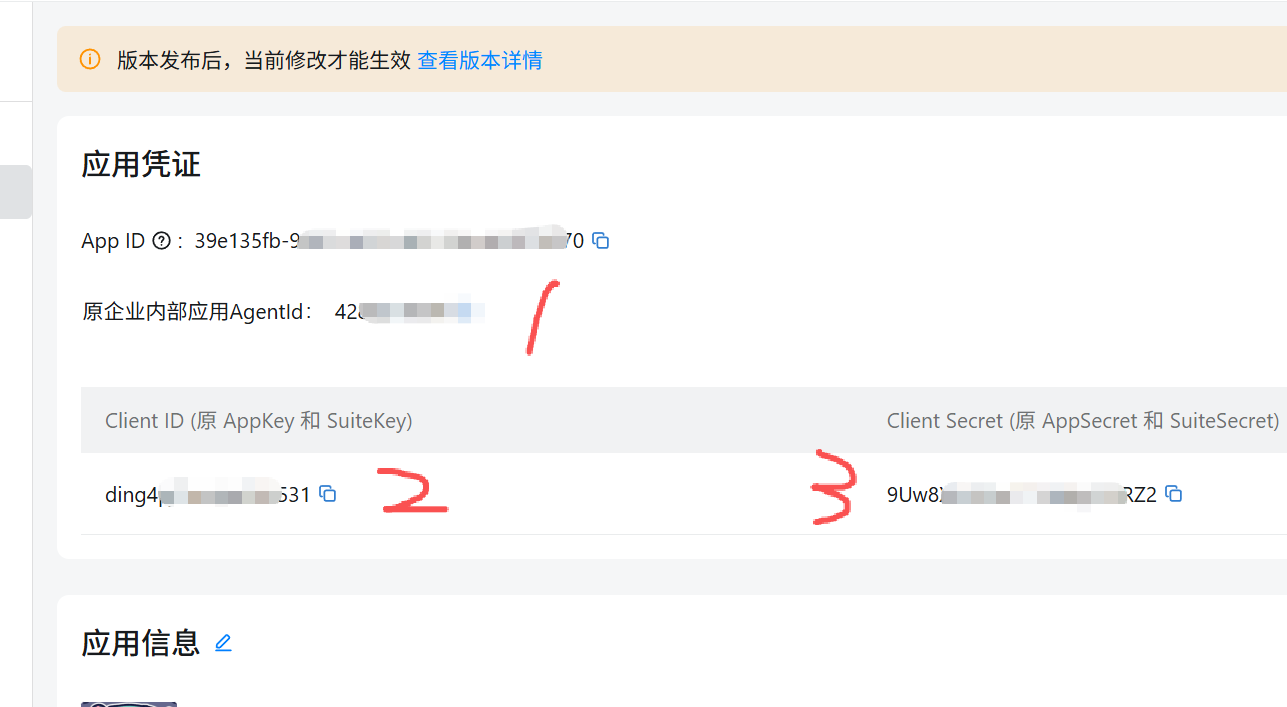
配置完成要按save保存
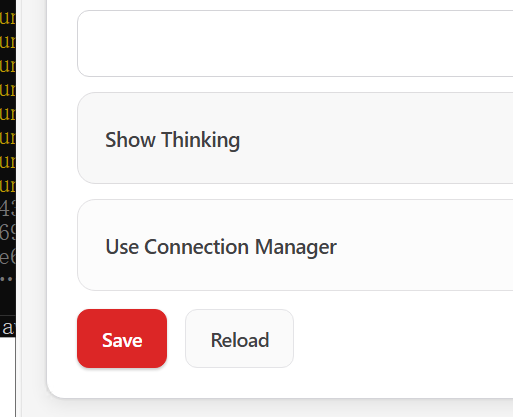
然后执行
openclaw gateway restart
进行重启网关
现在可以去调戏你的钉钉机器人啦
关注我,有其他问题请留言交流

DAMO开发者矩阵,由阿里巴巴达摩院和中国互联网协会联合发起,致力于探讨最前沿的技术趋势与应用成果,搭建高质量的交流与分享平台,推动技术创新与产业应用链接,围绕“人工智能与新型计算”构建开放共享的开发者生态。
更多推荐


 0
0 0
0- 0


 已为社区贡献1条内容

所有评论(0)