sql server:查看并且修改sql server 2008数据库的端口
查看端口
exec sys.sp_readerrorlog 0, 1, 'listening'
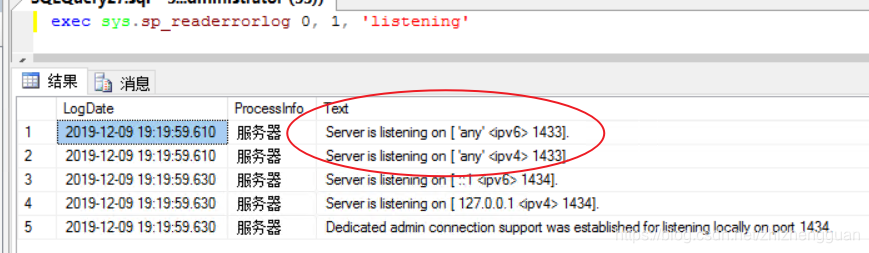
SqlServer服务使用两个端口:TCP-1433、UDP-1434。其中1433用于供SqlServer对外提供服务,1434用于向请求者返回SqlServer使用了那个TCP/IP端口。可以使用SQL Server的企业管理器更改SqlServer的默认TCP端口
我们只要修改1433的那个就行了
修改
- In SQL Server Configuration Manager, expand SQL Server Network Configuration, and then click on the server instance you want to configure.
- In the right pane, double-click TCP/IP.
- In the TCP/IP Properties dialog box, click the IP Addresses tab.
- In the TCP Port box of the IPAll section, type an available port number. For this tutorial, we will use 1500.
Click OK to close the dialog box, and click OK to the warning that the service must be restarted.
In the left pane, click SQL Server Services.
In the right pane, right-click the instance of SQL Server, and then click Restart. When the Database Engine restarts, it will listen on port 1500.
1、点击“开始”-“所有程序”-“Microsoft SQL Server 2008R2”-“配置工具”-“SQL Server配置管理器”
2、在打开的“SQL Server配置管理器”窗口中,在左边的树形窗口中选中“SQL Server网络配置”-“MSSQLSERVER的协议”,点中右边TCP/IP,然后右键“属性”,即可打开“TCP/IP属性”窗口。
3、点击“IP地址”页签,选择“IPALL",修改"TCP端口"为1500【注意不是”TCP动态端口”)】
4、选择"应用", “确定”,
5、在打开的“SQL Server配置管理器”窗口中,在左边的树形窗口中选中“SQL Server服务”, 然后在右边的列表中选中“Sql Server(MSSQLSERVER)”,选择重新启动。
检测修改后的端口是否通:点击“开始”-“运行”中输入“CMD”进入DOS窗口,再输入 telnet 127.0.0.1 1444
重新登录
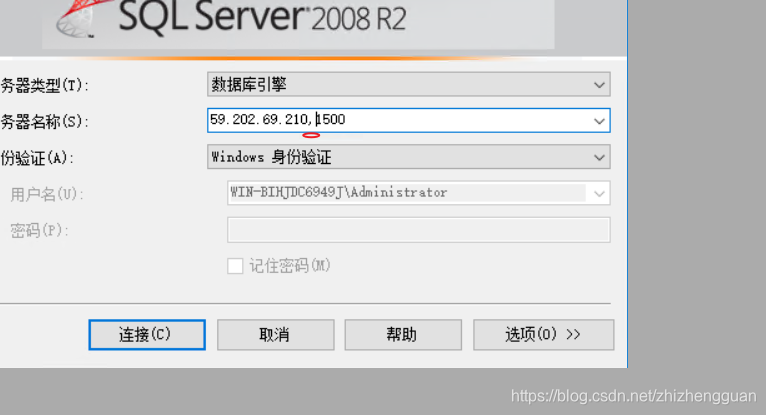
注意中间的是’,’,否则会出现这样的问题:在与SQLServer建立连接时出现与网络相关的或特定于实例的错误。未找到或无法访问服务器。请验证实例名称是否正确并且SQLServer已配置为允许远程连接

DAMO开发者矩阵,由阿里巴巴达摩院和中国互联网协会联合发起,致力于探讨最前沿的技术趋势与应用成果,搭建高质量的交流与分享平台,推动技术创新与产业应用链接,围绕“人工智能与新型计算”构建开放共享的开发者生态。
更多推荐



 3
3 0
0- 0


 已为社区贡献8条内容

所有评论(0)