Isaac Sim——Core API
摘要:CoreAPI是NVIDIA Isaac Sim的核心编程接口,通过Python封装USD操作实现机器人仿真控制。核心组件包括管理场景的World、控制机器人的Articulation和获取数据的Sensors。工作流程包含初始化场景、导入资产、添加控制逻辑和循环执行。示例演示了如何通过代码创建动态场景(如添加蓝色立方体),并实时获取物体位姿和速度信息。最后介绍了将示例转为独立应用程序的方法
1 Core API
1.1 作用
Core API是NVIDIA Isaac Sim的“骨架”和“神经中枢”,其封装了底层复杂的USD(Universal Scene Description)操作,使得可以脱离GUI(图形界面编写脚本)、用Python代码写出机器人仿真程序,直接操控世界规律、机器人关节和传感器数据。
其与OmniGraph最终实现的结果一样,只不过Core API通过Python代码、OmniGraph通过可视化连线。
1.2 核心组件
(1)SimulationContext
大脑,管理时间步长(Timestep)、物理更新、播放/停止以及场景的初始化。
(2)World
舞台,最常用的接口,用于向场景中添加机器人、物体并管理它们的生命周期。
(3)Robot / Articulation
身体,专门用于处理带有关节的机器人(如机械臂、四足狗),方便你获取关节状态或发送位置/速度指令。
(4)Sensors
眼睛,封装了摄像头 (Camera)、激光雷达 (LiDAR) 和 IMU 的数据获取逻辑。
1.3 工作流
(1)初始化 World
设置物理频率和渲染频率。
(2)导入资产
从 USD 文件加载机器人或环境。
(3)添加控制逻辑
编写 Python 函数,根据传感器数据计算电机指令。
(4)循环执行
通过
world.step()推动时间流逝,每一帧进行一次“感知-决策-行动”。
2 示例1-Hello World
该实例给出了一个场景搭建的
注意提前安装好VS Code,后续需要调用;该部分需要具备中级Python知识。
下载链接:https://code.visualstudio.com/,Linux(.deb)版,下载后进入对应文件夹目录打开终端输入指令:sudo apt install ./XXX,XXX为下载的文件包完整名称。
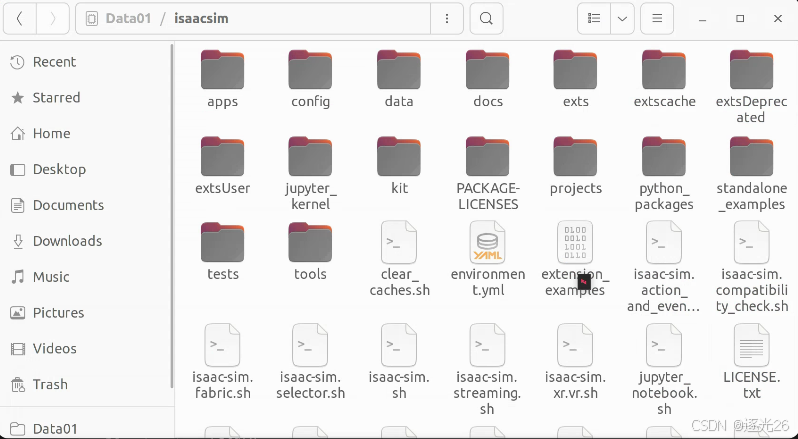
2.1 启动Isaac Sim
(1)进入Isaac Sim文件夹所在目录,打开终端
(2)启动
./isaac-sim.selector.sh
2.2 调取Hello World工程
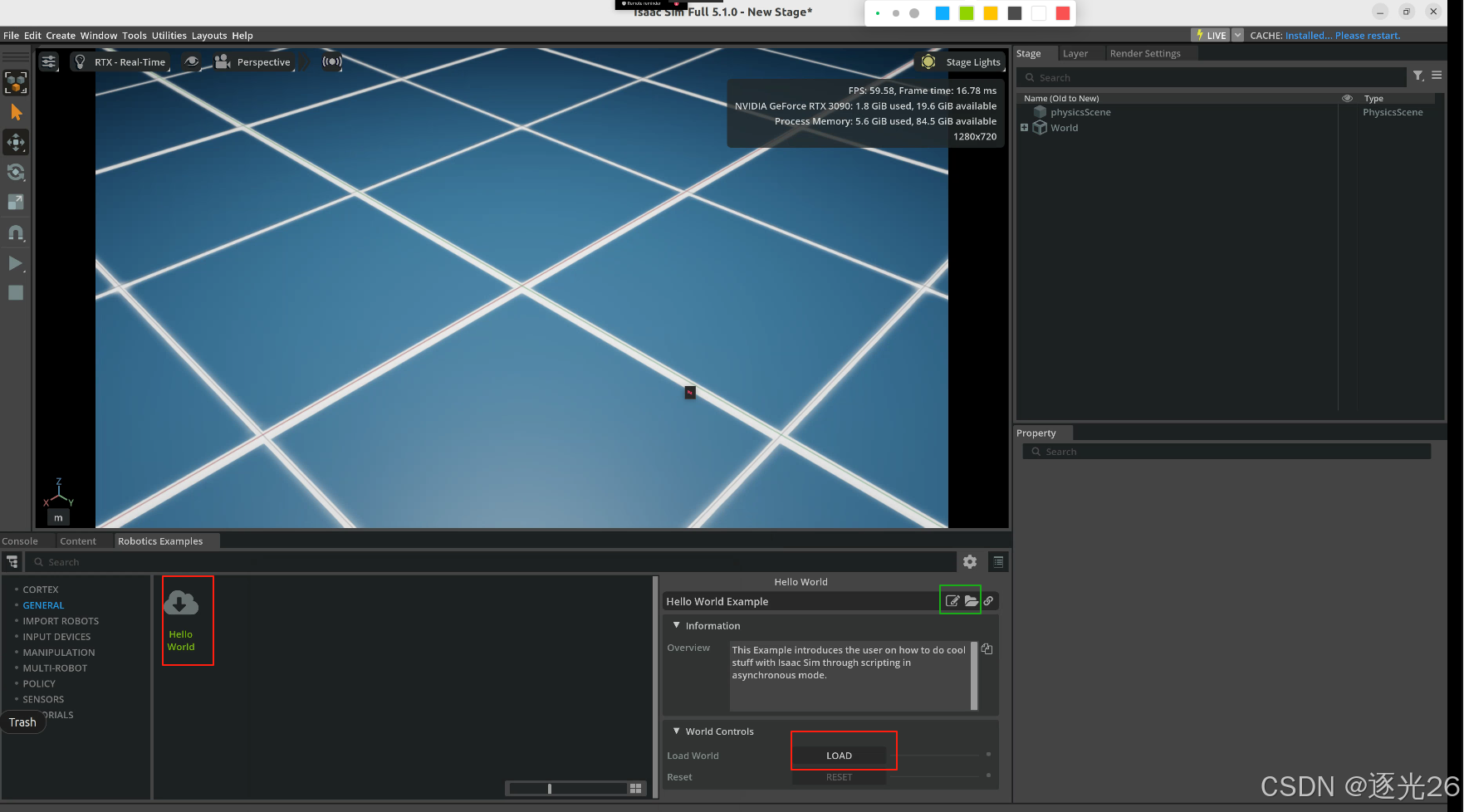
(1)Windows > Examples > Robotics Examples
(2)Robotics Examples > General > Hello World,点击LOAD场景加载。
(3)Pyhton相关
代码:Open Source Code,绿色框处,打开后看到
hello_world.py、hello_world_extension.py、and__init__.py三个文件文件目录:Open Containing Folder绿色框处
(4)热加载Hot-Reload
修改代码后Ctrl+S保存,可以实时反映出修改后的内容,不需要重新启动Isaac Sim。
(5)重置
当代码中修改了物体相关的属性(增减、大小、材质等等)时可以直接修改代码后Ctrl+S ,回到Isaac Sim中点击File > New From Stage Template > Empty>,Don’t Save,重新加载LOAD(如(1)、(2)步)。
PS.Python代码及.usd工程侧重点
Python用于感知、决策、控制部分的定义,.usd工程用于场景的搭建。
2.3 如何添加场景(侧重动态场景)
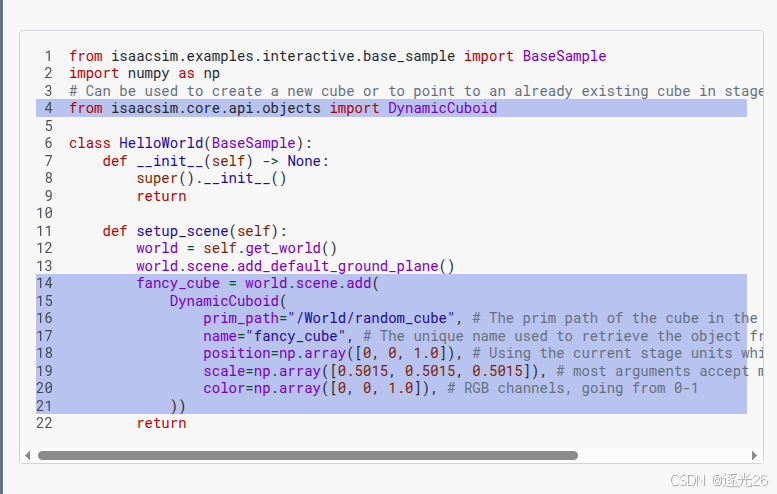
(1)修改hello_world.py中代码为,修改部分已经用颜色填充标注:
from isaacsim.examples.interactive.base_sample import BaseSample
import numpy as np
# Can be used to create a new cube or to point to an already existing cube in stage.
from isaacsim.core.api.objects import DynamicCuboid

class HelloWorld(BaseSample):
    def __init__(self) -> None:
        super().__init__()
        return

    def setup_scene(self):
        world = self.get_world()
        world.scene.add_default_ground_plane()
        fancy_cube = world.scene.add(
            DynamicCuboid(
                prim_path="/World/random_cube", # The prim path of the cube in the USD stage
                name="fancy_cube", # The unique name used to retrieve the object from the scene later on
                position=np.array([0, 0, 1.0]), # Using the current stage units which is in meters by default.
                scale=np.array([0.5015, 0.5015, 0.5015]), # most arguments accept mainly numpy arrays.
                color=np.array([0, 0, 1.0]), # RGB channels, going from 0-1
            ))
        return
(2)重新加载场景
Ctrl+S ,回到Isaac Sim中点击File > New From Stage Template > Empty>,Don’t Save,重新加载LOAD(Windows > Examples > Robotics Examples、Robotics Examples > General > Hello World,点击LOAD场景加载)。此时看到多可一个蓝色立方体,点击左侧工具栏运行按钮,小方块坠落并弹跳,这是代码作用。
2.4 检查对象属性
该代码在hello_world.py中,可以在终端打印出方块的世界位姿(位置和朝向)以及速度,检查小方块初始位置正确。
    # Here we assign the class's variables
    # this function is called after load button is pressed
    # regardless starting from an empty stage or not
    # this is called after setup_scene and after
    # one physics time step to propagate appropriate
    # physics handles which are needed to retrieve
    # many physical properties of the different objects
    async def setup_post_load(self):
        self._world = self.get_world()
        self._cube = self._world.scene.get_object("fancy_cube")
        position, orientation = self._cube.get_world_pose()
        linear_velocity = self._cube.get_linear_velocity()
        # will be shown on terminal
        print("Cube position is : " + str(position))
        print("Cube's orientation is : " + str(orientation))
        print("Cube's linear velocity is : " + str(linear_velocity))
        return
2.5 在模拟中连续检查对象属性
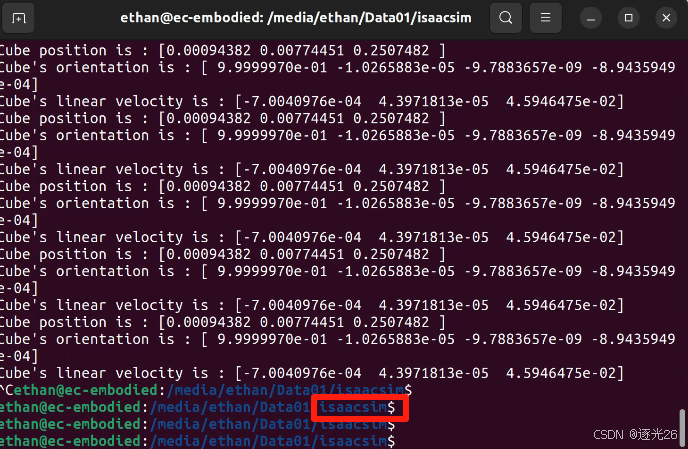
在模拟过程中,每执行一个物理步长(Physics Step),就打印出立方体的世界坐标位姿和速度。
如“工作流”(Workflows)中所述,在此工作流中,应用程序是异步运行的,无法控制物理步进的时机。不过可以通过添加回调函数(Callbacks),以确保某些操作在特定的事件发生之前执行。
from isaacsim.examples.interactive.base_sample import BaseSample
import numpy as np
from isaacsim.core.api.objects import DynamicCuboid

class HelloWorld(BaseSample):
    def __init__(self) -> None:
        super().__init__()
        return

    def setup_scene(self):
        world = self.get_world()
        world.scene.add_default_ground_plane()
        fancy_cube = world.scene.add(
            DynamicCuboid(
                prim_path="/World/random_cube",
                name="fancy_cube",
                position=np.array([0, 0, 1.0]),
                scale=np.array([0.5015, 0.5015, 0.5015]),
                color=np.array([0, 0, 1.0]),
            ))
        return

    async def setup_post_load(self):
        self._world = self.get_world()
        self._cube = self._world.scene.get_object("fancy_cube")
        self._world.add_physics_callback("sim_step", callback_fn=self.print_cube_info) #callback names have to be unique
        return

    # here we define the physics callback to be called before each physics step, all physics callbacks must take
    # step_size as an argument
    def print_cube_info(self, step_size):
        position, orientation = self._cube.get_world_pose()
        linear_velocity = self._cube.get_linear_velocity()
        # will be shown on terminal
        print("Cube position is : " + str(position))
        print("Cube's orientation is : " + str(orientation))
        print("Cube's linear velocity is : " + str(linear_velocity))
2.6 将示例转为独立应用程序(脚本启动)
PS.脚本格式
Win:
python.bat
Linux:python.sh
两者运行方式类似。(1)进入isaac-sim根目录
(2)创建python脚本
cd ./exts/isaacsim.examples.interactive/isaacsim/examples/interactive/user_examples
touch my_application.py
#launch Isaac Sim before any other imports #default first two lines in any standalone application from isaacsim import SimulationApp simulation_app = SimulationApp({"headless": False}) # we can also run as headless. from isaacsim.core.api import World from isaacsim.core.api.objects import DynamicCuboid import numpy as np world = World() world.scene.add_default_ground_plane() fancy_cube = world.scene.add( DynamicCuboid( prim_path="/World/random_cube", name="fancy_cube", position=np.array([0, 0, 1.0]), scale=np.array([0.5015, 0.5015, 0.5015]), color=np.array([0, 0, 1.0]), )) # Resetting the world needs to be called before querying anything related to an articulation specifically. # Its recommended to always do a reset after adding your assets, for physics handles to be propagated properly world.reset() for i in range(500): position, orientation = fancy_cube.get_world_pose() linear_velocity = fancy_cube.get_linear_velocity() # will be shown on terminal print("Cube position is : " + str(position)) print("Cube's orientation is : " + str(orientation)) print("Cube's linear velocity is : " + str(linear_velocity)) # we have control over stepping physics and rendering in this workflow # things run in sync world.step(render=True) # execute one physics step and one rendering step simulation_app.close() # close Isaac Sim(3)脚本启动
./python.sh
./exts/isaacsim.examples.interactive/isaacsim/examples/interactive/user_examples/my_application.py
此时通过脚本文件自启动Hello Word工程。

DAMO开发者矩阵,由阿里巴巴达摩院和中国互联网协会联合发起,致力于探讨最前沿的技术趋势与应用成果,搭建高质量的交流与分享平台,推动技术创新与产业应用链接,围绕“人工智能与新型计算”构建开放共享的开发者生态。
更多推荐
 3
3 0
0- 0


 已为社区贡献3条内容

所有评论(0)