Vue3 嵌入UE5.2像素流-数据通信
·
参考文章:UE 像素流与 Web 协同开发
可直接将组件,放入项目中使用
demo项目:vue3-player-pixel-streaming
效果展示
前端demo项目效果:
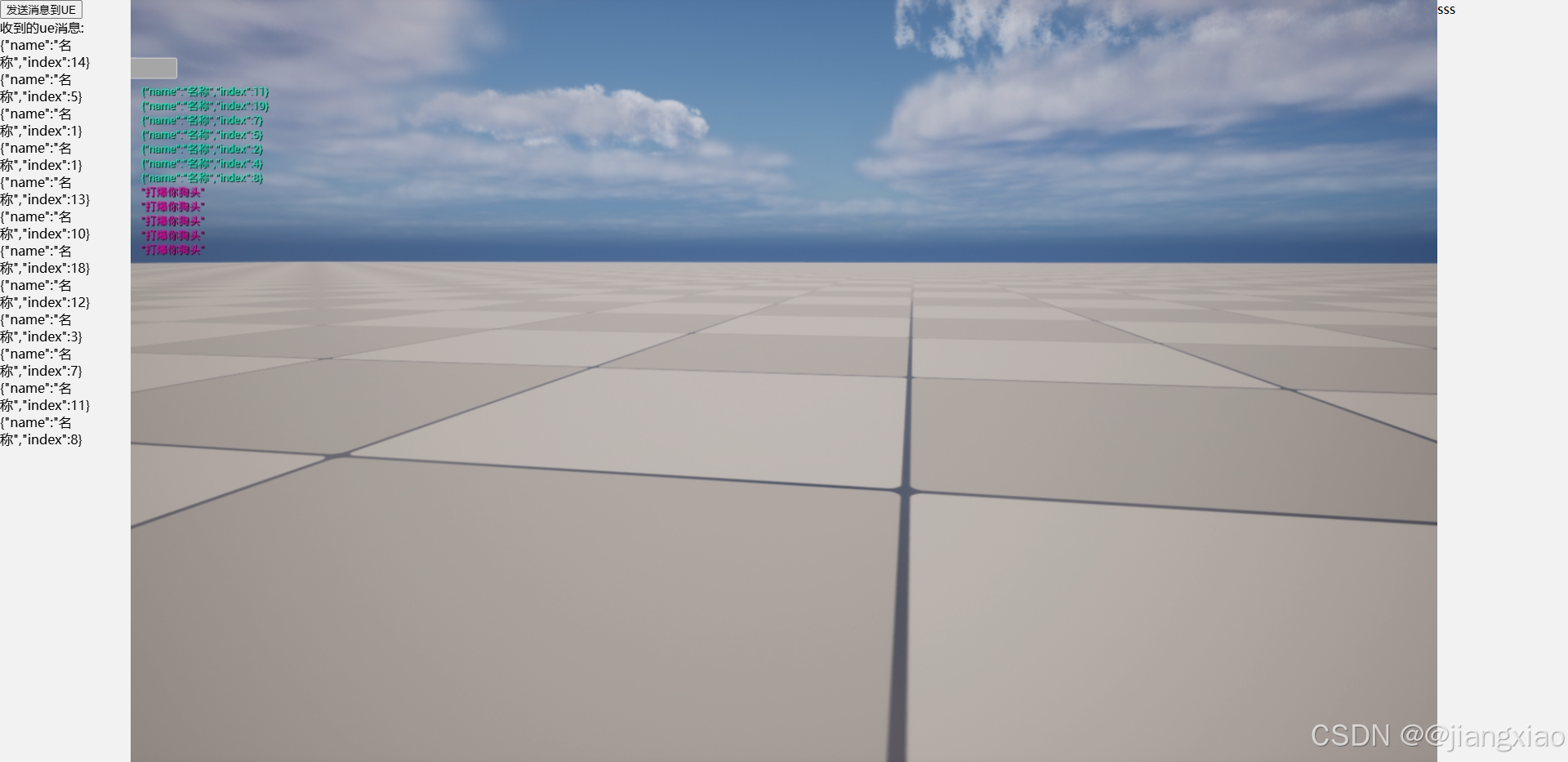
1.定义一个显示像素流的Vue3组件
这里需要使用到两个官方的npm包:
npm i @epicgames-ps/lib-pixelstreamingfrontend-ue5.x @epicgames-ps/lib-pixelstreamingfrontend-ui-ue5.2
这里官方的api文档可以自己找找,我这里是使用ai辅助看他的Typescript类型定义文档加上别人文章的配置,完成 PixelStreamingPlayer.vue 组件,组件代码有注释,其余功能自己拓展,完成基本功能:
- 1.显示像素流视频
- 2.发送数据到UE的方法,暴露到组件实例上
playerInstanceRef.value.sendMsgToUE - 3.接受到UE发送的数据是,会触发组件
receiveMessage事件
<script setup>
import {
  Config,
  PixelStreaming,
} from "@epicgames-ps/lib-pixelstreamingfrontend-ue5.2";
import {
  Application,
  PixelStreamingApplicationStyle,
} from "@epicgames-ps/lib-pixelstreamingfrontend-ui-ue5.2";
import { onMounted } from "vue";
import { ref } from "vue";
const props = defineProps({
  ss: {
    type: String,
    default: "ws://127.0.0.1/",
  },
});

const loading = ref(true);

const emitter = defineEmits(["receiveMessage", "loaded"]);

const pixelStreamingContainerRef = ref(null);

const STATE = {
  stream: null,
  application: null,
};

const initPixelStreaming = () => {
  // 控制UI样式
  const PixelStreamingApplicationStyles = new PixelStreamingApplicationStyle({
    customStyles: {
      "#uiFeatures": {
        display: "none",
      },
    },
  });
  PixelStreamingApplicationStyles.applyStyleSheet();

  // 像素流播放的一些配置
  const config = new Config({
    useUrlParams: true,
    initialSettings: {
      ss: props.ss, // 流媒体服务器地址
      AutoConnect: true, // 自动连接:如果为 true,应用启动时会自动连接到流媒体服务器。
      AutoPlayVideo: true, // 自动播放视频:如果为 true,在连接成功后视频将自动播放。
      StartVideoMuted: true, // 启动时静音:如果为 true,视频在开始播放时会处于静音状态。
      MinQP: 30, // 最小量化参数:用于控制视频编码的最小质量水平,数值越低,品质越好,但带宽消耗也越大。
      XRControllerInput: false, // XR 控制器输入:如果为 true,允许 XR(虚拟现实)控制器的输入。
      GamepadInput: false, // 游戏手柄输入:如果为 true,允许使用游戏手柄进行控制。
      TouchInput: false, // 触摸输入:如果为 true,允许在触摸屏设备上进行交互。
      HoveringMouse: true, // 鼠标悬停:如果为 true,允许鼠标悬停并与 UI 进行交互。
      HoveringMouseMode: true, // 鼠标悬停模式:如果为 true,激活鼠标悬停模式以增强 UI 交互体验。
      SuppressBrowserKeys: false, // 抑制浏览器按键:如果为 true,将抑制浏览器的某些键盘输入,以防止干扰应用内的控制。
    },
  });

  const stream = new PixelStreaming(config);
  const application = new Application({
    stream,
    onColorModeChanged: (isLightMode) =>
      PixelStreamingApplicationStyles.setColorMode(isLightMode),
  });

  // 加载完毕 重写 onPlayStream 添加 loading 状态
  const onPlayStream = application.onPlayStream.bind(application);

  application.onPlayStream = (...args) => {
    onPlayStream(...args);
    loading.value = false;
    emitter("loaded");
  };

  // 添加到 dom
  pixelStreamingContainerRef.value.appendChild(application.rootElement);
  STATE.stream = stream;
  STATE.application = application;

  // 监听消息
  stream.addResponseEventListener("handle_responses", (data) => {
    emitter("receiveMessage", data);
  });
};

const opts = {
  // 发送消息给 UE
  sendMsgToUE(payload) {
    if (!STATE.stream) return;
    STATE.stream.emitUIInteraction(payload);
  },
};

onMounted(() => {
  initPixelStreaming();
});

// 导出接口
defineExpose({
  sendMsgToUE: opts.sendMsgToUE,
});
</script>

<template>
  <div
    class="pixel-streaming-container"
    ref="pixelStreamingContainerRef"
    :class="{
      loaded: !loading,
    }"
  ></div>
</template>

<style scoped>
.pixel-streaming-container {
  height: 100%;
  opacity: 0;
  transition: opacity 0.5s ease-in-out;
  min-height: 100px; /** 最小高度 放置不可见 */
}
.pixel-streaming-container.loaded {
  opacity: 1;
}
</style>
2.使用组件
使用组件暴露的功能及事件
<script setup>
import PixelStreamingPlayer from "@/views/PixelStreamingPlayer.vue";
import { ref } from "vue";
const playerInstanceRef = ref(null);

const receiveUEMsg = ref("");
const opts = {
  sendMsg() {
    // 发送消息到UE
    playerInstanceRef.value.sendMsgToUE("打爆你狗头");
  },
  receiveUEMsg(msg) {
    // 接收UE消息
    console.log("receiveUEMsg", msg);
    receiveUEMsg.value += msg;
  }
}
</script>

<template>
  <div id="layout">
    <div class="left pointer-events-none">
      <button @click="opts.sendMsg" class="pointer-events-auto">发送消息到UE</button>
      <div>
        <div>收到的ue消息:</div>{{ receiveUEMsg }}</div>
    </div>
    <PixelStreamingPlayer ss="ws://127.0.0.1" @receiveMessage="opts.receiveUEMsg" ref="playerInstanceRef" />
  </div>
</template>

DAMO开发者矩阵,由阿里巴巴达摩院和中国互联网协会联合发起,致力于探讨最前沿的技术趋势与应用成果,搭建高质量的交流与分享平台,推动技术创新与产业应用链接,围绕“人工智能与新型计算”构建开放共享的开发者生态。
更多推荐
 3
3 0
0- 0


 已为社区贡献1条内容

所有评论(0)