利用pywinauto控制微信实现微信机器人
项目简介
该项目旨在通过Python自动化工具包——Pywinauto,对微信客户端进行操作自动化,进而实现更多高级操作。具体来说,本项目通过Pywinauto库实现对微信聊天的输入输出操作,实现聊天、发送电脑文件、对控制电脑等功能。
Pywinauto,它是一个用于Microsoft Windows GUI自动化的模块,能够方便地与桌面应用程序进行交互。通过对微信客户端深入解析,本项目实现了对微信界面组件的精准定位和灵活操作。
对于pywinauto具体使用可以查看我的往期文章:
pywinauto库基本使用之登录微信发信息 - 知乎 (zhihu.com)
pywinauto库基本使用之登录微信发信息_pywinauto登录微信-CSDN博客
项目说明
该项目的核心内容为:对微信的输入输出、AI聊天部分、检索电脑文件、控制电脑。
因此,该项目包括以下文件:
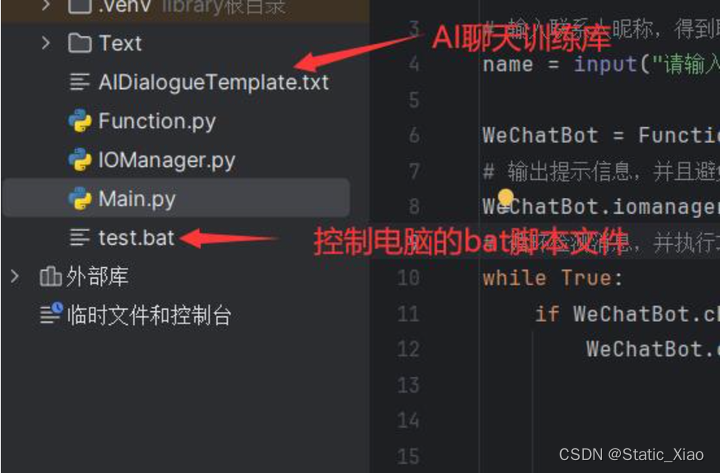
其中,Main.py负责引导并运行功能,因此代码比较简单
from Function import Function
# 输入联系人昵称,得到聊天窗口标题
name = input("请输入联系人昵称:")
WeChatBot = Function(name)
# 输出提示信息,并且避免初次发消息出现错误
WeChatBot.iomanager.sendResult("!!!WeChatBot启动!!")
# 循环检测消息,并执行功能
while True:
if WeChatBot.checkMessage():
WeChatBot.chooseFunction()
该项目控制的是一个单独的聊天窗口,这样做的好处有:窗口信息较少,便于查看与检索、窗口的标题就是联系人昵称。
IOManager.py是负责对微信输入输出的部分
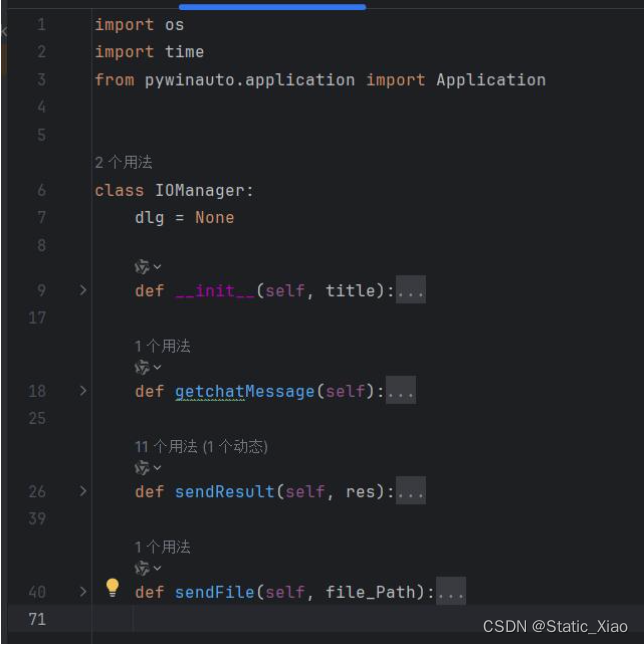
用户无论实现哪些功能,其本质都是:获得消息=>实现功能=>反馈(发送)消息。
因此,一个IOManager类,即是一个联系人
     def __init__(self, title):
         try:
             # 连接窗口,并保存
             app = Application('uia').connect(title_re=title)
             self.dlg = app.window(title_re=title)
             print("程序启动")
         except:
             print("OS:未找到窗口")
得到消息的方法,在我基本使用的文章里也提到了一点。在通过打印窗口信息后我们会发现在List列表中control_type="ListItem"的里面包含了所有聊天文本,而新消息则是列表中最后一项。
     def getchatMessage(self):
         # 获取聊天所有信息
         list_box = self.dlg.child_window(control_type="List")
         # 获取最后一条消息
         item = list_box.children(control_type="ListItem")[-1]
         # 返回消息文本
         return item.window_text()
发送文字消息比较简单,找到文本框输入内容,然后点击发送按钮即可。
  def sendResult(self, res):
         # 输入消息
         time.sleep(0.5)
         self.dlg["Edit"].type_keys(res)
         print("OS发送信息:" + res)
         time.sleep(1)
         # 点击发送按钮
         send_button = self.dlg.child_window(title="发送(S)", control_type="Button")
         if send_button.exists():
             print("OS:找到发送按钮")
             send_button.click_input()
         else:
             print("OS:未找到发送按钮")
发送文件的内容比较多,可以参考我往期文章pywinauto实现微信自动发送文件 - 知乎 (zhihu.com)这里便不过多赘述
def sendFile(self, file_Path):
time.sleep(1)
file_button = self.dlg.child_window(title="发送文件", control_type="Button")
# 判断文件是否存在
if os.path.exists(file_Path):
# 点击发送文件按钮
file_button.click_input()
# 连接打开文件窗口,并操作
openapp = Application(backend='win32').connect(title_re='打开')
win = openapp['打开']
input = win.child_window(class_name="Edit")
input.click_input()
input.type_keys(file_Path, with_spaces=True)
win.child_window(title="打开(&O)", class_name="Button").click_input()
time.sleep(1)
send_button = self.dlg.child_window(title="发送(1)", control_type="Button")
# 判断发送按钮是否存在,以确定是否可以发送文件
if send_button.exists():
send_button.click_input()
self.sendResult("发送成功")
else:
yes_button = self.dlg.child_window(title="确定", control_type="Button")
if yes_button.exists():
yes_button.click_input()
else:
print("确认按钮不存在")
self.sendResult("文件无法发送")
else:
self.sendResult("文件不存在")
Function.py实现的就是功能部分,具体实现放在后面介绍。
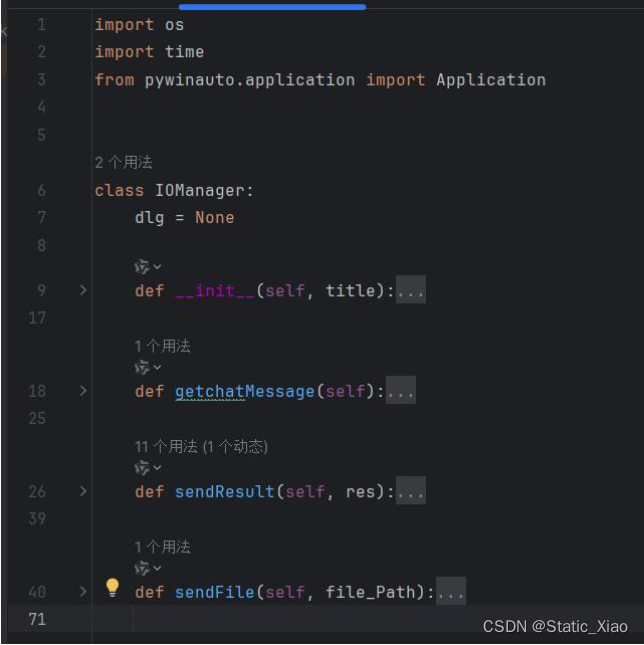
值得注意的是,该项目在Function中实例化了一个IOManager对象,这样的设计结构意味着,只要稍加修改便可以实现对多个微信联系人的控制以及相互交互。
功能说明
首先,Function的初始化要做两件事,一要实例化要进行输入输出的对象,二要对“AI”做准备工作。
     def __init__(self, name):
         # 初始化IOManager,用来输入输出
         self.iomanager = IOManager(name)
         # 读取聊天模板
         with open('AIDialogueTemplate.txt', 'r') as file:
             for line in file:
                 self.loaded_pairs.append(eval(line.strip()))
         # 初始化聊天机器人
         self.chatbot = Chat(self.loaded_pairs, reflections)
         pass
获取微信是否发送了新消息,我在往期文章中也写了使用pycaw检测微信消息提示 - 知乎 (zhihu.com)
def checkMessage(self):
mySession = None
sessions = AudioUtilities.GetAllSessions()
for session in sessions:
# 找到指定会话,并保证是发声状态
if session.Process is not None and session.Process.name() == "WeChat.exe":
mySession = session
# 判断指定进程是否存在
while True:
time.sleep(0.5)
if mySession.State == 1:
return True
elif mySession is None:
print("未找到进程")
return False
获取新消息内容,其实就在iomanager对象中,这里为了方便做了个函数
     def getNewMessage(self):
         return self.iomanager.getchatMessage()
文本分析是和功能选择密不可分的一步。由于功能的内容问题,这里需要判别发送的信息是否是“编写脚本”、“发送文件”开头的话语,除此之外当作聊天内容,进入聊天功能。
编写脚本功能需要脚本内容,这里便开始对message进行切割获取。
而发送文件则不仅需要切割了,考虑到用户不能完全记得文件的具体路径,所以只要发送内容指出了盘符和文件名,程序将自己检索,判断文件是否存在,并且返回出具体路径。
def analyzeText(self):
# 编写脚本:编写脚本XXXXX
# 发送文件: 发送X盘的XXXXX
if self.message.startswith("编写脚本"):
self.setMessage(self.message[4:])
# 删除message中空格、回车等空白字符
self.setMessage(self.message.strip())
return 2
elif self.message.startswith("发送文件"):
self.setMessage(self.message[4:])
self.setMessage(self.message.strip())
# 匹配盘符和文件名
match = re.match(r'(?P<drive>[A-Z])盘中(?P<filename>.*)', self.message)
if match:
print(f"盘符: {match.group('drive')}, 文件名: {match.group('filename')}")
drive_letter = match.group('drive')
filename = match.group('filename')
# 获取盘符
drive_path = f'{drive_letter}:\\'
# 遍历盘符下的所有文件和文件夹
for root, dirs, files in os.walk(drive_path):
# 检查当前目录名是否包含指定的部分文件夹名
if filename in files:
print(f'OS:找到文件: {os.path.join(root, filename)}')
self.setMessage(os.path.join(root, filename))
return 3
# 未找到文件
self.iomanager.sendResult('未在指定盘符和部分文件夹路径下找到该文件')
print("OS:未在指定盘符和部分文件夹路径下找到该文件")
else: # 未能识别
self.iomanager.sendResult(f'无法解析字符串: {self.message}')
print("OS:" + f'无法解析字符串: {self.message}')
# 无法正常进行发送,返回0则什么都不做
return 0
else: # 聊天功能
return 1
功能选择只需要将文本分析后的结果进行判断一下即可进入不同的功能
def chooseFunction(self): # 获取新的消息 self.setMessage(self.getNewMessage()) # 判断消息类型 res = self.analyzeText() if res == 1: self.chat() elif res == 2: self.executeScripts() elif res == 3: self.sendFile() pass
聊天功能是项目最有趣的,各位开发者可以自行使用各种大模型的API完成,而我因为在实际使用中并不需要AI部分,因此我聊天部分只是随便找了个自然语言的库,简单的做了一下基本回复,并没有进行AI分析。代码参考即可
def find_most_similar(self, target):
max_similarity = 0
most_similar_string = ""
for s in self.loaded_pairs:
similarity = fuzz.ratio(target, s[0])
if similarity > max_similarity:
max_similarity = similarity
most_similar_string = s[0]
return most_similar_string, max_similarity
def chat(self):
most_similar_str, similarity_score = self.find_most_similar(self.message)
if similarity_score > 40:
print("OS:" + most_similar_str, similarity_score)
try:
# 执行聊天机器人
response = self.chatbot.respond(most_similar_str)
# 发送结果
self.iomanager.sendResult(response)
except Exception as e:
self.iomanager.sendResult("抱歉,我不理解")
print("OS:抱歉,我不理解")
else:
self.iomanager.sendResult("抱歉,我不理解")
print("OS:匹配值过低")
控制电脑是一件很复杂的事情,但Windows电脑可以听DOS命令,那也意味着用bat脚本控制电脑的可行性。
def executeScripts(self):
# 创建一个名为test.bat的文件,内容为message,即脚本内容
with open("test.bat", "w") as f:
f.write("""@echo off
""")
f.write(self.message)
# 判断文件是否可执行
if os.access("test.bat", os.X_OK):
subprocess.call(["test.bat"])
self.iomanager.sendResult("脚本执行成功")
print("OS:脚本执行成功")
else:
self.iomanager.sendResult("脚本无法执行")
print("OS:脚本无法执行")
发送文件只要将文件地址传给iomanager.sendFile函数即可
     def sendFile(self):
         self.iomanager.sendFile(self.message)
项目展示
Main.py文件
from Function import Function
# 输入联系人昵称,得到聊天窗口标题
name = input("请输入联系人昵称:")
WeChatBot = Function(name)
# 输出提示信息,并且避免初次发消息出现错误
WeChatBot.iomanager.sendResult("!!!WeChatBot启动!!")
# 循环检测消息,并执行功能
while True:
if WeChatBot.checkMessage():
WeChatBot.chooseFunction()IOManager.py文件
import os
import time
from pywinauto.application import Application
class IOManager:
dlg = None
def __init__(self, title):
try:
# 连接窗口,并保存
app = Application('uia').connect(title_re=title)
self.dlg = app.window(title_re=title)
print("程序启动")
except:
print("OS:未找到窗口")
def getchatMessage(self):
# 获取聊天所有信息
list_box = self.dlg.child_window(control_type="List")
# 获取最后一条消息
item = list_box.children(control_type="ListItem")[-1]
# 返回消息文本
return item.window_text()
def sendResult(self, res):
# 输入消息
time.sleep(0.5)
self.dlg["Edit"].type_keys(res)
print("OS发送信息:" + res)
time.sleep(1)
# 点击发送按钮
send_button = self.dlg.child_window(title="发送(S)", control_type="Button")
if send_button.exists():
print("OS:找到发送按钮")
send_button.click_input()
else:
print("OS:未找到发送按钮")
def sendFile(self, file_Path):
time.sleep(1)
file_button = self.dlg.child_window(title="发送文件", control_type="Button")
# 判断文件是否存在
if os.path.exists(file_Path):
# 点击发送文件按钮
file_button.click_input()
# 连接打开文件窗口,并操作
openapp = Application(backend='win32').connect(title_re='打开')
win = openapp['打开']
input = win.child_window(class_name="Edit")
input.click_input()
input.type_keys(file_Path, with_spaces=True)
win.child_window(title="打开(&O)", class_name="Button").click_input()
time.sleep(1)
send_button = self.dlg.child_window(title="发送(1)", control_type="Button")
# 判断发送按钮是否存在,以确定是否可以发送文件
if send_button.exists():
send_button.click_input()
self.sendResult("发送成功")
else:
yes_button = self.dlg.child_window(title="确定", control_type="Button")
if yes_button.exists():
yes_button.click_input()
else:
print("确认按钮不存在")
self.sendResult("文件无法发送")
else:
self.sendResult("文件不存在")
Function.py文件
import os
import re
import subprocess
import time
from pycaw.utils import AudioUtilities
from nltk.chat.util import Chat, reflections
from fuzzywuzzy import fuzz
from IOManager import IOManager
class Function(object):
iomanager = None
message = None
loaded_pairs = []
chatbot = None
def __init__(self, name):
# 初始化IOManager,用来输入输出
self.iomanager = IOManager(name)
# 读取聊天模板
with open('AIDialogueTemplate.txt', 'r') as file:
for line in file:
self.loaded_pairs.append(eval(line.strip()))
# 初始化聊天机器人
self.chatbot = Chat(self.loaded_pairs, reflections)
pass
def getMessage(self):
return self.message
def setMessage(self, message):
self.message = message
def checkMessage(self):
mySession = None
sessions = AudioUtilities.GetAllSessions()
for session in sessions:
# 找到指定会话,并保证是发声状态
if session.Process is not None and session.Process.name() == "WeChat.exe":
mySession = session
# 判断指定进程是否存在
while True:
time.sleep(0.5)
if mySession.State == 1:
return True
elif mySession is None:
print("未找到进程")
return False
# 获取新的消息
def getNewMessage(self):
return self.iomanager.getchatMessage()
# 分析文本
def analyzeText(self):
# 编写脚本:编写脚本XXXXX
# 发送文件: 发送X盘的XXXXX
if self.message.startswith("编写脚本"):
self.setMessage(self.message[4:])
# 删除message中空格、回车等空白字符
self.setMessage(self.message.strip())
return 2
elif self.message.startswith("发送文件"):
self.setMessage(self.message[4:])
self.setMessage(self.message.strip())
# 匹配盘符和文件名
match = re.match(r'(?P<drive>[A-Z])盘中(?P<filename>.*)', self.message)
if match:
print(f"盘符: {match.group('drive')}, 文件名: {match.group('filename')}")
drive_letter = match.group('drive')
filename = match.group('filename')
# 获取盘符
drive_path = f'{drive_letter}:\\'
# 遍历盘符下的所有文件和文件夹
for root, dirs, files in os.walk(drive_path):
# 检查当前目录名是否包含指定的部分文件夹名
if filename in files:
print(f'OS:找到文件: {os.path.join(root, filename)}')
self.setMessage(os.path.join(root, filename))
return 3
# 未找到文件
self.iomanager.sendResult('未在指定盘符和部分文件夹路径下找到该文件')
print("OS:未在指定盘符和部分文件夹路径下找到该文件")
else: # 未能识别
self.iomanager.sendResult(f'无法解析字符串: {self.message}')
print("OS:" + f'无法解析字符串: {self.message}')
# 无法正常进行发送,返回0则什么都不做
return 0
else: # 聊天功能
return 1
def chooseFunction(self):
# 获取新的消息
self.setMessage(self.getNewMessage())
# 判断消息类型
res = self.analyzeText()
if res == 1:
self.chat()
elif res == 2:
self.executeScripts()
elif res == 3:
self.sendFile()
pass
# 计算最相似字符串和匹配度
def find_most_similar(self, target):
max_similarity = 0
most_similar_string = ""
for s in self.loaded_pairs:
similarity = fuzz.ratio(target, s[0])
if similarity > max_similarity:
max_similarity = similarity
most_similar_string = s[0]
return most_similar_string, max_similarity
def chat(self):
most_similar_str, similarity_score = self.find_most_similar(self.message)
if similarity_score > 40:
print("OS:" + most_similar_str, similarity_score)
try:
# 执行聊天机器人
response = self.chatbot.respond(most_similar_str)
# 发送结果
self.iomanager.sendResult(response)
except Exception as e:
self.iomanager.sendResult("抱歉,我不理解")
print("OS:抱歉,我不理解")
else:
self.iomanager.sendResult("抱歉,我不理解")
print("OS:匹配值过低")
def executeScripts(self):
# 创建一个名为test.bat的文件,内容为message,即脚本内容
with open("test.bat", "w") as f:
f.write("""@echo off
""")
f.write(self.message)
# 判断文件是否可执行
if os.access("test.bat", os.X_OK):
subprocess.call(["test.bat"])
self.iomanager.sendResult("脚本执行成功")
print("OS:脚本执行成功")
else:
self.iomanager.sendResult("脚本无法执行")
print("OS:脚本无法执行")
def sendFile(self):
self.iomanager.sendFile(self.message)
展示视频

DAMO开发者矩阵,由阿里巴巴达摩院和中国互联网协会联合发起,致力于探讨最前沿的技术趋势与应用成果,搭建高质量的交流与分享平台,推动技术创新与产业应用链接,围绕“人工智能与新型计算”构建开放共享的开发者生态。
更多推荐
 51
51 0
0- 0


 已为社区贡献3条内容

所有评论(0)